Page 2
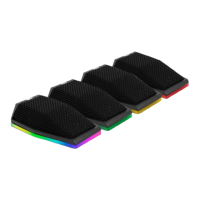
AC- 404 LED
Unied Communications
TECHNICAL SPECIFICATIONS
Type ............................................... LED USB Boundary Microphone
Capsule .............................. 3 capsule boundary design with 180 coverage
Power ............................................ USB
Frequency Response ..... 40 Hz - 16 kHz
Sampling Rate .................. 44.1 kHz - 48 kHz
USB Compatibility ........... USB 1.1 and 2.0
Size .................................................. 109mm x 75mm x 29.7mm (4.3in. x 2.95in. x 1.17 in.)
A/D Converter ...................... 16-bit Delta Sigma with THD+N - 0.01%
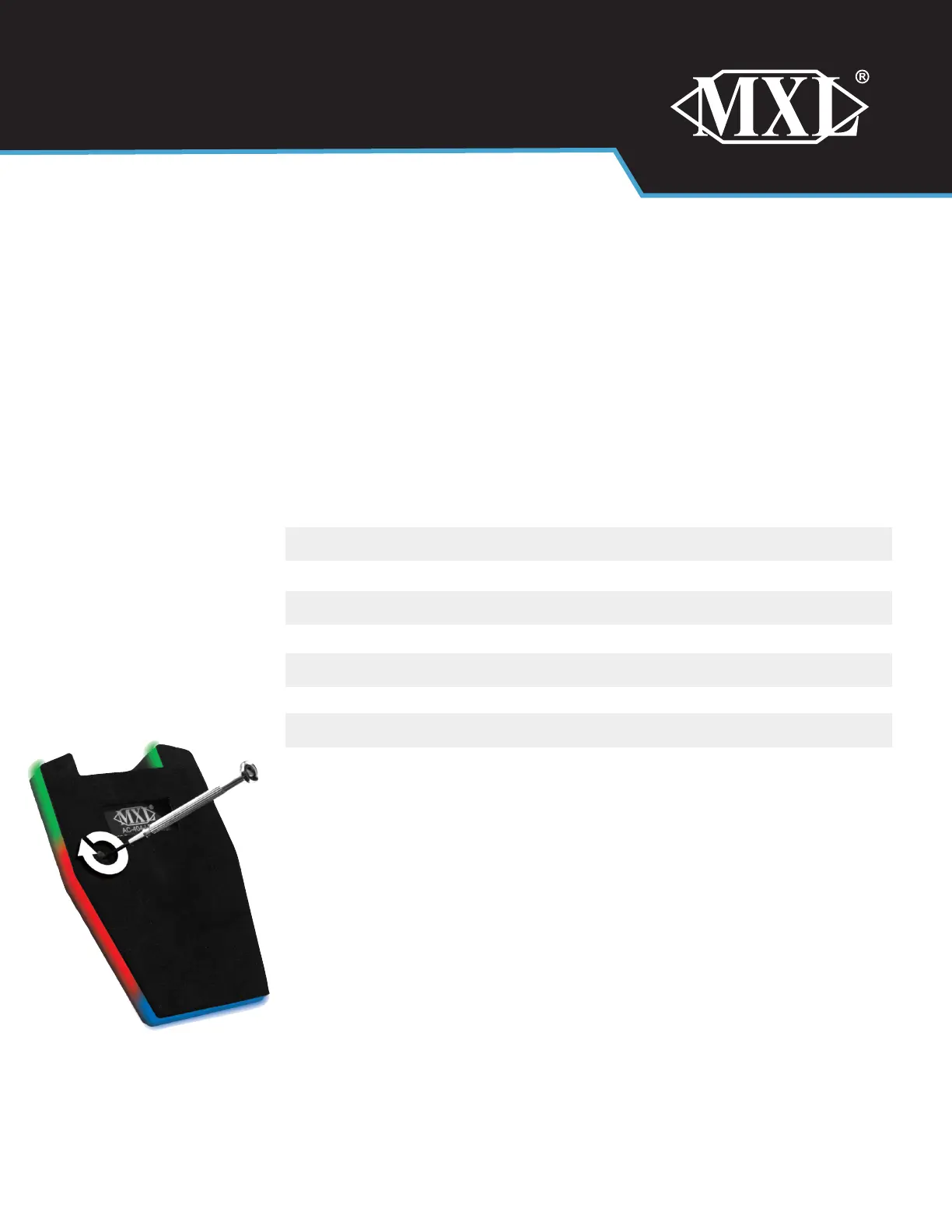
CHANGING THE LED COLORS
After the AC-404 LED is connected to a computer, the LED will cycle through Red,
Green and Blue, then it will ash once as a lighter blue. After the initiation nishes,
the color of the LED can be user selected. To change the color of the LED, use the
included mini Phillips screwdriver to rotate the LED control in the bottom of the mi-
crophone base. The color options (from Left to Right) turning the control clockwise
are White, Yellow, Red, Green, Blue, Purple, Pink and Auto.
WARRANTY
MXL microphones are guaranteed against defects in material and quality for one year from date of purchase. Should you encounter any
issues with this unit, please contact the company you purchased it from for assistance. The original dated sales receipt will be necessary for
any warranty claim. Do not send any unit directly to us without prior authorization from our service department. Warranty coverage is limited
to repair or replacement (at our option) of the microphone, and does not cover incidental damages due to use, nor damage caused by acci-
dental misuse of this product.
To adjust the microphone gain, double-click the microphone icon
labeled USB audio CODEC. Click on the tab labeled Select the Levels tab
and adjust the Microphone level slider. The gain of the AC-404-LED microphone is very sensitive. For most appli-
cations the slider will be set towards the left. Click on the Apply or the OK button for these changes to take effect.
In order to use the AC-404-LED’s built-in headphone jack as the default audio playback device for the computer, go to:
Control Panel> Sound Icon, and select the Playback tab. Highlight the speaker icon labeled as USB audio CODEC and
click Set Default.
To adjust the playback volume, double-click on the speaker icon labeled USB audio CODEC. Click on the tab labeled
Levels. The volume of the headphones can be adjusted by moving the slider labeled, Speakers. Click on the Apply or
the OK button for these changes to take effect.
Your computer is now setup to use MXL AC-404-LED USB Boundary Microphone. Some applications will require addi-
tional settings to be changed within the program.


 To Previous Page
 Loading...