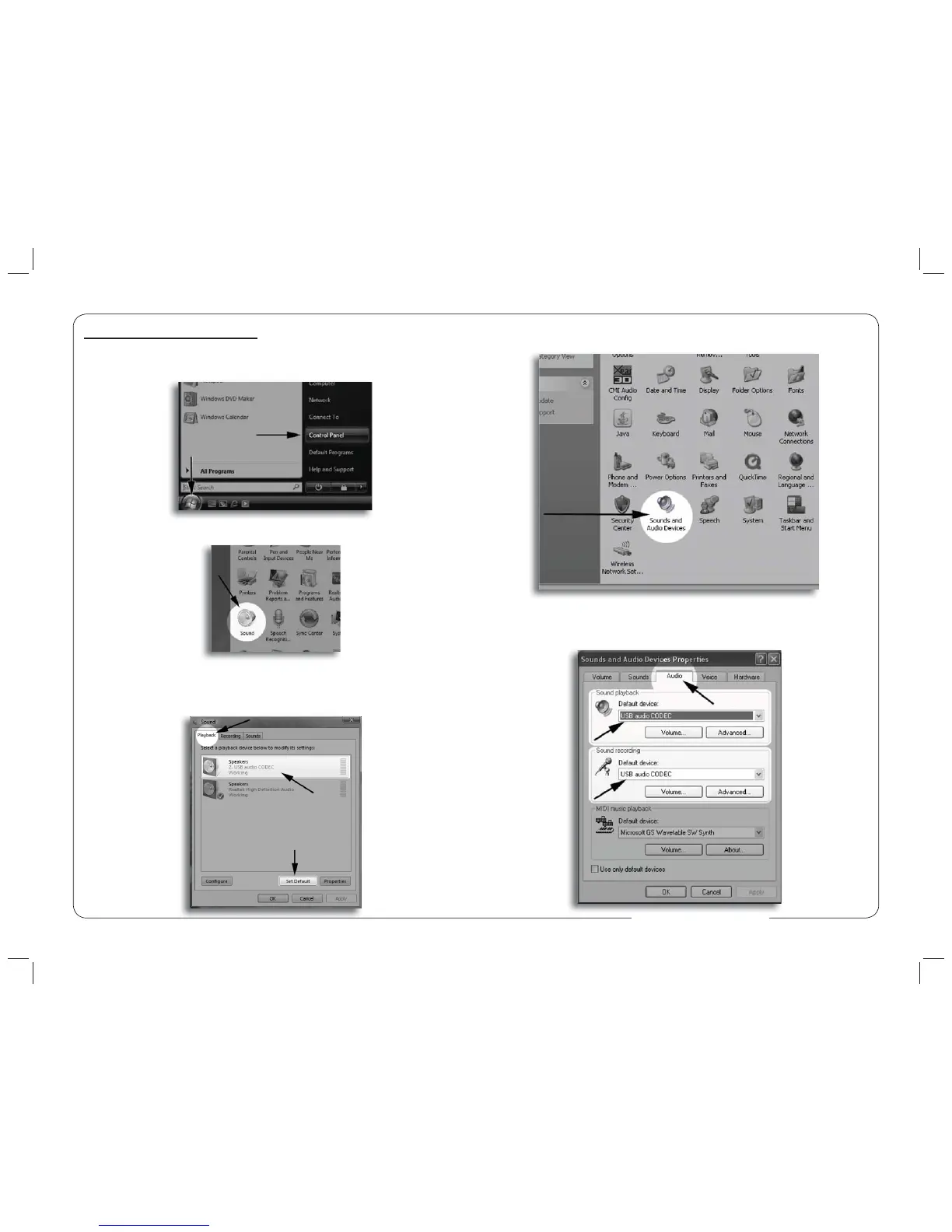
2. Select Sounds and Audio Devices.
Initial Setup with Windows Vista
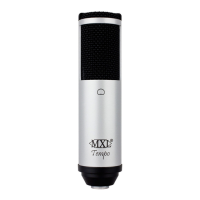
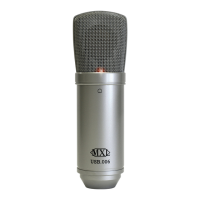
1. To select the Studio 1 USB microphone as the default audio device go to the
Start Menu and select Control Panel.
2. Double click the Sound icon.
3. Select the Playback tab. Highlight the speaker icon labeled as USB AUDIO
CODEC and click Set Default. To make further adjustments to the playback
volume double-click on the speaker icon labeled USB AUDIO CODEC.
8 5
3. Click on the Audio tab and select USB audio CODEC as the
default device for Sound playback and Sound Recording.
www.mxl-usb.com


 To Next Page