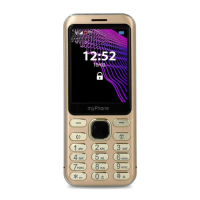
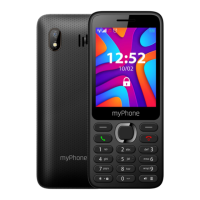
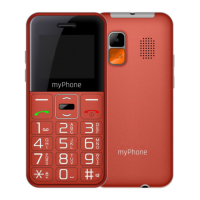
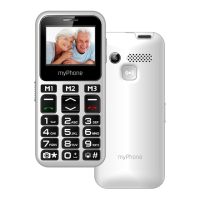
Radio in myPhone Maestro+
CAUTION! For FM radio to work properly, it is necessary to connect headphones (not
included) that act as an antenna.
To use a build-in FM Radio, enter [Menu] > [Multimedia] > [FM Radio]. Choose [Options]
> [Auto search] > <Yes> to search and save the radio stations. All found radio stations
will be saved and available at [Options] > [Channel list].
Radio control is done using the following buttons:
Calendar
To switch on the calendar, select [Menu] > [Organizer] > [Calendar].
You can add events to the calendar, to which you can set reminders. Use the <down>,
<up>, <left>, <right> buttons to navigate between calendar dates. Select the date
and press <Options> then select [Add Event]. A screen where you can enter the
following will appear:
• [Type] - use this option to set the type of event (Reminder, Meeting, Course,
Date, Call, Anniversary),
• [Start] - date and time of the beggining of the event.
• [End] - date and time of the ending of the event.
• [Subject] - name of the event.
• [Alarm] - how many minutes before the start of the event an alarm should
appear
• [Repeat] - how often the reminder should be repeated (once, every day,
custom, weekly, monthly, annual),
• [Location] - where will the event take place.
• [Details] - where additional information may be written.
To save the entered data, press <OK> > [Save]. The reminder will appear on the screen
on the set date and time.
Bluetooth
The phone is equipped with a Bluetooth. It is used to wirelessly connect and exchange
files with other devices equipped with Bluetooth. To use Bluetooth enter: [Menu] >
[Settings] > [Bluetooth]. The following options are available:
• [Power] – by pressing <ON> or <OFF> the Bluetooth signal is switched off/on.
When the module is switched on, it is indicated by an icon in the upper status
bar.
• [Visibility] – enabling this function allows you to see your phone in the list of


 To Next Page