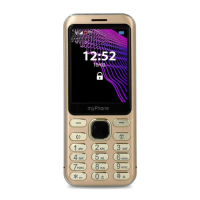
© 2019 mPTech. All rights reserved. MAESTRO+
9
Press <red handset> to reject / finish the call.
News
Creating and sending text messages
Enter: [Menu] > [Messages] > [Write message]. Select the type of message you want
to create - SMS (text only) or MMS (text and/or multimedia). Type in the message
using the keypad. Sings are typed in letter by letter.
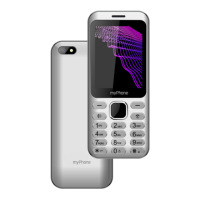
The phone is not equipped with a dictionary. # button is used to change the writing
mode. You can choose from, among others Abc - the first letter will be capital, the rest
lower case, abc - only lowercase, ABC - only uppercase, 123 - digits only.
To enter a diacritical character i.e. period, comma, dash, etc., press * and choose from
the list, or press the 1 a correct number of times. To enter a space between the words
press <0> button.
When you have entered the message, press [Options] > [Send to] and enter the
number using the keypad or add it from the phone list. After entering the
number/choosing a contact enter: [Options] > [Send], to send the message.
Messages display
Enter: [Menu] > [Messages] > [Inbox], choose a message from the list and press <OK>
to see the message itself.
Contacts on myPhone Maestro+
Adding a new contact
Enter [Menu] > [Phonebook] > [Add new contact]. Select the storage location for the
contact: on the SIM card or in the phone memory Enter the contact details: name,
phone number. You can also assign an e-mail to a contact.
Press [Options] > [Save] to save the contact.
Search for a contact
Enter [Menu] > [Phonebook]. Enter the first letter of the contact. Phone numbers
beginning with that letter will appear in the list. To find another contact use navigation
buttons <Up> and <Down>. After searching and chosing a contact enter [Options] a
list of available options will appear:
• [View] – to see the details of a chosen contact.
• [Send message] – to send text message to a chosen contact.
• [Call] - to make a call
• [Edit] - to edit the contact details.
• [Delete] – to delete a chosen contact.
• [Copy] - to copy a chosen contact.
• [Move] - to move the chosen contact.
• [Send business card] Send as a business card, SMS, MMS, e-mail or via
Bluetooth.
• [Add to blacklist] – to add to chosen contact to unwanted and blocked numbers.
• [Mark several]- to send SMS or a business card, save or delete the selected
contacts.
• [Caller groups] - to create and manage a group or groups of selected contacts.
• [Phonebook settings] - You can set a standard contact storage location, save
numbers for the "speed dial" option, save data to your business card (name,


 To Next Page