ENGLISH
26
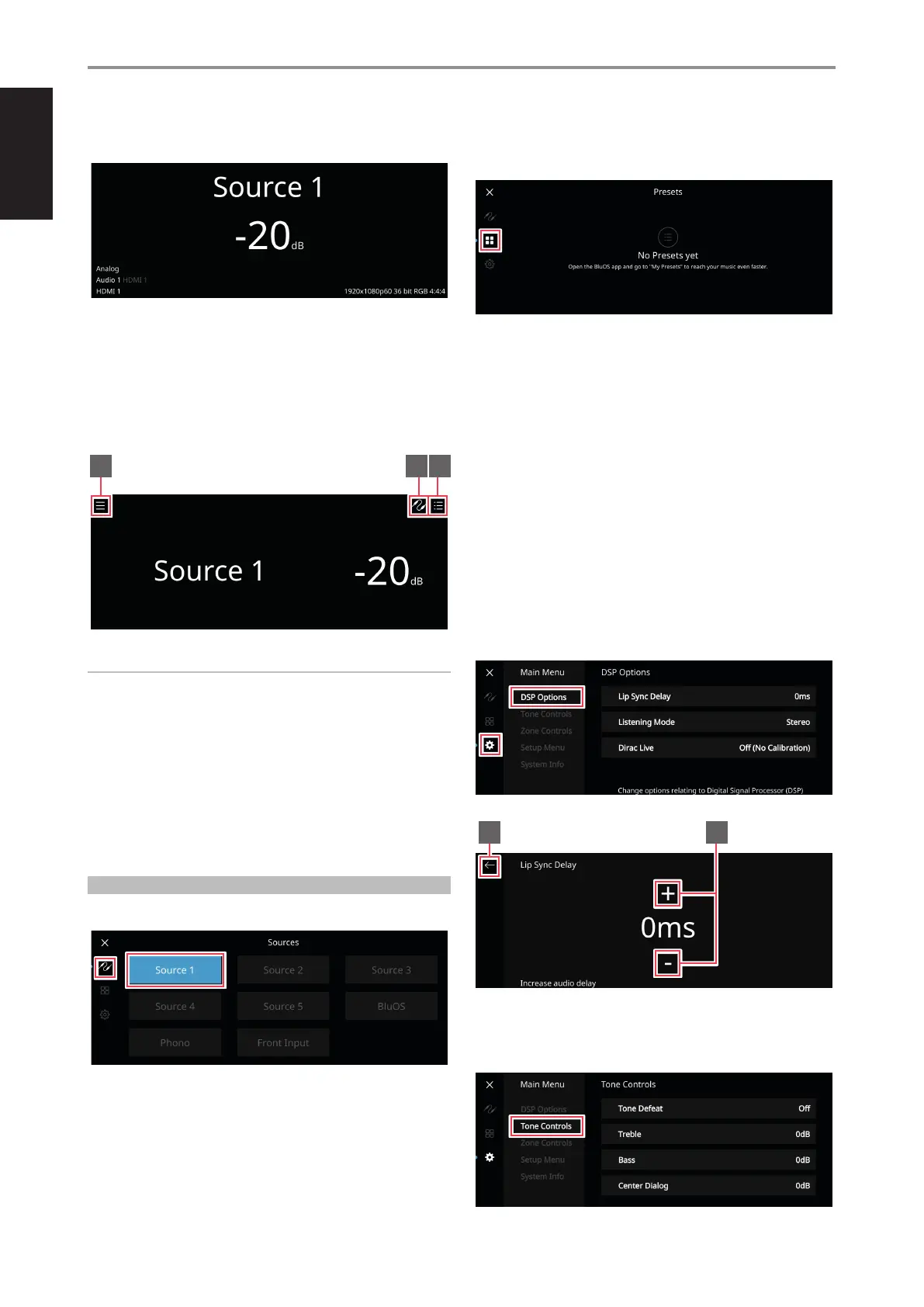
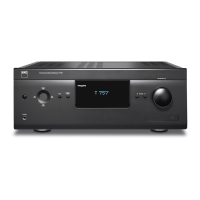
The intuitive front panel display performs the same functions and
navigations as one accesses via the On-Screen-Display (OSD).
From the default display above, touch anywhere in the front panel display
and below menu options will become available.
NAVIGATING THE FRONT PANEL DISPLAY ITEMS AND MAKING
CHANGES
Use your nger to touch, swipe and navigate through the front panel
display items. Touch or swipe (left, right, upwards or downwards) to select
or congure an item.
NOTE
SWIPE – From above display setting, when you swipe your nger from
left to right or vice-versa along the “Source” area of the display, current
Source changes to the next or previous Source.
1 New screen is opened showing Sources, Presets and Main Menu
options. Refer to MENU OPTIONS below for details.
2 Source list is displayed where one can select desired Source to access
or playback contents. Refer also to “SOURCES” item below.
3 Display “Play Queue” that was setup via the BluOS App. “Play Queue”
is a list of songs or tracks that are populated and put on queue via the
BluOS App
MENU OPTIONS
SOURCES
Select preferred Source to access or playback contents
PRESETS
Use BluOS App to program into Presets your favorite radio stations, music
streams, playlists or Sources
SETTINGS
The parameters, functions, settings or congurations shown below under
MAIN MENU and SETUP MENU are the same items dened or described
under “CONFIGURING T 778 - MAIN MENU VIA ON-SCREEEN DISPLAY”
or “CONFIGURING T 778 - SETUP MENU VIA ON-SCREEEN DISPLAY”. For
information about a particular item below, refer to its corresponding item
under “CONFIGURING T 778 - MAIN MENU VIA ON-SCREEEN DISPLAY” or
“CONFIGURING T 778 - SETUP MENU VIA ON-SCREEEN DISPLAY”.
MAIN MENU
The following Main Menu parameters can be accessed and congured via
front panel display.
• DSP Options
• Tone Controls
• Zone Controls
• Setup Menu
• System Info
DSP OPTIONS
1 Return to previous menu window
2 Increase or decrease level
TONE CONTROLS
OPERATION
CONFIGURING T 778 MENU VIA FRONT PANEL DISPLAY
1 2 3
1 2



 To Next Page