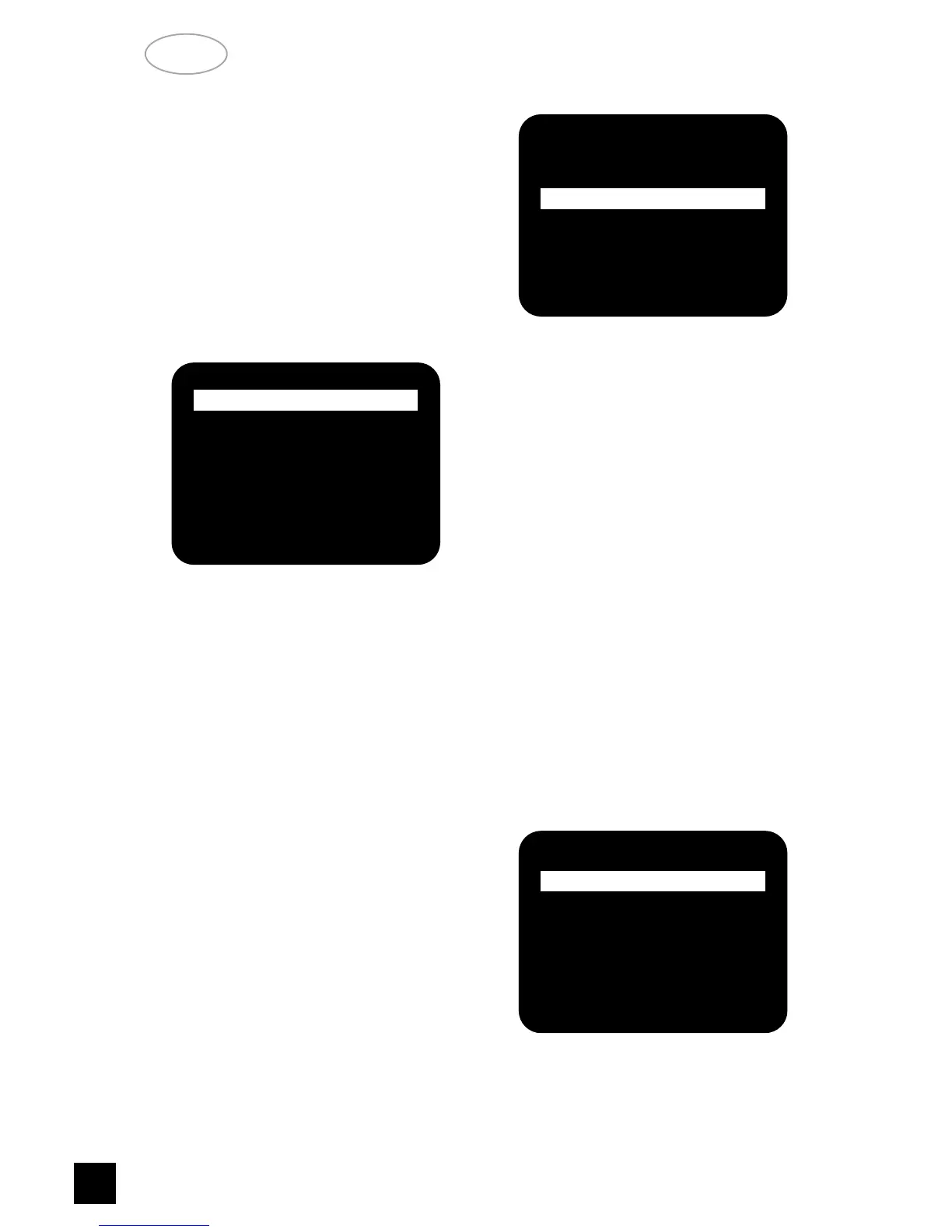
DYNAMIC RANGE = indicates the dynamic range
currently selected (100%, 75%, 50% and 25%) in
Dolby Digital mode only, or N/A for the other modes.
• Highlight SAVE & EXIT and press
ENTER to
save the altered settings and return to the SETUP
menu. Otherwise, select DO NOT SAVE & EXIT to
leave without saving any changes.
2 CHANNEL BALANCE
• Highlight CHANNEL BALANCE in the SETUP
menu and press
ENTER on the remote. You will see
a screen similar to the following (Fig. 9):
• The T 760 allows the volume of each speaker to
be individually trimmed so that none of the speakers
dominates in playback and detracts from the sur-
round illusion.
• Highlight the required speaker and adjust with 1
cursor to decrease and 2 cursor to increase the level,
Each speaker can be adjusted within a -10 to +10dB
range.
• Highlight SAVE & EXIT and press
ENTER to save
the settings and return to the SETUP menu.
NOTES:
The CHANNEL BALANCE menu in OSD can also
be accessed directly with the CHANNEL and TEST
buttons (respectively No. 7 and 6) on the remote for
setting adjustment. (Refer also to chapter “Remote
Control”).
3 CHANNEL DELAYS
• Highlight CHANNEL DELAYS in the SETUP
menu and press ENTER on the remote. You will see
a screen similar to the following (Fig. 10):
• Use the 1 or 2 cursor button to change the center
channel delay time.
In Dolby Digital mode, T 760 allows the following
setting options:
CENTER 0, 1, 2, 3, 4 & 5ms
REAR 0, 1, 2, 3, ...... 13, 14, 15ms
(1ms per step)
In Dolby Pro logic mode, only the rear channel
delay time can be adjusted as following options:
REAR 15, 16, 17, ...... 28, 29, 30ms
(1ms per step)
For other modes, the channel delay time cannot be
adjusted.
• Highlight SAVE & EXIT and press
ENTER to save
the settings and return to the SETUP menu.
Otherwise, select DO NOT SAVE & EXIT to leave
without saving any changes.
4 SPEAKER SETTINGS
• Highlight SPEAKER SETTINGS in the SETUP
menu and press ENTER on the remote.You will see a
screen similar to the following (Fig. 11):
• The size and number of speakers can be
described in the SPEAKER SETTINGS menu. Press
1 or 2 cursor button to select the preset (PRESET 1,
2 or 3) that best applies.
• The description LARGE and SMALL mean the fol-


 To Next Page