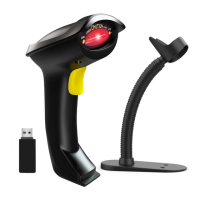
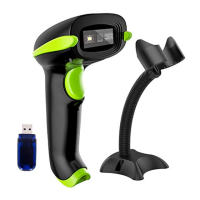
Need help?
Do you have a question about the NADAMOO Bur3076 and is the answer not in the manual?
Indicates successful barcode reading via a green light flash.
Shows Bluetooth pairing status (blue/green flicker) and connection (blue steady).
Indicates 2.4G wireless pairing (green flicker) and connection (green steady).
Shows charging status (green steady for charging, off for fully charged).
Connect the scanner to Android/iOS devices via Bluetooth, including pairing and upload mode.
Connect the scanner to a computer using 2.4GHz wireless mode, including pairing and upload.
Connect the scanner to a computer via USB cable and configure auto-wired mode settings.
Explains scanner acts as a keyboard; interpretation depends on database software.
Troubleshooting steps for phone not finding scanner, including Android version and connection mode.
Addresses issues where scanned data is stored in buffer due to storage mode.
Reasons for unreadable barcodes: incomplete scans or disabled barcode types.
Explains issues like scanning partial barcodes or incorrect character interpretation.
Instructions on how to remove the auto-enter function by scanning a specific code.
Configures scanner to instantly upload data or store it in memory for batch upload.
Sets the scanner to Manual Trigger, Continuous Scanning, or Auto-Sensing modes.
Configures beep feedback for scanning, including tone and volume.
Enables or disables vibration feedback for the scanner.
Sets the time interval for the scanner to enter standby mode to conserve power.
Scans a barcode to display the current battery level percentage.
Configures the character (Tab, Enter, None) to append after a scanned barcode.
Allows conversion of scanned barcode data to uppercase or lowercase.
Selects the keyboard layout for the scanner from 10 international options.
Resets scanner settings to factory defaults or specific module settings.
Configure reverse 1D barcode scanning.
Configure EAN8 and EAN13 barcode types, including check digits.
Configure UPCE barcode type, including check digits and conversion to UPCA.
Configure UPCA barcode type, including check digits and conversion to EAN13.
Enable/disable output of 2 or 5 digit extra codes appended to UPC/EAN barcodes.
Configure Code39 barcode type, including start/stop digits and ASCII modes.
Configure Code 93 barcode type, enabling or disabling it.
Configure Code 11 barcode type, enabling or disabling it.
Configure Interleaved 2 of 5 barcode type, enabling or disabling it.
Configure Industrial 2 of 5 barcode type, enabling or disabling it.
Configure Standard 2 of 5 barcode type, enabling or disabling it.
Configure China Post barcode type, enabling or disabling it.
Configure Codebar (NW7) barcode type, including start/end digits.
Configure Plessy and MSI Plessy barcode types, enabling or disabling them.
Configure RSS Limited barcode type, enabling or disabling it.
Configure GS1 DataBar Omnidirectional barcode type, enabling or disabling it.
Configure Code128 barcode type, enabling or disabling it.
Configure Matrix 2 of 5 barcode type, enabling or disabling it.
Procedure to add specified characters as a prefix to scanned barcodes.
Procedure to add specified characters as a suffix to scanned barcodes.
Configures hiding a specified number of characters from the beginning of a barcode.
Configures hiding a specified number of characters from the end of a barcode.
 General
| Weight | 150g |
|---|---|
| Connectivity | Wireless (Bluetooth) |
| Battery Life | Up to 8 hours |
| Compatibility | Windows |
| Light Source | 650nm visible laser diode |
| Supported Symbologies | UPC-A, UPC-E, EAN-8, EAN-13, Code 39, Code 93, Code 128 |
| Interface | USB, Bluetooth |


 To Next Page