6. Using the Pattern Player
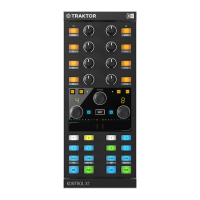
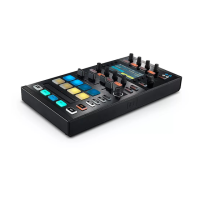
Traktor Pro Plus subscribers can control the Pattern Player using the X1 MK3. The Pattern Player
is a powerful creative tool that allows you to play various rhythmic patterns from many different
drum samples. Samples are organized in kits which can be loaded directly from the device.
The Pattern Player can be controlled from the X1 MK3 using the following controls:
1. Deck Assign Buttons: Assign the Pattern Player loaded in this FX unit to a deck by pressing
the arrow buttons. When the Pattern Player is assigned to a deck, the arrow button will light up
in bright orange and stay lit. To remove the assignment simply press the button again. Traktor
Pro treats the Pattern Player like any other FX unit, meaning assigning it to a deck does not
replace the deck itself but rather plays on top of it.
2. Display: Shows the name of the loaded kit at the top, the name of the current sample in the
middle, and a representation of the current pattern at the bottom.
3. Button: Activates the Pattern Player. The button will light up in bright green when a pattern is
playing. Pressing it again will deactivate it.
Knob: Controls the volume of the pattern. Turning it clockwise increases the volume, while
turning it counterclockwise decreases it.
4. Button: Loads the previous sample. Holding SHIFT while pressing this button loads the
previous kit.
Knob: Cycles through the various patterns available for this sample.
5. Button: Loads the next sample. Holding SHIFT while pressing this button loads the next kit.
Knob: Controls the pitch of the current sample. Turning it clockwise increases pitch, while
turning it counterclockwise decreases it.
USIN G TH E PAT TE RN PL AY ER 10



 To Next Page