Transport Control
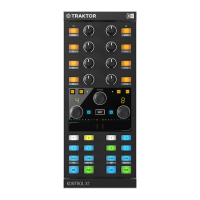
The transport section of the X1 MK3 includes controls for playing and navigating tracks in Traktor
Pro.
1. Nudge Arrows: These two arrow buttons allow you to gently nudge your track. Pressing the left
arrow slightly slows the track down while pressing the right arrow speeds it up.
2. REV: Pressing and holding this button triggers reverse playback, during which Traktor's Flux
mode is active. Pressing SHIFT and REV toggles Flux mode on for this deck. This is indicated
by the button being lit when holding SHIFT. Pressing SHIFT and REV again turns Flux mode
off.
3. CUE: Triggers the temporary cue point. When a track is paused, pressing CUE will set the
temporary cue point at the current position. Pressing CUE while a track is playing jumps to the
cue point position and stops playback. Pressing and holding CUE plays the track from the cue
point. Upon release the track jumps back to the cue point position and stops playing. Pressing
SHIFT and CUE resets the playback position to the start.
4. PLAY: Starts and stops tracks. When a track is playing, the PLAY button lights up in bright
green.
5. SYNC: Switches sync on or off for the respective deck. When sync is active, the button lights
up blue. When sync is active but the track is playing out of phase with the other deck, it
lights up red. Pressing SHIFT and SYNC sets the corresponding deck to master. Pressing and
holding SYNC while turning the loop encoder changes the tempo of the track. If you also press
the loop encoder during this interaction, the tempo changes in larger increments.
Loop and Browse Section
The loop and browse section enables loading and navigating tracks as well as various looping
functions. The SHIFT button can also be found here, which unlocks many secondary functions
across the device.
The Loop and Browse section includes the following controls:
MIXE R CONTR OL 13



 To Next Page