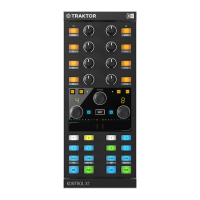
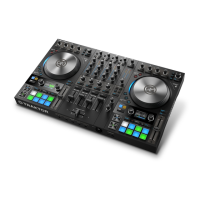
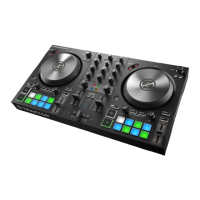
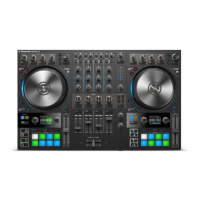
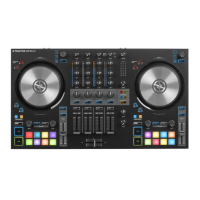
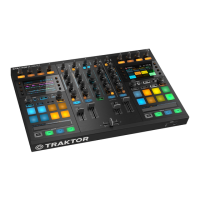
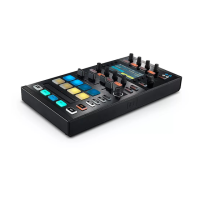
1. Effects and Mixer Section: This part of the controller enables direct control of two FX units on
the left and right side. Each side has a dedicated FX display for direct visual feedback, assign
buttons to assign effects to decks, as well as four buttons and knobs for effect manipulation.
The Mode display at the center represents information on the current mode, and the button
above switches between them. In mixer mode, this section turns into a dedicated mixer with
EQ and volume control. Traktor Pro Plus subscribers can also use this section to control the
Pattern Player. For more information refer to Effect Control, Using the Pattern Player, and
Mixer Control.
2. Loop and Browse Section: This section enables setting loops, changing their length and
position, and browsing Traktor's track collection. A dedicated display for each deck shows
important information including loop status and remaining track time. The SHIFT button
combines with many controls to access secondary functions across the device. For more
information refer to Loop and Browse Section.
3. Hotcue Buttons: Four versatile buttons by default enable setting and jumping to Hotcues.
These buttons can be customized for various functions in the Preferences of the Traktor Pro
software. For more information refer to Hotcues and Customizing the Controller.
4. Transport Section: Dedicated Cue, Start, Stop, and Sync buttons are found in the lowest part of
the device. For more information refer to Transport Control.
The Rear Panel
The rear panel connects the controller to the computer and includes a powered USB hub.
1. USB Host Connector: Connect the controller to the computer via this socket using the included
USB cable. The controller itself is USB powered and will work with only this connection.
2. USB Hub Inputs: Connect other USB devices. Note that the hub will only function correctly
when the included power supply is connected.
3. Power Supply Input: Connect the included power supply to this socket. This enables the USB
hub and allows for brighter lit controls.
The Bottom Panel
The bottom panel of the controller features independent LED lights on both the left and right side,
providing further visual feedback for each deck. By default, a green light is activated if a loop is
active. A blinking red light indicates a track is nearing its end. This can be turned on or off in the
Preferences of the Traktor Pro software. For more information refer to Customizing the Controller.
HARDWA RE OVER VI EW 6



 To Next Page