14 15
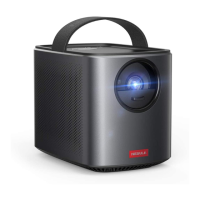
UsingtheNebulaMarsII
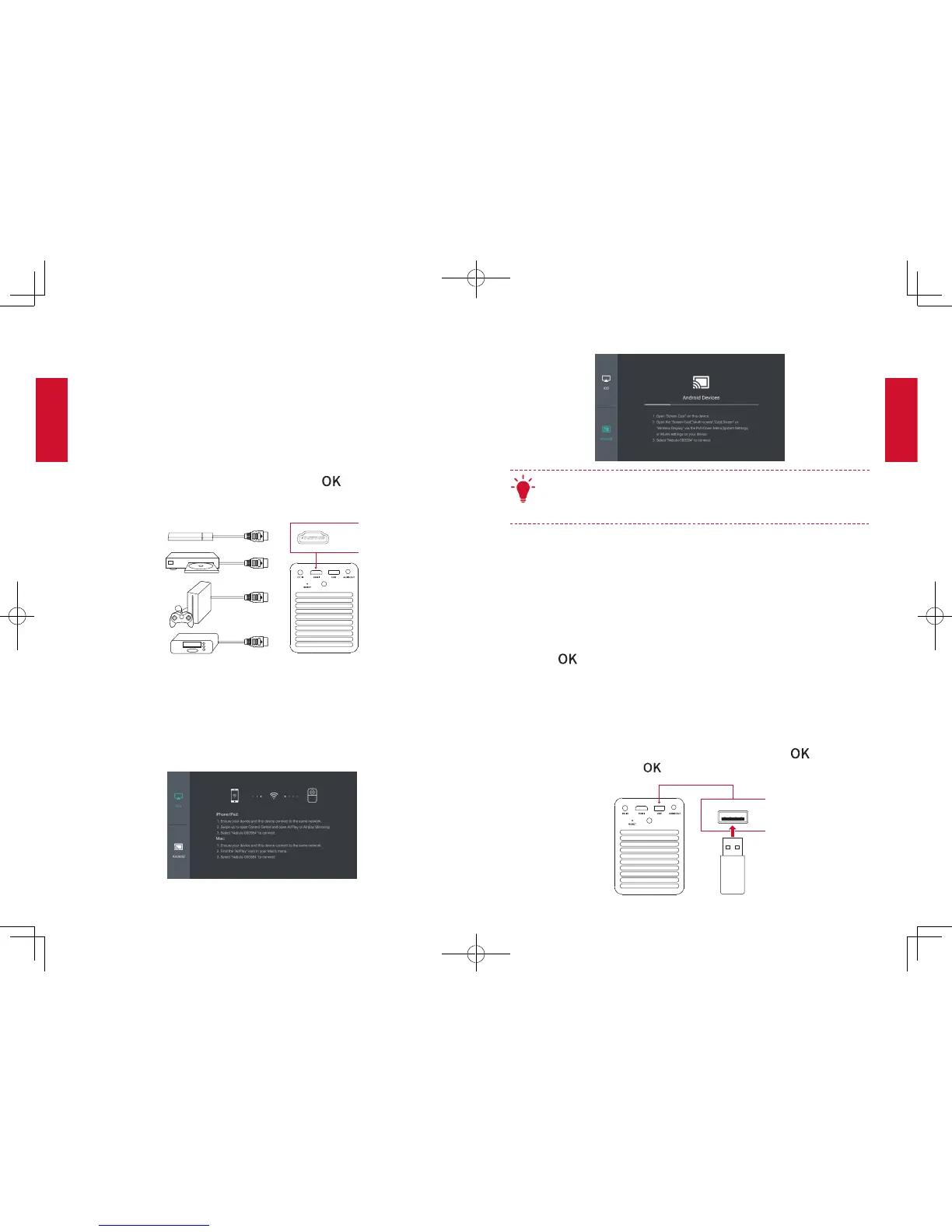
1. ConnecttoHDMIPlaybackDevices
This device supports connections with various HDMI playback devices
such as TV stick, TV box, DVD player, set-top box (STB), game console
or other devices.
①
Connect this device to an HDMI playback device with an HDMI cable
(not provided).
②
On the home menu, select [HDMI] , and press . (*It will
automatically start the HDMI playback when connected to an HDMI
playback device for the first time.)
HDMI
2. ScreenCast
You can wirelessly cast the screen of your smartphone or tablet onto
the projection surface.
For iOS devices:
For Android devices:
T
Certain content may be unavailable for screen casting due to
copyright restrictions. In this case, you can play the content
directly by using the same app installed on your Nebula Mars II.
3. SelectanApp
Once connected to a wireless network, you can access online services,
enjoy movies, music and pictures, and browse the internet. Apart from
the apps installed by default, you can also install any other apps from
the Nebula Store or from a USB flash drive.
• On the home menu, select an Internet service from “Apps” or “Nebula
Store”.
• Press
to confirm.
4. ConnecttoaUSBStorageDevice
With this projector, you can enjoy music, video, and pictures, or install
apps that are stored on a USB 2.0 storage device by using the OTG
cable (not provided).
①
On the home menu, select [File Manager] and press
.
②
Select a file, then press .


 To Next Page