The Neogen ANSR® reader is a pathogen detection system designed for use with Neogen ANSR assays. It can operate in two modes: connected to a dedicated personal computer with ANSR software, or as a stand-alone unit displaying results on its screen. The system is capable of evaluating up to 48 samples per hour, depending on laboratory workflow needs.
Function Description:
The ANSR reader utilizes two channels of light, referred to as Control and Test, to analyze samples. It generates fluorescence by periodically exposing reagents in tubes to Control and Test wavelengths. This fluorescence is captured by photodiodes and converted to millivolts over time. Mathematical algorithms within the software then process this data to signal the detection of target pathogens. The reader's incubation function maintains a constant temperature of 56 ± 1°C, which is critical for the specific requirements of the Neogen ANSR pathogen detection system.
Important Technical Specifications:
- Number of tubes: Configured for up to 16 tubes.
- Assays: Compatible with Neogen ANSR assays.
- Measurement technology: Fluorescent 3 channel (FAM, HEX, and ROX).
- Color touch screen: 3.5 inches, featuring simple workflow management and ease of use with color icon-driven menus and prompts.
- Communications:
- Cable Ethernet for data transfer.
- USB port for data export, barcode reader, and printer.
- Mini USB port for laptop connection.
- Data storage: Up to 99 results (configurable).
- Power:
- 12 V DC from external AC/DC supplied plug pack.
- Battery power (optional).
- DC voltage fluctuation: ± 10%.
- DC current consumption: 12 V DC, 3.0 amps.
- Dimensions: 380 mm (L) x 122 mm (W) x 139 mm (H) or 14.0" (L) x 4.8" (W) x 5.4" (H).
- Weight: 1.95 kg (4.1 lbs).
- Printers: Supports network printers.
- Operating environment:
- Indoor use.
- Temperature: 10–30°C.
- Relative humidity: 10–70% (noncondensing).
- Altitude: 0–2000 m.
- Pressure: 0.763 bar (2000 m) – 1.01 bar (sea level).
- Pollution category: 2.
- Minimum light conditions: 100 LUX.
- Maximum light intensity: 5000 LUX.
- Storage environment:
- Temperature: 0–45°C.
- Relative humidity: 20–70% (noncondensing).
- Pressure: 0.763 (2000 m) – 1.01 bar (sea level).
- Altitude: 0–2000 m.
- Maximum duration: 1 month (cumulative).
Usage Features:
Turning On/Off:
To turn on, press the rectangular power button on the lower left corner of the front panel for 2-3 seconds. The reader takes about 2 minutes to boot. To turn off, press the power button for 2-3 seconds.
Remote Mode (with Computer):
- Setup: Connect the reader to a power source using a provided adapter. If connecting the computer to a network, do so before connecting the reader. Connect the reader to the computer using either the provided USB cable or Ethernet cable. Note that if an Ethernet cord is used for reader-computer connection, the computer cannot connect to a network via Ethernet. Turn on the computer and ensure ANSR software is running before starting the reader.
- Launching Software: Double-click the T16 ISO desktop icon. Connect the software to the reader by clicking the "Connect" icon and selecting "USB" or "Networking." The circle in the upper right corner will turn green upon successful connection. The "Locate" button (available with networking cable) causes the reader to emit a beep to confirm connection.
- Software Utilities:
- Open: Open previously saved .json files.
- Print: Print summary reports and/or tube graphs.
- Export: Export all associated files (data file, .csv, graphs) by checking desired boxes. The data file (.json) is crucial for results and traceability.
- Save As: Save data to a user-specified location with a specific name.
- Support: Displays the user manual.
- Instrument: Displays software and firmware version information.
- Running a Test:
- Once connected, click "Run" and select the desired test (e.g., ANSR Salmonella).
- The screen will display "Please wait. Setting temperature" and show target/current temperatures. Users can enter user name, lot number, and sample IDs. The "Autofill" option can sequentially fill 16 ID fields.
- Once "Instrument ready" appears, place samples in the reader and press "Start workflow." Ensure permanent caps are on tubes to prevent contamination.
- During the test, real-time graphs for individual tubes or an overall view can be selected.
- After the assay, results are displayed graphically (positive: red, negative: green, invalid: yellow). Users can view individual tube graphs or a summary report.
- To shut down, click "Disconnect" in the software, then power off the computer and reader.
- Running High Throughput Samples (Two-step lysis for Salmonella and Listeria):
- This procedure starts after 37°C incubation.
- Place up to four rows of lysis tubes in the 80°C heater block for 20 minutes.
- Transfer lysed samples from the first row to reaction tubes 1-8 in the reader, and from the second row to tubes 9-16.
- Close the lid and press "Start."
- After the 10 or 18-minute assay, save results and discard tubes. For subsequent runs, select "New." Remaining lysis tubes can stay in the heater block for up to 60 minutes.
- Repeat until all samples are processed.
- Open Remote List (NEW):
- Allows access and download of test files from a remote server (SFTP or FTP).
- Add/Remove Profiles: Click "Open Remote List," then "New Connection." Fill in server details (Address, Type, Port, Destination Directory, User Name/Password). "Test Connection" confirms validity. Error icons provide troubleshooting info.
- Browsing/Viewing/Downloading: Navigate folders, search filenames, and load results. To download, click "Export" and specify a local location.
- Sync Page (NEW):
- Synchronizes test results from the laptop to a remote server (unidirectional). Up to two sync profiles can be configured.
- Only results in the
C:\Program Files (x86)\Axxin\AxxinT16IS0Desktop\TestResults\Records folder are synchronized.
- The software can also act as a server to receive results from other desktop sync profiles.
- Add Outgoing Connection: Creates an automatic backup. Fill in server details (Address, Type, Port, Destination Directory, User Name/Password). "Periodic Sync" can be enabled for automatic transfers every 10 minutes.
- Sync Operation: Displays "Running" during transfer, showing files remaining. "Synchronized" indicates completion.
- Add Incoming Connection (Server): Configures the software to receive data. Specify "File Storage Path" and "Connection Port."
- User Management: Create users with specific username/password requirements (5-20 characters, 6-20 character password with 1 capital, 1 number, 1 non-alphanumeric character, not matching username).
- Sync Server Operation: Displays server IP addresses, connection type, auto-start status, port, storage location, server state, current connections, files received, and last file received.
Stand-Alone Operation:
- Setup: Plug the reader into a power outlet. Press the power button for 2-3 seconds. After booting (approx. 2 minutes), the screen displays three icons: "Run test" (test tube), "Search" (magnifying glass), and "Settings" (gears).
- Printer Setup: Go to "Settings," then "Printer Set up." Enter the printer's IP address using the keypad.
- Remote Mode (Switching from Stand-Alone): Go to "Settings," then "Remote mode." Touch the box next to "Bootup into remote mode." The reader will boot into remote mode next time.
- Settings:
- About this device: Displays instrument name, ID, application version, IP/MAC address, OS/kernel version, and light channel info.
- Help info: Displays help information.
- Audio: Adjusts touch screen and alert volumes (0-low, 5-high).
- Brightness: Adjusts touch screen brightness (30-low, 100-high).
- Administrator settings: Password-protected.
- Import and export: Export test results (.json) or data log (.json and .csv) to a USB drive.
- Import test types: Contact Neogen Technical Services.
- Time and date: Adjust date and time.
- Park optics: Moves optical head for service (Neogen Technical Services use only).
- Network settings: Configure Ethernet connection (DHCP or static IP).
- Reset to factory default/Factory settings: Neogen Technical Services use only.
- Running a Test (Stand-Alone):
- Touch the "Run test" icon.
- Select "Test type" (e.g., ANSR Salmonella).
- Enter test name using the touch screen.
- Input sample IDs for individual tubes. "Autofill" can sequentially fill IDs from the first tube.
- Once the reader reaches 56°C and "Start" appears, place samples in the reader.
- Press the green "Start test" arrow.
- After the test, results are displayed. Touch a tube to view data/graphs.
- Press the "Print" icon to print results (printer must be set up).
- Search:
- Touch the "Search" (magnifying glass) icon.
- View all test results: Shows recent test results.
- Search filter: Search by test name, type, number, or sample ID.
- Go to test number: Search by specific test number.
Maintenance Features:
Cleaning:
To clean spills or stains, dampen a lint-free wipe with isopropyl alcohol or 10% bleach solution and gently wipe the reader. Avoid using free liquid. If liquid spills into the reader, contact Neogen Technical Services.
Troubleshooting:
- Reader/computer connection issues: Restart the reader while connected. Ensure the reader displays "remote mode." Verify the first three numbers of the software version on the computer match the firmware version on the reader (found under "About this device").
- Invalid reading: Re-run the sample. This may occur if the lid is not properly closed or if the run isn't started quickly after samples are added.
- Error messages loading test files/updating firmware via USB: Ensure the USB drive is formatted for a PC, not a Mac.
- For other issues, contact Neogen Technical Services.
Warnings and Limitations:
- Operate on a dry, level surface, out of direct sunlight.
- Do not move the instrument during a test.
- Do not place objects on top of the reader.
- The heater block can reach 56°C and may cause burns or damage.
- Only use the provided power supply plug pack. Do not operate with a different power supply.
- Do not operate if the instrument or power supply is opened, damaged, or exposed to moisture/rain.
- Do not open or attempt to repair the reader or accessories; this voids the warranty.
- The real-time clock coin battery is not user-replaceable.
- Use the instrument only for its intended purpose and according to the manual/warnings. Operating contrary to instructions may impair protection.
- Keep connected cables clear of work areas. The main socket outlet for the external power pack should be readily accessible. Unplug the reader when not in use.
- If connecting to external equipment, ensure interfaces are separated from the main socket by double or reinforced insulation to prevent electrical shock.
Limited Warranty:
Neogen Corporation warrants the ANSR product(s) to the original Customer for one year from the date of installation against defects in material and workmanship, and failure to conform to specifications. Neogen will correct defects by repair or replacement. The warranty does not cover failures resulting from accident, improper installation, unauthorized modification, customer-supplied software, inadequate maintenance, misuse, or failure to follow instructions.

 Need help?
 General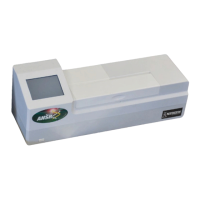

 To Next Page
