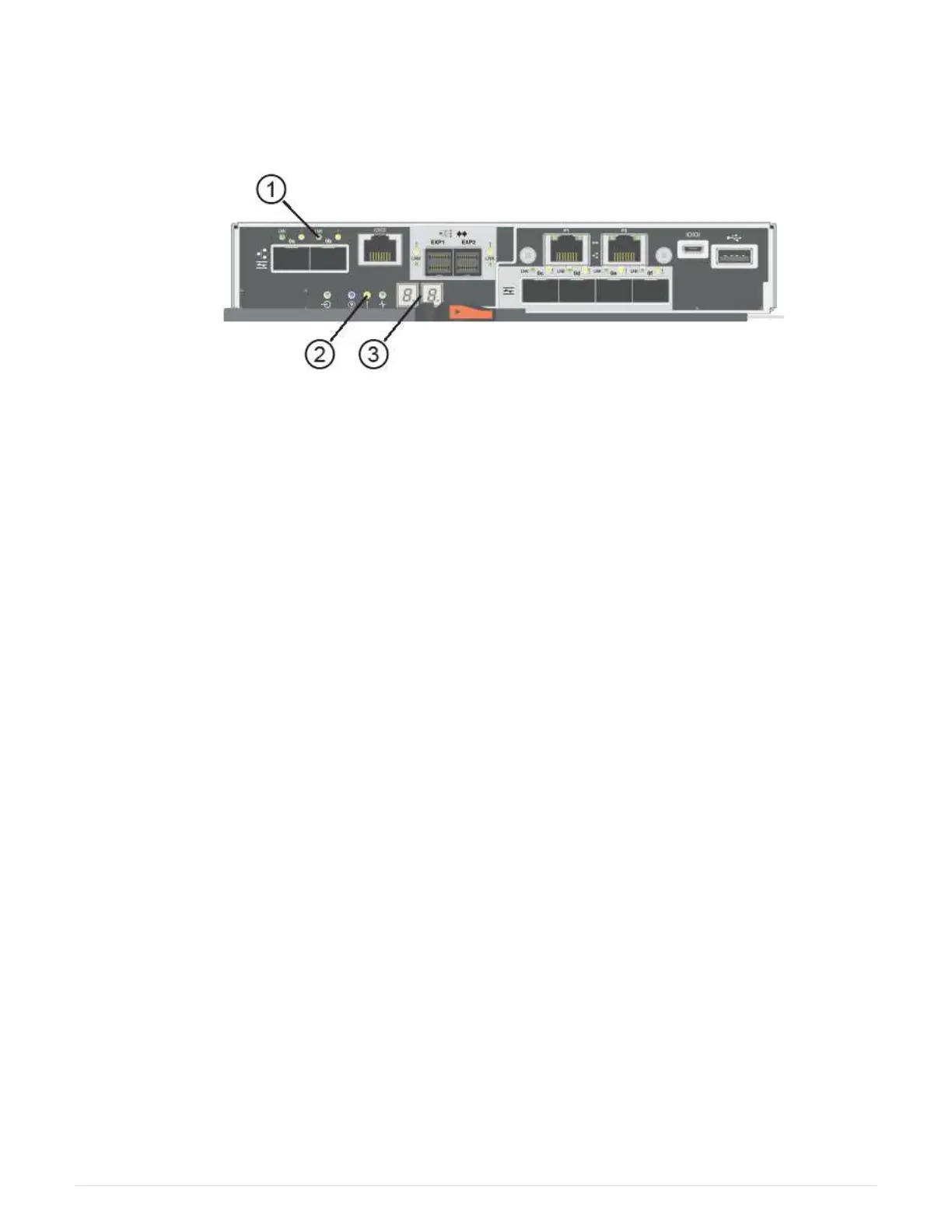
◦ The seven-segment display shows the repeating sequence OS, OL, blank to indicate that the
controller is offline.
◦ The amber Attention LED remains lit.
◦ The Host Link LEDs might be on, blinking, or off, depending on the host interface.
(1) Host Link LED
(2) Attention LED (amber)
(3) Seven-segment display
2. Bring the controller online using SANtricity System Manager.
◦ From SANtricity System Manager:
a. Select Hardware.
b. If the graphic shows the drives, select Show back of shelf.
c. Select the controller you want to place online.
d. Select Place Online from the context menu, and confirm that you want to perform the operation.
The system places the controller online.
◦ Alternatively, you can use the following CLI commands:
For controller A:
set controller [a] availability=online;
For controller B: set controller [b] availability=online;
3. Check the codes on the controller’s seven-segment display as it comes back online. If the display shows
one of the following repeating sequences, immediately remove the controller.
◦ OE, L0, blank (mismatched controllers)
◦ OE, L6, blank (unsupported HIC) Attention: Possible loss of data access — If the controller you just
installed shows one of these codes, and the other controller is reset for any reason, the second
controller could also lock down.
4. When the controller is back online, confirm that its status is Optimal, and check the controller shelf’s
Attention LEDs.
If the status is not Optimal or if any of the Attention LEDs are on, confirm that all cables are correctly
seated, and check that the HIC and the controller canister are installed correctly. If necessary, remove and
reinstall the controller canister and the HIC.
112



 To Next Page