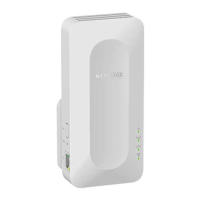
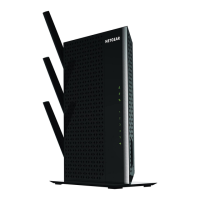
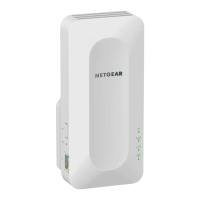
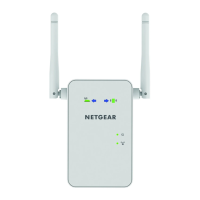
The ADT Pulse Wi-Fi Range Extender is a peripheral device designed to expand the wireless local area network coverage of an ADT Pulse Gateway system. Its primary function is to improve communication between the ADT Pulse Gateway and other Wi-Fi peripheral devices, such as indoor and outdoor IP cameras and touchscreens, especially when these devices are out of range or experiencing connectivity issues. By extending the Wi-Fi signal, it ensures that all connected devices can communicate properly with the central Gateway, thereby maintaining the integrity and functionality of the ADT Pulse security system.
Function Description
The Wi-Fi Range Extender acts as an intermediary, receiving the Wi-Fi signal from the ADT Pulse Gateway and re-transmitting it to extend its reach. This is particularly useful in larger homes or properties where the Gateway's signal might not adequately cover all areas where ADT Pulse devices are installed. It helps to eliminate dead zones and improve the reliability of wireless communication for the entire system. The device is designed to integrate seamlessly with the ADT Pulse ecosystem, allowing for easy management through the ADT Pulse Portal.
Usage Features
The ADT Pulse Wi-Fi Range Extender offers several usage features that streamline its integration and operation within an ADT Pulse system:
- Placement Guidance: For optimal performance, the Wi-Fi Extender should be strategically placed between the ADT Pulse Gateway and the devices that are experiencing range or communication problems. This ensures that the extended signal effectively bridges the gap and improves connectivity.
- Accessing the Pulse Portal: Users can manage the Wi-Fi Range Extender through the ADT Pulse Portal, which is accessible via a web browser. By navigating to
https://portal.adtpulse.com and logging in with their username and password, users gain access to system management features.
- Adding/Enrolling a Wi-Fi Range Extender:
- The enrollment process begins by selecting the "System" tab in the Pulse Portal and then clicking "Manage Devices."
- On the "Manage Devices" screen, users select "Wi-Fi Extenders" to initiate the addition process.
- It's important to note that only one Wi-Fi Extender can be enrolled per ADT Pulse system. If an existing extender is present, it must be removed before a new one can be added. The "Add" button will be grayed out if the limit has been reached.
- Users then select the specific model of the Wi-Fi Extender, such as "NETGEAR WN3000RPH-2ADPAS," from the available options.
- The MAC ID, located on the rear of the Wi-Fi Extender, must be entered into the provided space in the portal. It is crucial to wait for the system to be ready before clicking "Continue" after entering the MAC ID; premature clicking can lead to process failure. If this happens, users can go back, confirm the pop-up, and repeat the steps.
- A temporary wired connection is required for enrollment. The new Wi-Fi Extender must be connected to the device LAN port of the ADT Pulse Gateway or Total Security (TS) Base unit using a standard Ethernet cable.
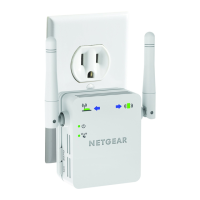
- The extender should also be temporarily plugged into a wall outlet close to the ADT Pulse Gateway.
- Users must wait for the power LED on the device to turn solid green before clicking "Continue" in the portal.
- After the extender is successfully added, which may take a few minutes, users can assign a unique name to it in the "Name" field and click "Save."
- Clicking "Go Back" and then "Close" confirms the addition, and the newly added Wi-Fi Extender will appear in the "Manage Devices" screen and the "System" tab.
- Removing a Wi-Fi Extender:
- To remove an extender, users navigate to the "System" tab in the Pulse Portal.
- They then select the specific Wi-Fi Range Extender they wish to delete from the list of devices.
- Clicking "Delete" initiates the removal process.
- A confirmation prompt will appear, requiring users to click "Yes" to finalize the deletion.
- Post-Enrollment Relocation: Once the enrollment process is complete, the Wi-Fi Extender can be unplugged from the temporary location and moved to its permanent position within the home. The Ethernet cable should also be removed. Within a few minutes of being plugged into its permanent electrical outlet, the ADT Pulse system will recognize the extender and bring it back online.
Maintenance Features
The ADT Pulse Wi-Fi Range Extender also includes maintenance features to help troubleshoot and restore the device to optimal working condition:
- Factory Reset:
- A factory reset may be necessary if the Wi-Fi Extender is not performing properly or if users need to restore it to its default settings, particularly during the enrollment process.
- To perform a factory reset, users must press the recessed "Factory Reset" button on the Wi-Fi Extender. This button typically requires a paper clip or a similar thin object to access.
- The power LED will change from solid green to solid amber. Users must continue pressing the reset button until the power LED flashes amber, and then release it.
- The device will then reboot, and all settings will be restored to their default values, effectively returning it to an out-of-the-box state.
- Reset Nano EOP (End-of-Powerline) Adapter: While distinct from the Wi-Fi Range Extender, the manual also describes a reset procedure for the ADT Pulse Nano EOP Adapter, which is another peripheral device. If the Nano EOP Adapter is not performing correctly or its Powerline LED does not illuminate, a reset may be required.
- To reset the Nano EOP Adapter, users press the "Reset" button for one second and then release it. This button is also recessed and requires a paper clip.
- During the reset, the three LEDs (Power, Ethernet, and Powerline) will turn off, flash briefly, and then illuminate in that specific order. The device will reboot, and its settings will be restored to their default values.
These features ensure that users can effectively manage, troubleshoot, and maintain their ADT Pulse Wi-Fi Range Extender, contributing to a reliable and secure ADT Pulse system.

 Need help?
 General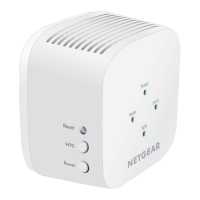




 To Next Page