EasyManua.ls Logo

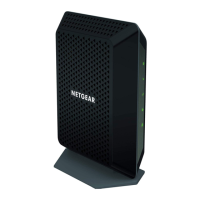
NETGEAR CMD31T - User Manual

NETGEAR CMD31T
2 pages
Print Icon
To Next Page IconTo Next Page
Loading...
Installation Guide
Note: The MAC address and serial
number can also be found in the product
label on the bottom of the unit.
Part 1: Unpack the Shipping Carton
Verify that all items are present.
MAC address:
Serial number:
Ethernet cable
Power adapter
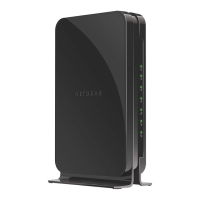
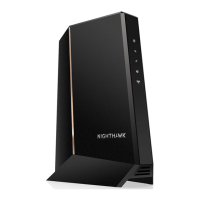
CMD31T Cable Modem
Part 2: Install the Cable Modem
1. Complete the connections as shown in the connections diagram.
a. Connect the coaxial cable to the NETGEAR CMD31T Cable Modem.
b. Use the Ethernet cable to connect your laptop or PC to the NETGEAR
CMD31T Cable Modem.
c. Connect the power adapter.
2. Power on your computer.
Note: It takes at least 15 minutes for your NETGEAR CMD31T Cable Modem to
come online on the network.
c.
a.
b.
3. Wait until the cable modem status shows online. After the modem registers
with your cable Internet service provider, the following LEDs should be lit:
Power LED: Solid green
Online LED: Solid green
If the Power LED is not solid green, check your power adaptor connections.
Part 3: Contact Your Cable Operator
1. Call your cable operator and tell the customer service person that you are
installing a new cable modem that you have bought from a retail store.
Note: The contact number can also be found in your monthly broadband billing
statement.
2. When asked, provide the cable modem’s serial number and MAC address
listed on the front page of this installation guide.
3. Wait for the customer service operator to confirm that your device is active.
If you do not have Internet connection with the new NETGEAR cable
modem, then you should ask the customer service agent to verify whether
he or she can see your cable modem online.
If not, then the customer service agent should help you with instructions to
verify why the cable modem will not connect with your high speed Internet
service.
If the customer service agent can confirm that your cable modem is visible as
online to the agent, then you should reboot your PC or laptop or home
gateway that is connected to your cable modem. Try checking your online
status again.
You are now able to enjoy your Internet service with the NETGEAR CMD31T
Cable Modem.
Cable Service Provider Contact Information
Cablevision: www.cablevision.com Comcast: 1-800-COMCAST (1-800-266-2278)
Charter: 1-888-438-2427 Cox: www.cox.com
CMD31T Cable Modem
Visit http://www.netgear.com/CMD31T for information about connecting your device
with your cable operator.


Questions and Answers

  • J
    Jeremy DelgadoJul 26, 2025
    How to fix 'cannot connect to the Internet' on NETGEAR Modem?
    • D
      Derek MorrisJul 26, 2025
      If you can't connect to the Internet using your NETGEAR Modem, allow up to 15 minutes for the initial connection. Ensure your modem remains plugged into AC power and connected to the cable system. Check that all cable connections are finger-tight. Power up your devices in this order: first the modem (wait for the LEDs to stabilize), then your computer. If you have a home network, configure your TCP/IP settings. For Windows, set network properties to obtain an IP address automatically. For Macintosh, use the DHCP Server in the TCP/IP (or Network) control panel.
  • S
    sean34Aug 2, 2025
    What to do if the Online LED doesn't light up on my NETGEAR CMD31T?
    • L
      lmooreAug 2, 2025
      If the Online LED on your NETGEAR Modem isn't lighting up, it indicates a hardware connection issue or inactive cable service. First, ensure the cable connector is securely plugged into the modem. Next, try turning the modem off and on. If the problem persists, contact your service provider to confirm that your cable service is active.
  • J
    Joseph OrtizAug 9, 2025
    What to do if Ethernet LED doesn't light up on NETGEAR CMD31T Modem?
    • J
      jonathanbakerAug 10, 2025
      If the Ethernet LED on your NETGEAR Modem doesn't light up even when a device is connected, it usually indicates a hardware connection problem. Make sure the cable connector is securely plugged into both the modem and the computer. If you're not using the cable that came with the modem, verify that your Ethernet cable is a straight-through patch cable.
  • D
    dannystuartAug 18, 2025
    Why no LEDs are lit on my NETGEAR CMD31T?
    • M
      Mary MooreAug 18, 2025
      If no LEDs are lit on your NETGEAR cable modem, it likely isn't receiving power. Check that the power adapter is correctly connected to both the cable modem and a functioning power outlet. If it's plugged into a power strip, ensure the strip is turned on. Also, confirm that you're using the correct power adapter.

Summary

Unpack and Install Cable Modem

Prepare Shipping Carton

Verify all items are present in the shipping carton before proceeding with installation.

Connect Modem and Power

Connect coaxial, Ethernet cables, and power adapter to the modem and PC for setup.

Verify Modem Online Status

Wait for the modem to register and check for solid green Power and Online LEDs.

Contact Cable Operator

Inform operator of new modem, provide details, and confirm service activation.

LED Indicators and Troubleshooting

LED Indicator Guide

Explains the meaning of each LED state for Power, Online, Upstream, Downstream, and Ethernet.

Troubleshooting Common Issues

Provides solutions for no LEDs, no online status, Ethernet issues, and connectivity problems.

Technical Support and Safety

Product Registration and Support

Register your device at netgear.com/register for support and access web support.

Safety Precautions

Avoid stacking equipment and ensure adequate air space (at least 2 inches).

NETGEAR CMD31T Specifications

General IconGeneral
Compliance industry standardsIPv6
Networking featuresGigabit Ethernet, TCP/IP
DC-in jackYes
Ethernet LAN (RJ-45) ports1
Minimum system requirementsCable Broadband Internet
Compatible operating systemsMicrosoft Windows 7, Vista, XP, 2000, Mac OS
USB poweredNo
CertificationCEC RoHS WEEE
Cables includedLAN (RJ-45)
Weight and Dimensions IconWeight and Dimensions
Weight310 g
Dimensions (WxDxH)175 x 114 x 30 mm

Related product manuals