13
b. Select Internet.
The Wireless as WAN screen displays, which shows the available
WiFi networks.
8. Select the Extend my current wireless router’s range check box.
9. Select a radio button next to a WiFi network you want to connect to.
10. From the Security list, select the WiFi network’s security option.
11. In the Password (Network Key) field, type the WiFi network’s
password.
12. To be able to use these settings again without having to reenter them,
select the To save a name for profile check box and in the field
provided, type a name for the profile.
Create a descriptive name for the profile to help you remember the
settings. For example, if you might use Extender Mode as the name
for your extender profile settings.
13. Click the Apply button.
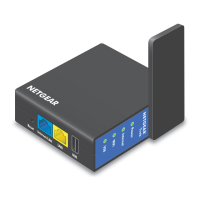
It might take up to two minutes before the Trek connects to the WiFi
network.
14. Unplug the Trek and move it to a new location closer to the area with
a poor WiFi signal.
The location that you choose must be within the range of your
existing WiFi router network.


 To Next Page
 Loading...