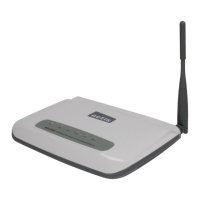
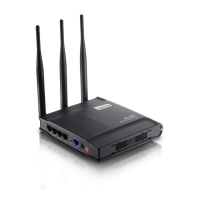
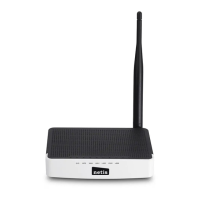
netis Wireless N Router Quick Installation Guide
How do I restore my netis Router's configuration to its default settings?
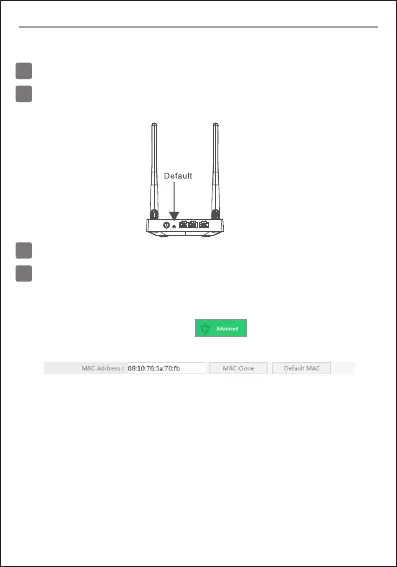
With the router powered on, use a pin to press and hold the Default button
on the rear panel for 8 to 10 seconds before releasing it. The router will
reboot and all configurations are back to factory default.
Q
A
4.Troubleshooting
What can I do if my Internet cannot be accessed?
1) Check to verify the hardware connections are correct.
Please refer to the “Hardware Connection” step.
2) Login to netis Router's web management page and ensure that you
set the correct Internet Connection Type.
For cable modem users, please configure “MAC Clone” additionally.
Q
A
On the left-side menu, left-click on > “Network”> “WAN”.
And in the middle page, left-click on “Advanced”> “MAC Clone” and
then “Save” it.
3) Reboot the modem first and then netis Router. Wait for one minute
before you check the Internet again.
4) If Internet access is not available, please connect your computer
directly to your modem and try the Internet again.
If the Internet is still not working, please contact your ISP for further help.
4


 To Next Page
 Loading...