EasyManua.ls Logo

NextBase NBDVR4063 - User Manual

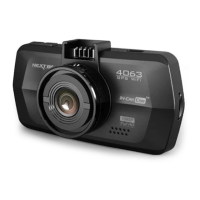
NextBase NBDVR4063
33 pages
Print Icon
To Next Page IconTo Next Page
Loading...

Questions and Answers

  • T
    transandraAug 19, 2025
    What to do if my NextBase Dash Cameras says 'Card Full'?
    • H
      Hunter MedinaSep 12, 2025
      If your NextBase Dash Camera displays 'Card Full', it means the SD card is full because the Loop Recording function is set to OFF. To resolve this, set the Loop Recording function to the default of 3 minutes. This enables cycle recording and automatic deletion of older files.
  • M
    Michael BarrettAug 21, 2025
    How to fix a 'Card Error' message on NextBase Dash Cameras?
    • R
      richard42Aug 21, 2025
      If you receive a 'Card Error' message on your NextBase Dash Camera, it means the SD card has become unusable. To fix this, remove any useful files using your PC and then format the SD card within the SETUP menu of your camera.
  • W
    Walter ColonAug 23, 2025
    How to remove Micro SD card from NextBase Dash Cameras?
    • T
      tamara05Aug 23, 2025
      To remove the Micro SD card from your NextBase Dash Camera, push the card further inwards slightly, using your finger nail, until you hear and feel a small latch. Release pressure, and the card will spring out enough for you to grab it.
  • J
    Jacqueline PattonAug 26, 2025
    Why won't the suction cup stay on my NextBase Dash Cameras windscreen?
    • J
      Jason BrownAug 26, 2025
      If the suction cup of your NextBase Dash Camera won't stay on the windscreen, ensure that the protective plastic film has been removed from the suction pad. Moisten the sucker slightly before attaching it to the windscreen. Make sure the lever is fully pushed towards the windscreen, and the glass is smooth and clean. Avoid sticking it to glass with any non-smooth effect or paint. Affix it firmly and then push the lever to the full extent.
  • U
    ugallegosAug 28, 2025
    How to enable sound recording on NextBase Dash Cameras?
    • Z
      zhangdonaldAug 28, 2025
      If your NextBase Dash Camera video has no sound, ensure that the 'Record Audio' setting is turned ON within the Video Menu.
  • S
    Stefanie MurrayAug 30, 2025
    Why is my NextBase Dash Cameras video playback jumpy?
    • A
      angelalarsonAug 30, 2025
      If your NextBase Dash Camera video file playback is jumpy: - Remove the SD card and reformat it to remove non-contiguous files. - Use a branded class 10 type 30MB/s SD card of 8 to 32 GB recommended size for best recording. - Use the supplied Driver Recorder Player Playback software for video playback. - If problem persists, try an alternative PC, as your PC may not be sufficient for the playback task.
  • C
    Chad HardySep 1, 2025
    What does 'Memory error' mean on NextBase Dash Cameras?
    • C
      Catherine EsparzaSep 1, 2025
      If your NextBase Dash Camera displays a 'Memory error' message, it means the SD card has become unusable. To resolve this, remove any important files using your PC and then format the SD card within the SETUP menu.
  • J
    John MoranSep 3, 2025
    How to fix blurred video on NextBase Dash Cameras?
    • D
      Deanna BellSep 3, 2025
      If the video image from your NextBase Dash Camera is blurred, remove the protective lens cover, clean the lens, and clean the windscreen.
  • P
    Pamela RojasSep 5, 2025
    Why are my NextBase Dash Cameras photos blurred?
    • N
      Nicole KellerSep 5, 2025
      If your NextBase Dash Camera photos are blurred, hold the camera still while taking the photo. The photo is taken about 1 second after you hear the shutter noise.
  • S
    Samuel NewtonSep 7, 2025
    Why is the playback jumpy on NextBase Dash Cameras Driver Recorder Player?
    • E
      elizabethmartinSep 8, 2025
      If the playback is jumpy on your NextBase Dash Camera's Driver Recorder Player, it could be that the Codecs on your PC are not compatible or up to date. Download the latest Codecs from http://www.next-base.com and install them.

Summary

Safety and Precautions

Critical Safety Advice

Guidelines on water exposure, servicing, and electrical safety.

Environmental Disposal

Information on LCD pixels and WEEE electronic waste disposal.

Product Specifications

Product Features

Device Controls and Interface

Key Buttons and Ports

Power, Menu, Mode, USB, Reset, SOS, and other operational buttons/ports.

Display and Indicators

LCD screen, LED status lights, Lens, Mic, Speaker, and Memory Slot.

Installation Guide

Video Mode Screen Details

Photo Mode Screen Details

Playback Modes Overview

Video and Photo Playback

How to view and navigate recorded video and photo files.

Recorder Player Software Installation

Windows and Mac OS Installation

Procedures for installing the player software on Windows and Mac.

Windows Player Interface Guide

Mac Player Interface Guide

Device Menus and Settings

Core Mode Settings

Configuration options for Video, Photo, and Playback modes.

Setup Menu Configuration

General System Settings

Wi-Fi, Language, Date/Time, Format, and other system-wide options.

PC and Mac Connectivity

Mass Storage and PC Camera Modes

Connecting to PC/Mac as storage or webcam.

Video and Audio Output

HD and SD TV Output

Connecting the device to a television for viewing.

FinalCam App for iOS

App Installation and Initial Setup

Steps to download and prepare the FinalCam app on iOS devices.

FinalCam App for Android

App Installation and Initial Setup

Steps to download and prepare the FinalCam app on Android devices.

FinalCam App Usage

Smartphone Operation Guide

How to use the FinalCam app on your smartphone.

FinalCam App Settings Management

Camera and Wi-Fi Configuration

Adjusting device name, password, and Wi-Fi settings.

Advanced App Options

G-Sensor, TV Mode, and recording interval adjustments.

FinalCam App File Operations

Storage Management and Downloads

Managing app storage and viewing downloaded files.

FinalCam App Live View

Live Preview and Camera Control

Operating the camera through the app's live screen interface.

FinalCam App Video Playback

Reviewing Downloaded Recordings

Playing recorded videos using the FinalCam app on your phone.

FinalCam App iOS Connection

Adding Camera to iOS App

Steps to connect the camera to the FinalCam app on iOS devices.

Mass Storage and PC Camera Modes

Windows and Mac Connectivity

Using the device as storage or webcam on Windows and Mac computers.

Troubleshooting Common Issues

Video, Card, and Playback Problems

Solutions for image, SD card, and file playback issues.

Recording and Connectivity Solutions

Resolving recording limits, full cards, and connection errors.

Troubleshooting Advanced Issues

Device Power and Satellite Lock

Addressing device shutdown, screen blanking, and satellite connection.

Battery and Motion Detection Issues

Resolving battery charging problems and motion detection behavior.

NextBase NBDVR4063 Specifications

General IconGeneral
Wi-FiNo
Loop RecordingYes
G-SensorYes
Parking ModeYes
Video Resolution1080p
Field of View140 degrees
StorageMicroSD card (up to 128GB)

Related product manuals