X-COM
14
own speaker. It helps you to naturally speak at the correct level
according to varying helmet noise conditions. If this feature is
enabled, you can hear what you are speaking during an intercom
conversation or a phone call.
6.11 Delete All Bluetooth Pairing Information
Voice Prompt
“Delete all pairings”
Factory Default N/A
Enable / Disable Tap the Center Button
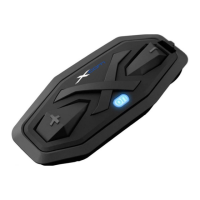
To delete all Bluetooth pairing information on the X-COM, tap the
(+) Button or the (-) Button until you hear the voice prompt, “Delete
all pairings”. Tap the Center Button to confirm.
6.12 Reset to Factory Default Setting
Voice Prompt
“Factory reset”
Factory Default N/A
Execute Tap the Center Button
To restore factory default settings on the X-COM, tap the (+) Button
or the (-) Button until you hear the voice prompt, “Factory reset”.
Tap the Center Button to confirm. The X-COM powers off with a
voice prompt, “Headset reset, goodbye”.
6.13 Exit Voice Conguration Menu
Voice Prompt
“Exit conguration”
Factory Default N/A
Execute Tap the Center Button
To exit voice configuration menu and get back to stand-by mode,
tap the (+) Button or the (-) Button until you hear the voice prompt,
“Exit conguration”. Tap the Center Button to confirm.


 To Next Page