32
1. Turn on the camera’s Wi-Fi by pressing and holding button (5).
2. Open the Wi-Fi settings on your mobile device and connect to
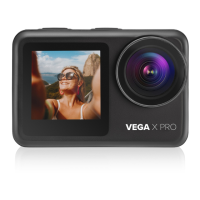
the camera’s network (name: Niceboy VEGA X PRO, password:
1234567890).
3. Once your mobile device is connected to the camera’s
network, then launch the app from where you will be able to
control the camera via your mobile device.
4. Press the Wi-Fi button (5) on the camera to turn of the Wi-Fi.
Notice: enable all app permissions in your phone settings, turn o
your phone’s “data connection”, and leave Wi-Fi on before using the
app. The app is compatible with mobile phones with iOS 9.0 and
newer and mobile phones with Android 8.0 and newer.
CONNECTING THE CAMERA TO A PC
Insert your memory card to the camera when it is not powered on.
Connect the powered o camera to a PC using the USB data cable
plugged into the camera’s USB port (11). Power the camera on once
it has been connected to the PC, where you may choose between
the following modes:
1. External disk: les saved on your memory card inside the
camera may be managed while connected to a PC (the came-
ra acts as external storage connected to a PC).
2. PC camera: the camera may be used as a PC camera when
used by programs that allow the connection of external
cameras.
3. Charging: the camera will only charge.
REMOTE CONTROL
Remote control does not need to be paired to the camera, remote
control automatically starts to work once a micro SD card has been
inserted into the camera. Press the “video-button” to both playback
and pause recorded videos. Press the photo button on the controls
to take a photo.


 To Next Page