7.6 Date/Time
The system time may be set under this menu. Touch “MODE/
UP” to adjust the value. Press “SAVE/PRINT” to shift to the next
position. Touch “ZERO/EXIT” to cancel. Press “MENU/ENTER” to
confirm and exit.
7.7 Diagram Scale
Select the visible are of the graph when in diagram mode in this
menu. Select between 3 levels.
7.8 Key Setting
Set the default function of the “SAVE/PRINT” key from the home
screen. The function can be set to print or store the current
displayed value. Press “MODE/UP” or “DOWN” to select the
proper setting. Press “LOG” to cancel; touch “MENU/ENTER” to
confirm and exit.
7.9 Display Direction
Select the mode of the LCD display: Automatic, Obverse or Re-
verse. Touch “MODE/UP” or “DOWN” keys to shift to the next po-
sition. Press “ZERO/EXIT” to cancel; Push “MENU/ENTER” to
confirm and exit.
7.10 Default Setting
If you make a selection that you feel has caused the gauge to
operate improperly, you can restore the instrument to the facto-
ry default settings. Carefully use this function! The password to
accomplish this factory default is 1, 2, 3. A confirm screen will
appear to complete.
6
7.11 Information
Information includes the model, version of the software and the
serial number.
8. CALIBRATION
To Obtain access to the calibration sub menus, input the pass-
word 1, 2, 3. Four methods of calibration may be selected.
8.1 Torque Calibration
If applying a known standard torque such as with a calibrated
torque tool or torque test machine apparatus, use this mode and
apply the torque to the TTC.
Input in the standard values by pressing “MODE/UP” to adjust
the value, touch “SAVE/PRINT” to shift to the next position. Press
“MENU/ENTER” to view the next available standard value input
screen.
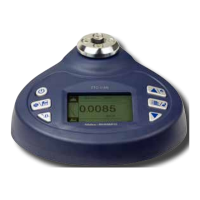
TTC-I
TTC-E
www.GlobalTestSupply.com
Find Quality Products Online at: sales@GlobalTestSupply.com


 To Next Page