EasyManua.ls Logo

Night Owl CM-IC8-BU - User Manual

Night Owl CM-IC8-BU
81 pages
Print Icon
To Next Page IconTo Next Page
Loading...
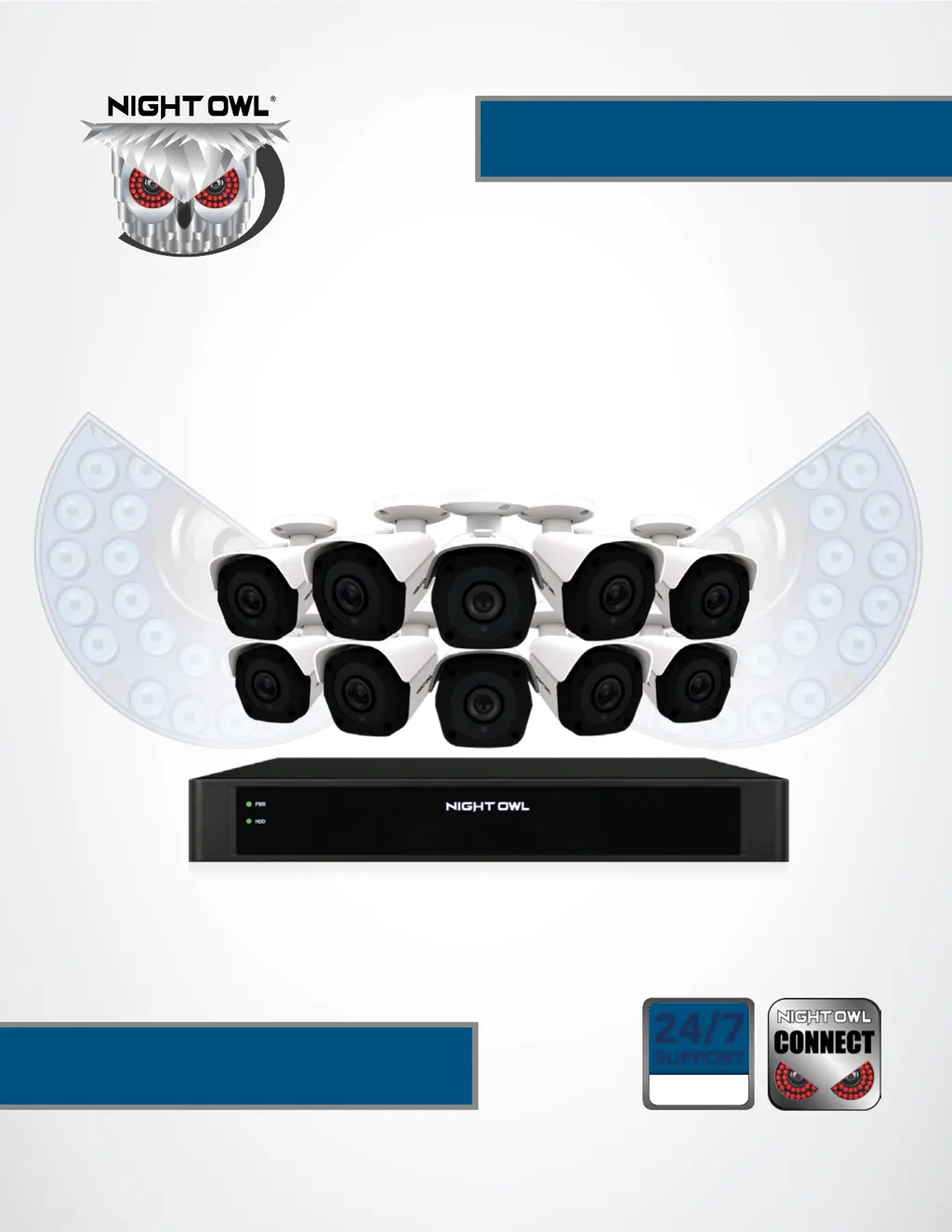
IC8 SERIES
24/7
SUPPORT
English
Español / Français
USER’S MANUAL
www.NightOwlSP.com

Questions and Answers

  • A
    anthonyhartmanAug 10, 2025
    Why is my Night Owl CM-IC8-BU system not receiving power?
    • S
      Samantha PhillipsAug 10, 2025
      If your Night Owl DVR system isn't receiving power or turning on, first, check that all power cables are correctly and securely connected, including the adapter at the back of the unit. If the cables are connected, ensure the system is powered ON and the LED indicators are lit. If connected to a power bar or surge protector, bypass it and plug directly into the wall outlet. Verify the outlet has power by testing with another device, like a phone charger, or try a different outlet.
  • S
    Steven SawyerAug 17, 2025
    How to turn off beep on Night Owl CM-IC8-BU motion detection?
    • T
      tami59Aug 17, 2025
      To stop the beeping during motion detection on your Night Owl system, go to the General Menu, then Video Alarm. Select the channel and turn Audible Warning to off.
  • A
    Alyssa WilliamsAug 25, 2025
    How to fix no sound on my Night Owl NVR?
    • A
      Amber MorganAug 25, 2025
      If your Night Owl NVR image appears without sound, check the AUDIO connection to the NVR. Also, right-click in Live View and ensure Volume is enabled. If you are using external speakers (not included), increase their volume.
  • S
    sandovalrandyAug 31, 2025
    What to do if Night Owl CM-IC8-BU DVR mouse is not detected?
    • N
      nrobbinsAug 31, 2025
      If your Night Owl DVR system isn't detecting the mouse, ensure the mouse cable is firmly connected to the USB Mouse port on the front panel. If that doesn't work, power off the system by disconnecting the power cable. Then, firmly connect the USB mouse to the USB Mouse port on the front panel and reconnect the power cable to the DC 19V port on the rear panel.

Summary

Chapter 2: Safety Instructions

General Safety Precautions

Lists essential safety guidelines for operating the NVR and cameras.

Chapter 4: Camera Installation

Powering and Connecting Cameras

Instructions on connecting cameras to the NVR using Ethernet cables.

Mounting Camera Best Practices

Guidelines for optimal camera placement and mounting security.

Chapter 5: NVR Installation

Chapter 6: Getting Started

Startup Wizard Overview

Introduces the Startup Wizard and its configuration steps.

Network Configuration and Test

Guides through connecting the NVR to the internet and testing connectivity.

Password and Account Setup

Instructions for creating an admin password and recovery email.

Date and Time Configuration

How to set the NVR's date, time, and time zone using NTP.

Night Owl Connect App Setup

Details on downloading, installing, and setting up the mobile app.

Device Pairing and Login

Steps to connect the NVR to the Night Owl Connect App.

Password Verification and Camera Settings

Verifying the admin password and initial camera/channel configuration.

Camera Positioning and Channel Configuration

Adjusting camera views and setting up recording schedules and motion detection.

Chapter 7: Menus and Settings

Network Settings Configuration

Adjusting DHCP, IP address, and other network parameters.

Video Alarm and Notification Settings

Setting up motion detection, sensitivity, and push notifications.

Record Schedule Configuration

Setting up continuous or motion-based recording schedules.

Chapter 10: Troubleshooting

Common System Power Issues

Solutions for NVR not powering up or receiving power.

Night Owl CM-IC8-BU Specifications

General IconGeneral
Resolution1080p
Night VisionYes
Number of Channels8
Recording Resolution1080p
Channels8
Video CompressionH.264
Motion DetectionYes
ConnectivityWired
Hard Drive Capacity1TB
Remote ViewingYes
Operating Temperature-10°C to 50°C (14°F to 122°F)
Power Supply12V DC

Related product manuals