EasyManua.ls Logo

Night Owl DP2 Series - User Manual

Night Owl DP2 Series
63 pages
Print Icon
To Next Page IconTo Next Page
Loading...
24/7
SUPPORT
English
Español / Français
Support.NightOwlSP.com
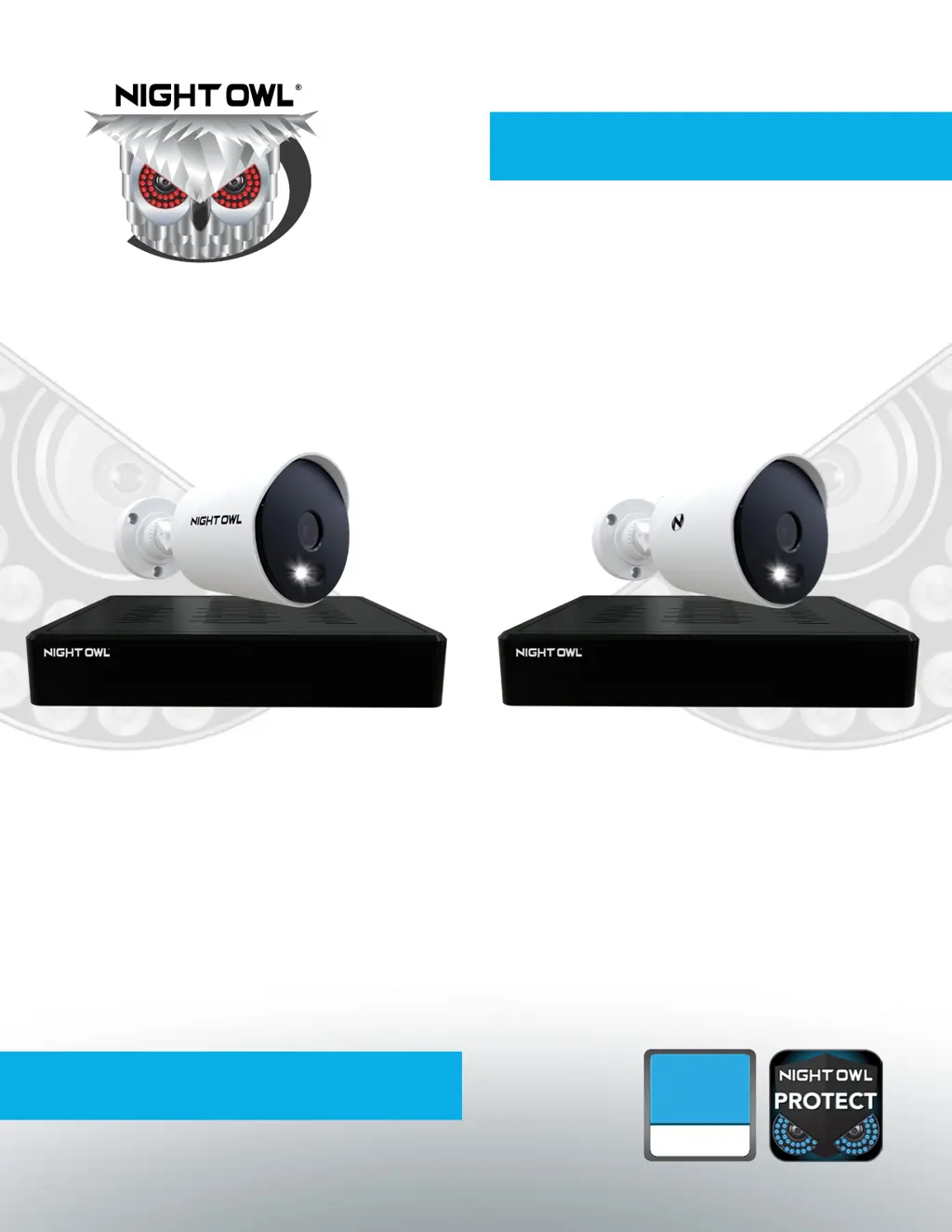
USER’S MANUAL
DP2 Series
DVR Component Model #: DVR-DP2-16
Firmware Version: T2889N
Camera Component Model #: CM-DP2L-B
DP8 Series
DVR Component Model #: DVR-DP8-12
Firmware Version: T2889N
Camera Component Model #: CM-DP8L-B
DP2 / DP8 Series

Table of Contents

Other manuals for Night Owl DP2 Series

Questions and Answers

  • R
    Roberto RobertsJul 27, 2025
    How to fix video loss on my Night Owl DP2 DVR?
    • R
      Robert HamiltonJul 27, 2025
      To resolve video loss or degradation on your Night Owl DVR, first, check the camera video cable and connections. Disconnect and reconnect the cable at both the system and the camera. If the issue persists, try moving the camera to another channel or using a different cable. If the camera is located more than 200 ft from the DVR, ensure the camera’s power supply is as close to the camera as possible to prevent power level drops. Also, confirm that you are using CL2 UL Rated cabling or better, and consider using Night Owl cables for optimal performance.
  • M
    Mitchell WalkerAug 1, 2025
    What to do if my Night Owl DP2 DVR is not powering on?
    • A
      Anthony GilmoreAug 1, 2025
      If your Night Owl DVR system isn't receiving power, begin by confirming that all cables are correctly connected and that the power adapter is securely connected to the back of the unit. Ensure the system is powered ON. If connected to a power bar or surge protector, bypass it and connect directly to the wall outlet. Verify the outlet has power by testing it with another device, like a phone charger, and try a different outlet.
  • J
    jillturnerAug 5, 2025
    Why does my Night Owl DP2 beep at startup?
    • C
      Carolyn WilliamsAug 5, 2025
      The beep at startup for Night Owl DVR is normal.
  • D
    David MoraAug 9, 2025
    Why is my Night Owl DP2 not detecting the mouse?
    • S
      shepherdjessicaAug 9, 2025
      If your Night Owl DVR system does not detect the mouse, ensure the mouse cable is firmly connected to the USB mouse port on the back panel. If the issue continues, power off the system by disconnecting the power cable, then firmly connect the USB mouse to the USB Mouse port on the back panel, and reconnect the power cable to the DC 19V to reset the system.
  • P
    Peter TaylorAug 13, 2025
    What to do if there is no picture on my Night Owl DVR camera?
    • C
      Chelsea MarquezAug 13, 2025
      If there is no picture on selected channels or the camera picture is not being displayed on your Night Owl DVR, check the camera video cable and connections. Disconnect and reconnect the cable at the system and at the camera. You may also try moving the camera to another channel or using another cable.
  • T
    Tammy GreenAug 18, 2025
    How to fix Night Owl DVR when hard drive is full?
    • G
      Gary McguireAug 18, 2025
      If your Night Owl DVR’s hard drive is full (0%) and no longer recording, navigate to MENU > STORAGE and ensure that Overwrite is set to ON.
  • Z
    zfletcherAug 22, 2025
    What to do if Night Owl DP2 DVR logo freezes?
    • C
      christinaortizAug 22, 2025
      If the Night Owl logo remains frozen after several minutes during the initial setup, disconnect from the Internet, unplug the DVR, and then plug it back in.

Summary

Important Safety Instructions

Initial System Setup Guide

Verify Package Contents

Confirm all items are present before starting installation.

Download Night Owl Protect App

Install the mobile app and create an account for system management.

Connect System Components

Connect DVR, cameras, monitor, and network cables.

Configure DVR Initial Setup

Set up language, time zone, and monitor resolution for the DVR.

Install Security Cameras

Mount cameras and connect them to the DVR for operation.

DVR Component Identification

Live Video and Event Monitoring

Viewing Live Camera Feeds

Access and view real-time video from all connected cameras.

Monitoring Detected Events

Review event logs for motion, human, and face detection alerts.

Playback Recorded Events

Utilize the playback feature to replay recorded video footage.

Video Backup and Export Procedures

Format External Storage Devices

Prepare USB flash drives or HDDs for data backup by formatting to FAT32/ExFAT.

Export Videos to USB Drive

Save recorded video clips and logs to a USB flash drive.

Export Videos to External Hard Drive

Store recorded video footage onto an external HDD.

System Configuration and Settings

Storage and Time Management

Display and Network Configuration

System Maintenance and Troubleshooting

Login Security and System Reboots

Password Reset Procedures

System Shutdown and Reboot

Troubleshooting Guide

Advanced Configuration Options

Night Owl DP2 Series Specifications

General IconGeneral
BrandNight Owl
ModelDP2 Series
CategoryDVR
LanguageEnglish

Related product manuals