EasyManua.ls Logo

Night Owl DP8 Series - User Manual

Night Owl DP8 Series
63 pages
Print Icon
To Next Page IconTo Next Page
Loading...
24/7
SUPPORT
English
Español / Français
Support.NightOwlSP.com
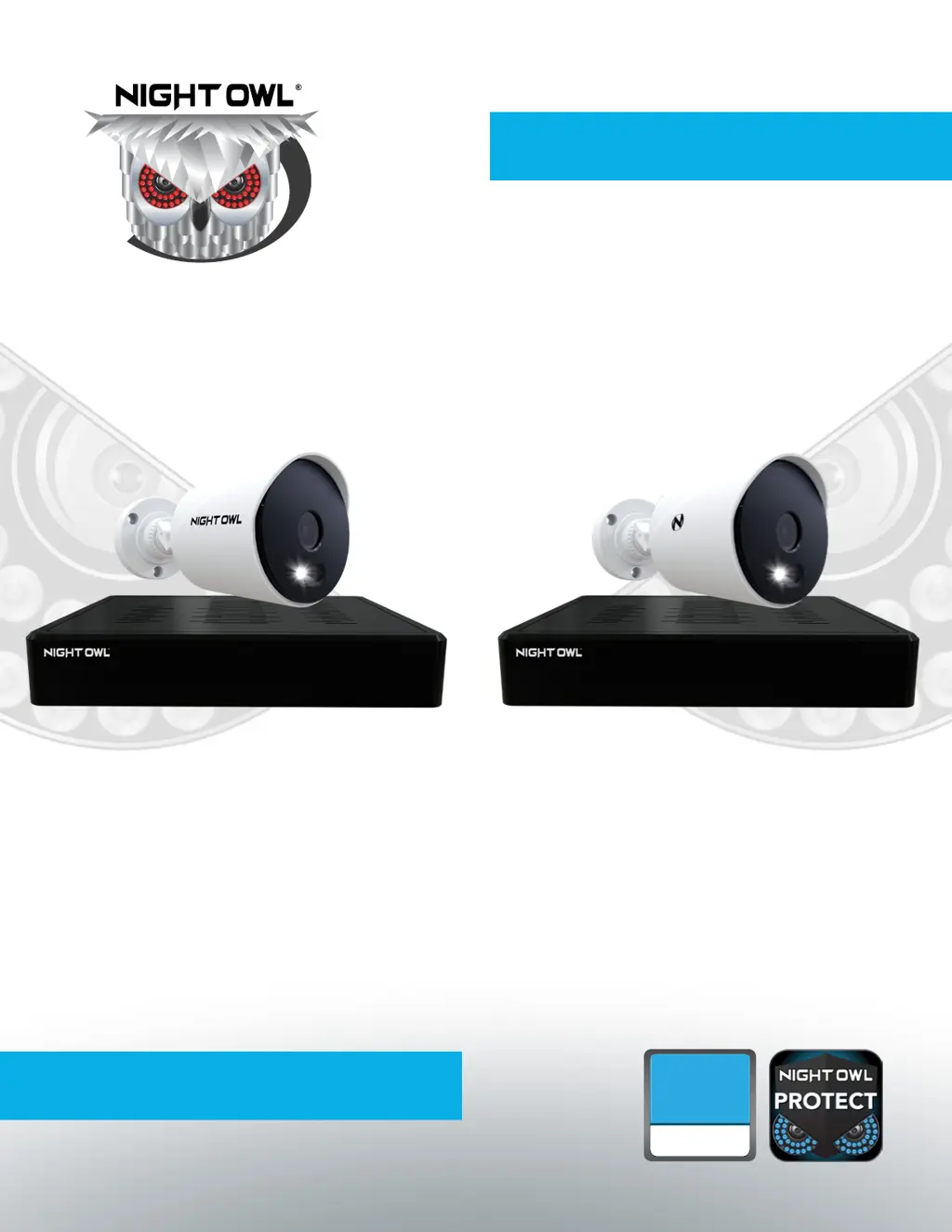
USER’S MANUAL
DP2 Series
DVR Component Model #: DVR-DP2-16
Firmware Version: T2889N
Camera Component Model #: CM-DP2L-B
DP8 Series
DVR Component Model #: DVR-DP8-12
Firmware Version: T2889N
Camera Component Model #: CM-DP8L-B
DP2 / DP8 Series

Table of Contents

Questions and Answers

  • D
    dunnjamesAug 17, 2025
    How to fix video loss on my Night Owl DP8 DVR?
    • V
      vjohnsonAug 17, 2025
      To resolve video loss or degradation on your Night Owl DVR, first, check the camera video cable and connections. Disconnect and reconnect the cable at both the system and the camera. If the issue persists, try moving the camera to another channel or using a different cable. If the camera is located more than 200 ft from the DVR, ensure the camera’s power supply is as close to the camera as possible to prevent power level drops. Also, confirm that you are using CL2 UL Rated cabling or better, and consider using Night Owl cables for optimal performance.
  • C
    christinachangAug 20, 2025
    What to do if my Night Owl DP8 is not powering on?
    • M
      Matthew HartAug 20, 2025
      If your Night Owl DVR system isn't receiving power, begin by confirming that all cables are correctly connected and that the power adapter is securely connected to the back of the unit. Ensure the system is powered ON. If connected to a power bar or surge protector, bypass it and connect directly to the wall outlet. Verify the outlet has power by testing it with another device, like a phone charger, and try a different outlet.
  • N
    Nathan WardAug 22, 2025
    Why does my Night Owl DVR beep at startup?
    • J
      Joseph TurnerAug 22, 2025
      The beep at startup for Night Owl DVR is normal.
  • D
    Deanna HughesAug 25, 2025
    Why is my Night Owl DVR not detecting the mouse?
    • J
      Jonathan RichardsonAug 26, 2025
      If your Night Owl DVR system does not detect the mouse, ensure the mouse cable is firmly connected to the USB mouse port on the back panel. If the issue continues, power off the system by disconnecting the power cable, then firmly connect the USB mouse to the USB Mouse port on the back panel, and reconnect the power cable to the DC 19V to reset the system.
  • R
    Richard DunnAug 28, 2025
    What to do if there is no picture on my Night Owl DVR camera?
    • T
      tmezaAug 28, 2025
      If there is no picture on selected channels or the camera picture is not being displayed on your Night Owl DVR, check the camera video cable and connections. Disconnect and reconnect the cable at the system and at the camera. You may also try moving the camera to another channel or using another cable.
  • J
    John RogersAug 30, 2025
    How to fix Night Owl DP8 when hard drive is full?
    • C
      Chris VargasAug 30, 2025
      If your Night Owl DVR’s hard drive is full (0%) and no longer recording, navigate to MENU > STORAGE and ensure that Overwrite is set to ON.
  • M
    Mary SalazarSep 2, 2025
    What to do if there is no picture on selected channels of my Night Owl DP8?
    • M
      Michelle ThompsonSep 3, 2025
      If you're not seeing a picture on certain channels, the camera cables might be loose or disconnected. Try these steps: 1. Check the camera video cable and its connections. 2. Disconnect and then reconnect the cable both at the system and at the camera itself. 3. Try moving the camera to another channel or using a different cable to see if that resolves the issue.
  • B
    Brianna BraySep 5, 2025
    How to fix Night Owl DP8 DVR if the hard drive is full and not recording?
    • D
      Devin MartinSep 5, 2025
      If your Night Owl DVR's hard drive is full and it's no longer recording, the 'Overwrite' function may not be enabled. To fix this, go to Menu > HDD and ensure that 'Overwrite' is set to 'Auto'.
  • C
    Carl McclainSep 8, 2025
    Why is my Night Owl DP8 not receiving power?
    • R
      Ryan DelacruzSep 8, 2025
      If your Night Owl DVR isn't receiving power, it could be due to a loose or unplugged cable from the power adapter, or insufficient power. Here's what to check: * Make sure all cables are correctly connected, including the power adapter at the back of the unit. * Confirm the system is powered ON - LED indicators on the front should be lit. * If connected to a power bar or surge protector, try plugging directly into the wall outlet. * Verify the outlet has power by testing with another device, like a phone charger. * Try a different outlet.
  • R
    Regina CoxSep 12, 2025
    What to do if Night Owl DP8 logo freezes?
    • T
      Tracy JohnsonSep 12, 2025
      If the Night Owl logo remains frozen after several minutes during the initial setup, disconnect from the Internet, unplug the DVR, and then plug it back in.

Summary

FCC Warnings

Safety Instructions

Initial Setup

Verify Your Package Contents

Confirm all included parts before system installation.

Download and Create Night Owl Protect Account

Download and set up the mobile app for account creation and password recovery.

Connect Your System

Guide to connecting all system components, including cameras, DVR, and network.

Set Up Your DVR

Initial configuration of the DVR, including language, time zone, and network settings.

View Live Videos and Detected Events

Backing Up and Exporting Videos

Configuring System Settings

Adjust Storage Settings

Adjust Date, Time, and Daylight Savings Settings

Adjust Monitor Display Settings

View Network Settings

DVR Configuration Backup and Restore

Firmware Upgrade Procedures

Event Log Management

Login Security Settings

Password Reset Procedures

Reset Password via Mobile App

Procedure to reset password using the mobile application.

Reset Password via Web Portal

Procedure to reset password via the Night Owl website.

Reset Local Password (Offline DVR)

Steps to recover a forgotten local password when the DVR is offline.

System Shutdown and Logout

Night Owl DP8 Series Specifications

General IconGeneral
ModelDP8 Series
Video Channels8
Remote AccessYes
HDMI OutputYes
Operating SystemEmbedded Linux
Motion DetectionYes
Audio InputYes
Audio OutputYes
Video OutputHDMI
Network ConnectivityEthernet

Related product manuals