EasyManua.ls Logo

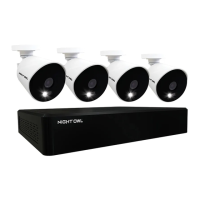
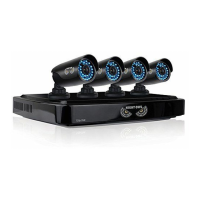
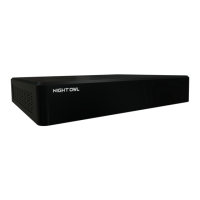
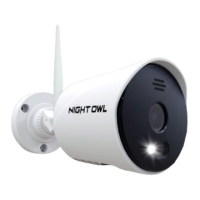
Night Owl XHD Series - User Manual

Night Owl XHD Series
70 pages
Print Icon
To Next Page IconTo Next Page
Loading...
www.NightOwlSP.com
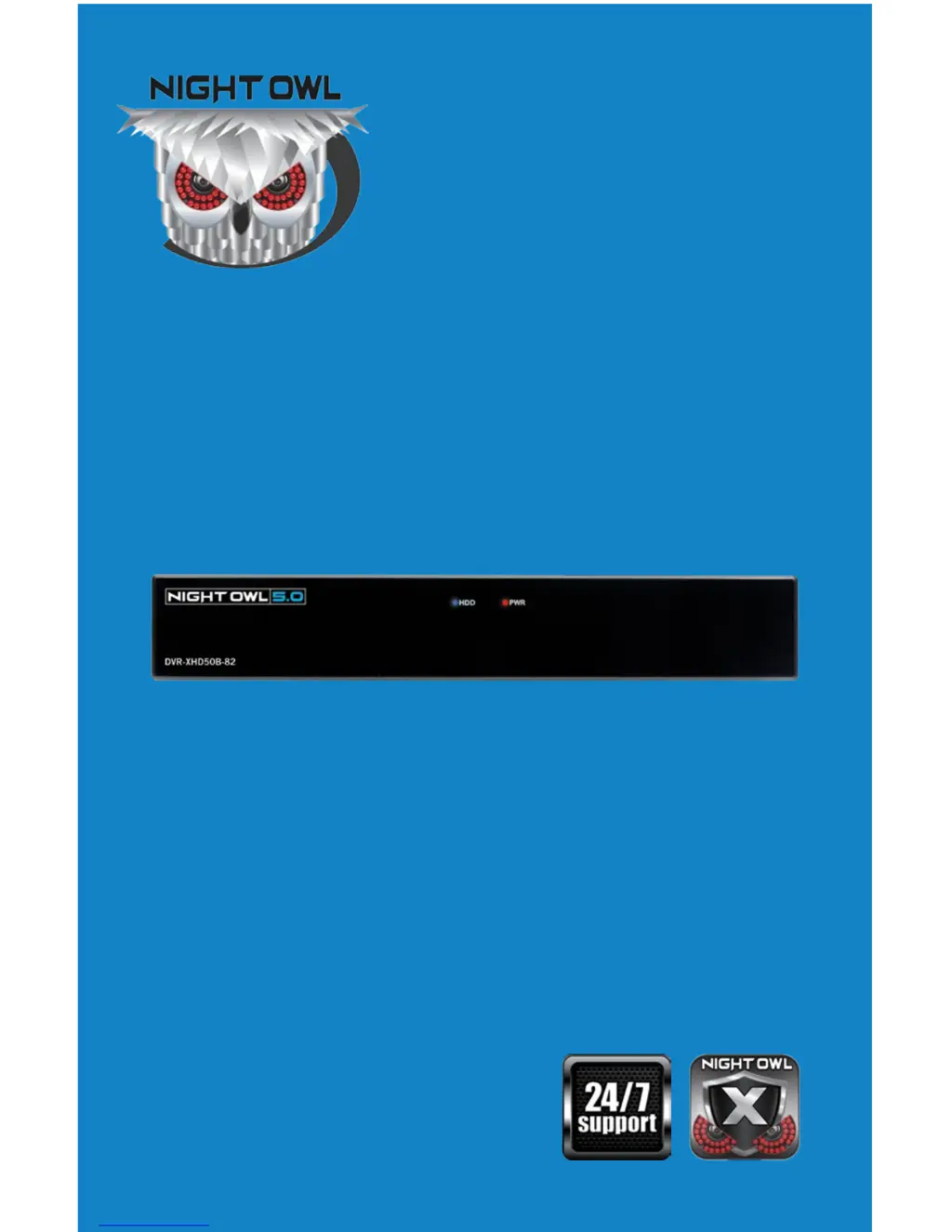
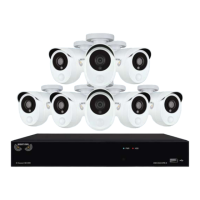
USER MANUAL
XHD 5MP SERIES
4/8 CHANNEL

Other manuals for Night Owl XHD Series

Questions and Answers

  • C
    Christina JohnsonAug 13, 2025
    Why is my Night Owl DVR system not receiving power?
    • B
      Bridget BrownAug 13, 2025
      Your Night Owl DVR might not be receiving power because the cable from the power adapter is loose or unplugged. Confirm that all cables are correctly connected and that the power adapter is securely connected to the back of the unit. Another reason might be insufficient power. Confirm the system is powered ON (LED indicators on the front should be ON). If connected through a power bar or surge protector, try bypassing it and connecting directly to the wall outlet. Also, confirm that there is power at the outlet by testing with another device, like a phone charger, or connecting the power cable to another outlet.
  • T
    Toni JamesAug 16, 2025
    Why does my Night Owl DVR system beep during motion detection?
    • E
      Erika Stewart PhDAug 16, 2025
      If your Night Owl DVR system beeps during motion detection, it is because motion detection is enabled, but the alarm buzzer is activated. To resolve this, go to the General Menu > Alarm, select the channel and turn Buzzer to OFF.
  • M
    Mrs. Ashley EricksonAug 20, 2025
    How to fix a Night Owl XHD DVR when the hard drive is not detected?
    • S
      Steven WilliamsAug 20, 2025
      If the hard drive is not detected by your Night Owl DVR system, it could be due to loose or improperly connected hard drive cables. Remove the cover and check that the hard drive cables are firmly connected. Alternatively, there might not be a hard drive installed in the system. In this case, open the cover and install a 3.5” SATA hard drive.
  • M
    Melinda WaltersAug 25, 2025
    What to do if my Night Owl XHD hard drive is full?
    • R
      Robert DavisAug 25, 2025
      If your Night Owl DVR hard drive is full and the unit is no longer recording, it could be because overwrite is not enabled. Go to the Device Menu > HDD and ensure that Overwrite is set to Auto.
  • J
    Joseph MontoyaAug 28, 2025
    What does 'whirring' noise from Night Owl DVR system mean?
    • M
      Matthew MooreAug 28, 2025
      A 'whirring' noise coming from your Night Owl DVR system means the exhaust fan is working normally.
  • T
    tamaranobleAug 31, 2025
    What to do if my Night Owl XHD DVR mouse is not detected?
    • C
      Chelsea FernandezSep 1, 2025
      If your mouse is not detected by the Night Owl DVR system, first, ensure the mouse cable is firmly connected to the USB Mouse port on the front panel. If this doesn't work, power off the system by disconnecting the power cable, then firmly connect the USB mouse to the USB Mouse port on the front panel, and reconnect the power cable to the DC 19V port on the rear panel.
  • J
    jennydanielsSep 4, 2025
    Why is there no picture on my Night Owl DVR channels?
    • E
      Erica CarterSep 4, 2025
      If there is no picture on selected channels of your Night Owl DVR, the camera cables might be loose or disconnected. Check the camera video cable and connections. Disconnect and reconnect the cable at both the system and the camera. You can also try moving the camera to another channel or using another cable.
  • M
    martinezjamesSep 8, 2025
    Why does my Night Owl XHD DVR image have no sound?
    • J
      James MurphySep 8, 2025
      If the image on your Night Owl DVR appears but has no sound, check the AUDIO connection to the DVR to ensure the audio cables are not loose or disconnected. Also, left-click in Live View to bring up the Volume control and ensure that the channel(s) are not low or muted. Finally, increase the volume on any external speakers you are using.

Summary

Safety Instructions

General Safety Guidelines

Essential safety guidelines for operating and handling the DVR and its components.

Specifications Overview

Camera Installation Guide

Mounting the Cameras

Guidelines and steps for physically mounting the cameras.

DVR Installation Procedures

Getting Started with Your DVR

Startup Wizard Guide

Guides through initial DVR setup, camera testing, and configuration.

Camera Test Procedure

Steps to test camera connections and signal before final installation.

Network Connection Setup

Instructions for connecting the DVR to the internet via Ethernet.

Firmware Update Check

Process for checking and updating the DVR's firmware.

Admin Password Creation

Steps to create an Admin password and recovery email for the DVR.

Channel Configuration Details

Configuring individual channel settings like name, notifications, and recording.

Live View Screen Interface

Overview of the default live view screen and its interface elements.

Menu Screen Navigation

How to access and navigate the DVR's main menu for settings.

Menus and Settings Configuration

General Menu Options

Access to display and network settings for the DVR system.

Network Configuration Settings

Configuring network settings and optimizing internet connectivity for the DVR.

Cameras Menu Settings

Adjusting individual camera settings like title, display, and color.

Encode Settings Overview

Modifying video compression, resolution, and frame rate settings.

Motion Detection Settings

Configuring motion detection sensitivity, area, and post-record settings.

Setting Detection Areas

Defining specific areas within the camera's view for motion detection.

Product Warranty

Troubleshooting Common Issues

Power and System Startup Issues

Solutions for power-related issues with the DVR system.

Night Owl XHD Series Specifications

General IconGeneral
SeriesXHD Series
CategoryDVR
Storage CapacityUp to 6TB
Remote ViewingYes
Motion DetectionYes
Recording Resolution1080p
Compression FormatH.264
Network InterfaceEthernet
Mobile AccessYes
Operating System CompatibilityiOS, Android

Related product manuals