EasyManua.ls Logo

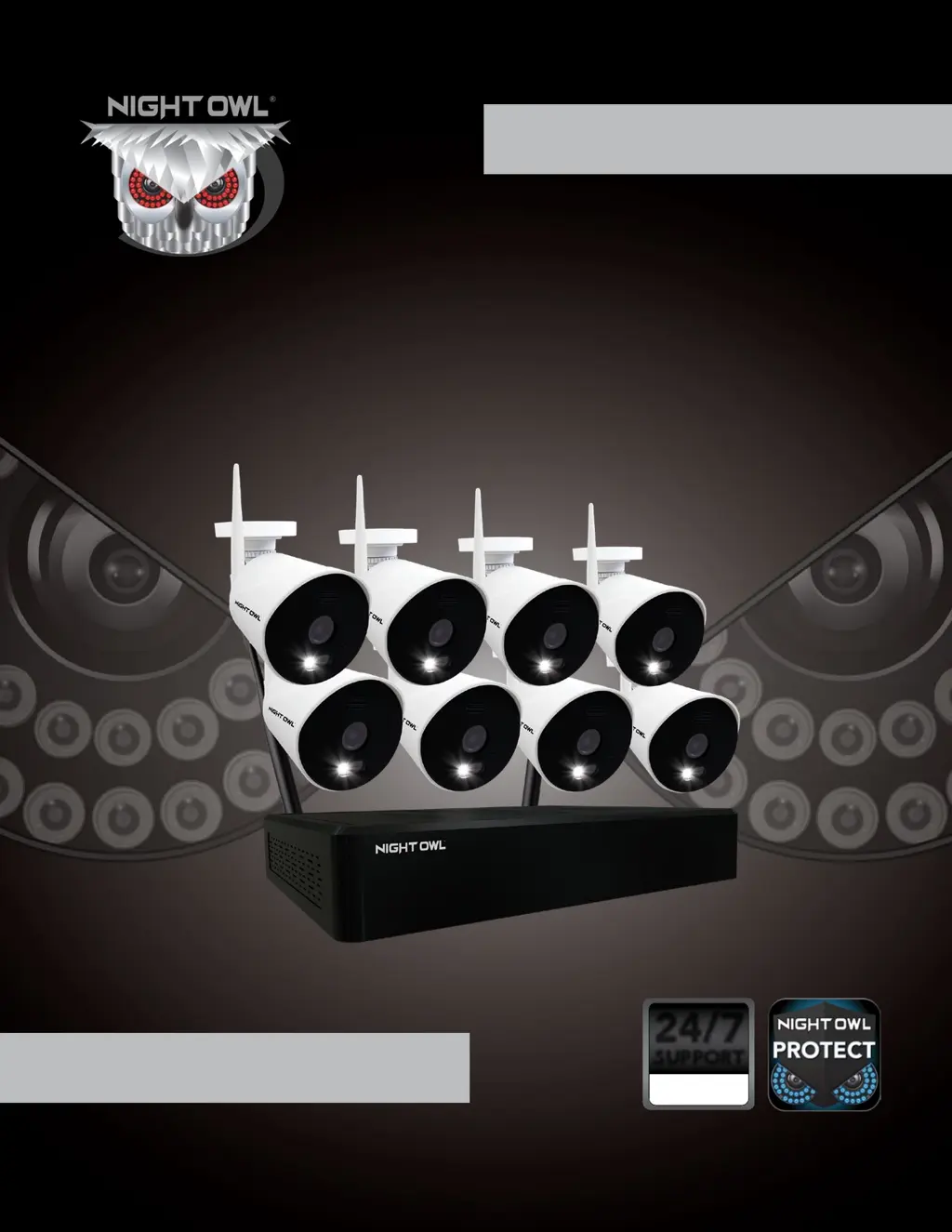
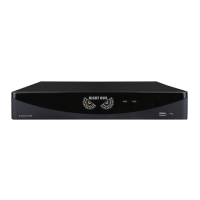
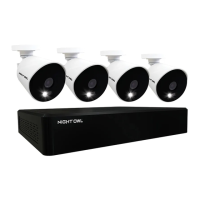
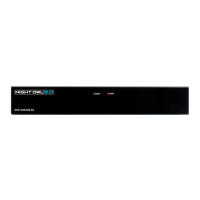
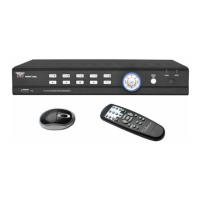
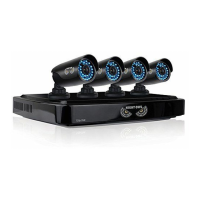
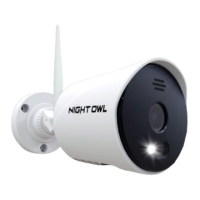
Night Owl WNIP2 Series - User Manual

Night Owl WNIP2 Series
57 pages
Print Icon
To Next Page IconTo Next Page
Loading...
1
WNIP2 SERIES
FW VERSION WNIP2-20200918
www.NightOwlSP.com
24/7
SUPPORT
English
Español / Français
USER’S MANUAL

Other manuals for Night Owl WNIP2 Series

Questions and Answers

  • J
    jose76Jul 29, 2025
    What to do if my Night Owl DVR system is not receiving power?
    • K
      Kimberly MendozaJul 29, 2025
      First, check that all cables are correctly connected and that the power adapter is securely connected to the back of the unit. If the cables are connected, confirm the system is powered ON (LED indicators on the front should be ON). If connected through a power bar or surge protector, bypass it and connect directly to the wall outlet. Check if there is power at the outlet by testing with another device, like a phone charger, or by connecting the power cable to another outlet.
  • S
    smithgloriaAug 3, 2025
    Why is my Night Owl DVR beeping at startup?
    • A
      Andrew DavisAug 4, 2025
      The beep at startup is normal.
  • M
    mark24Aug 10, 2025
    Why is my Night Owl WNIP2 DVR making a whirring noise?
    • J
      jonesvictoriaAug 10, 2025
      The whirring noise indicates that the exhaust fan is working normally.
  • G
    Gabriella BowmanAug 16, 2025
    How to enable sound on my Night Owl Wi-Fi NVR?
    • M
      Morgan WilliamsAug 16, 2025
      Right click in Live View and ensure Volume is enabled.
  • G
    Gloria KingAug 21, 2025
    What to do if my mouse is not detected by Night Owl DVR system?
    • T
      Tammy WareAug 21, 2025
      Ensure the mouse cable is firmly connected to the USB Mouse port on the front panel. If the issue persists, power off the system by disconnecting the power cable. Then, firmly connect the USB mouse to the USB Mouse port on the front panel and reconnect the power cable to the DC 19V port on the rear panel.

Summary

Safety Instructions

Chapter 1: Connecting Your System

Chapter 2: Downloading Night Owl Protect

Chapter 3: Startup Wizard

3.1 Connected to the Internet

Guide for connecting the Wi-Fi NVR to the internet and logging into the Night Owl Protect account.

3.2 I Dont Want to Connect the Wi-Fi NVR to the Internet

Instructions for setting up the Wi-Fi NVR without an internet connection, including local password creation.

Chapter 4: Pairing a Replacement Wi-Fi IP Camera

Chapter 5: Mounting the Cameras

Chapter 6: Live View

6.1 Live View (All Channels)

Describes the Live View screen interface and the status icons displayed for each camera.

6.2 Right-Click Menu

Details the options available from the right-click context menu on the Live View screen for controlling the system.

Chapter 7: Video Playback

Chapter 8: Backup and Export Videos

8.2 Video Backup

Details the process of backing up video recordings to a USB drive or external HDD using the playback interface.

Chapter 9: Menus and Settings

Troubleshooting

Night Owl WNIP2 Series Specifications

General IconGeneral
CategoryDVR
Video ResolutionUp to 1080p
Remote AccessYes
Remote ViewingYes
Motion DetectionYes
SeriesWNIP2
Hard Drive Capacity1TB
Video OutputHDMI
Mobile App SupportYes
Operating System CompatibilityiOS, Android
Network ConnectivityWi-Fi

Related product manuals