EasyManua.ls Logo

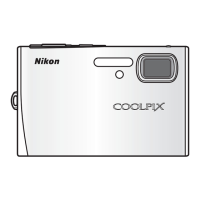
Nikon CoolPix S3 - User Manual

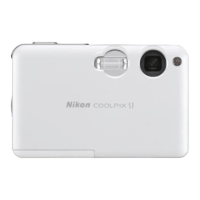
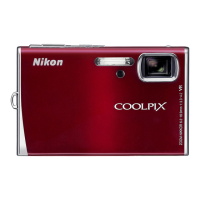
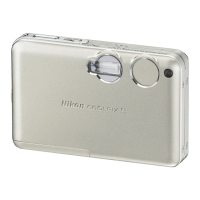
Nikon CoolPix S3
110 pages
Print Icon
To Next Page IconTo Next Page
Loading...
En
The Nikon Guide to Digital Photography
with the
DIGITAL CAMERA

Table of Contents

Other manuals for Nikon CoolPix S3

Questions and Answers

  • L
    Lisa VargasAug 19, 2025
    Why is my Nikon CoolPix S3 Digital Camera flash not firing?
    • B
      bryanrobertsAug 19, 2025
      There are several reasons why the flash on your Nikon digital camera might not be firing. The flash may be off because it turns off automatically when certain modes are selected. Also, there might be an obstruction blocking the flash window, or the subject could be outside the flash range. Try recomposing the picture or using D-lighting. Adjust exposure compensation if it is too low. If the subject is backlit, select the Backlight scene mode, use fill flash, or D-lighting.
  • E
    Elizabeth MckinneyAug 21, 2025
    What to do if my Nikon Digital Camera monitor is blank?
    • J
      Julie HarrisAug 21, 2025
      If the monitor on your Nikon digital camera is blank, consider the following possibilities: Ensure the camera is turned on. Check that the battery is correctly inserted and the battery-chamber cover is properly latched, and replace the battery if it's exhausted. Verify the AC adapter connection, if you're using one. If the camera is in standby mode, press the shutter-release button halfway. Also, disconnect from computer or audio/video cable if the camera is in COOL-STATION. Stop voice recording if it is in progress. Stop time-lapse or interval-timer shooting if either is active.
  • J
    Jesus GarciaAug 23, 2025
    How to fix out of focus pictures on my Nikon CoolPix S3?
    • S
      Steven AdamsAug 23, 2025
      If your Nikon digital camera pictures are out of focus, it may be because the camera can't focus on the selected subject using autofocus; try using focus lock. Ensure that Auto is selected for AF assist. If there's a focus error, turn the camera off and then on again.
  • H
    Henry MillerAug 26, 2025
    How to reduce camera shake on Nikon CoolPix S3 Digital Camera?
    • H
      hannahalexanderAug 26, 2025
      If your Nikon Digital Camera shook during the shot, it can be reduced by: - Using the flash - Using the Best Shot Selector (BSS) - Using the self-timer with a tripod.
  • S
    Scott JacksonAug 27, 2025
    Why won't PictureProject start when I connect my Nikon CoolPix S3 Digital Camera?
    • J
      Joseph HuertaAug 27, 2025
      If PictureProject doesn't start when you connect your Nikon digital camera, ensure the camera is turned on. Check the power connections to the supplied AC adapter and make sure the batteries are not exhausted. Verify the USB cable connection and that the card is properly inserted in the card reader or card slot. If the camera is connected to a computer, ensure the USB item in the setup menu is not set to PTP. If the camera is not registered in Device Manager (Windows only), consult the PictureProject reference manual for further information.
  • M
    melissa45Aug 30, 2025
    What to do if my Nikon CoolPix S3 Digital Camera pictures are too dark?
    • S
      Susan PorterAug 30, 2025
      If your Nikon digital camera pictures are too dark (underexposed), it could be due to a slow shutter speed. Try using the flash or selecting an appropriate scene mode.
  • J
    jstanleyAug 31, 2025
    Why can't I zoom in on a picture on my Nikon CoolPix S3?
    • J
      Janet PowersSep 1, 2025
      If you can't zoom in on a picture on your Nikon digital camera, it might be because the picture is a movie, was created with the small picture option, or has been cropped to below 320 × 240. Confirm the picture type and settings.
  • E
    ehenrySep 3, 2025
    What causes unusual characters on my Nikon CoolPix S3 Digital Camera screen?
    • L
      Lisa HuffSep 3, 2025
      Unusual characters appearing on the monitor of your Nikon digital camera, and the camera stopping function, can be caused by a strong external static charge. To resolve this, turn the camera off, remove and replace the batteries and / or disconnect and reconnect the AC adapter, and then turn the camera on again.
  • J
    jasminevazquezSep 5, 2025
    Why can't I create a copy using crop, D-lighting, or small picture options on my Nikon Digital Camera?
    • K
      Kenneth BrownSep 5, 2025
      If you can't create a copy using crop, D-lighting, or small picture options on your Nikon digital camera, it could be due to insufficient memory. Try deleting pictures. Alternatively, the display might show 'MEMORY CARD IS WRITE PROTECTED'; if so, unlock the memory card.
  • S
    Stephanie RamirezSep 7, 2025
    What to do if the exposure compensation is too high on Nikon CoolPix S3 Digital Camera?
    • L
      Lorraine WashingtonSep 7, 2025
      Adjust exposure compensation.

Summary

Trademark Information

Attaching the Camera Strap

Symbols and Conventions

For Your Safety

WARNINGS

Essential safety precautions and warnings to prevent injury or damage.

Notices

Introduction

Before Taking Important Pictures

Advice on taking test shots before important events to ensure normal function.

Life-Long Learning

Information on Nikon's online resources for product support and education.

Parts of the Camera

The Monitor

Accessories

The MV-11;MV-11 B COOL-STATION

Details on using the COOL-STATION for charging, viewing, and copying.

The EH-63 AC Adapter

Information on connecting the AC adapter for charging or powering the camera.

First Steps

Inserting the Battery

Instructions for correctly inserting the rechargeable battery into the camera.

Charging the Battery

Steps for charging the camera's battery using the AC adapter and COOL-STATION.

Inserting Memory Cards

Guide on how to insert and orient Secure Digital memory cards.

Turning the Camera On

Procedure for powering on the camera and checking status indicators.

Basic Setup

Initial camera configuration including language, time, and date settings.

Basic Photography

Step 1 - Select Mode

How to select the AUTO mode for basic point-and-shoot photography.

Step 2 - Frame the Picture

Guidance on using zoom and framing subjects for optimal composition.

Step 3 - Focus and Shoot

Instructions on focusing, checking indicators, and taking the picture.

Step 4 - View the Results

How to view captured pictures and delete unwanted ones.

More on Photography

Using the Flash

Explanation of available flash modes and when to use them.

Taking Pictures with the Self-Timer

Using the ten-second timer for portraits or to prevent camera shake.

Easy Close-ups: Macro Close-up Mode

How to take close-up shots of small objects at very short distances.

Scene Mode

Framing Assist

Using framing guides to compose pictures with different assist options.

Portrait Assist

Mode for framing portraits with softened backgrounds and sense of depth.

Landscape Assist

Mode for vivid landscape shots enhancing outlines, colors, and contrast.

Sports Assist

Mode for dynamic action shots to freeze moving objects or record motion.

Night Portrait Assist

Mode for taking portrait shots at night with natural balance.

Other Scenes

Selection of thirteen scene modes optimized for common subject types.

Voice Recordings

Making a Voice Recording

Steps to record audio voice memos using the built-in microphone.

Playing Voice Recordings

How to play back recorded voice memos.

Copying Voice Recordings

Procedure for copying voice recordings between internal and memory card.

Movies

Movie Mode

Overview of different movie recording types and their specifications.

Recording Movies

Instructions on how to start, record, and end movie recordings.

Recording Time-Lapse Movies

Guide to setting intervals and recording time-lapse sequences.

More on Playback

Viewing Pictures on the Camera

How to view pictures in full-frame and thumbnail playback modes.

Viewing Multiple Pictures: Thumbnail Playback

Navigating and managing multiple images using thumbnail view.

Taking a Closer Look: Playback Zoom

Using zoom functionality to examine image details during playback.

Enhancing Contrast: D-Lighting

Using D-Lighting to improve picture brightness and contrast.

Voice Memos: Recording and Playback

Recording and playing back voice memos appended to pictures.

Viewing Pictures on TV

Connecting the camera to a television to view pictures.

Viewing Pictures on a Computer

Steps for connecting the camera to a computer for transferring pictures.

Transferring Pictures

Process for transferring images from the camera to a computer.

Disconnecting the Camera

Safe procedures for disconnecting the camera from a computer.

Printing Pictures

Methods for printing pictures directly from the camera or via a computer.

Technical Notes

Optional Accessories

List of optional accessories available for the camera.

Approved Memory Cards

List of tested and approved memory card brands and sizes.

Caring for the Camera

Precautions for maintaining the camera's condition during use and storage.

Cleaning

Instructions for cleaning the camera's lens, monitor, and body.

Error Messages

Table of common error messages and their solutions.

Troubleshooting

Guide to solving common camera operational problems.

Specifications

Technical specifications of the Nikon COOLPIX S3 digital camera.

Nikon CoolPix S3 Specifications

Camera Specifications IconCamera Specifications
effective pixels6.0 million
CCD1/2.5-inch type (6.4 million total pixels)
lens3x Zoom-Nikkor ED; 5.8-17.4mm
LCD monitor2.5-inch type, 110, 000-dot
Power IconPower
power requirementsOne Rechargeable Li-ion Battery EN-EL8
battery lifeApprox. 190 images
AC adapterEH-63 (supplied)
Weight and Dimensions IconWeight and Dimensions
dimensionsApprox. 3.5 x 2.3 x 0.8 in. (89.9 x 57.5 x 19.7mm)
weightApprox. 4.2 oz. (118g) (without battery and memory card)

Related product manuals