EasyManua.ls Logo

Nikon Coolpix SQ - User Manual

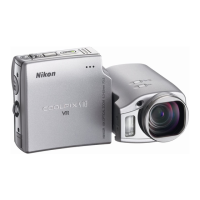
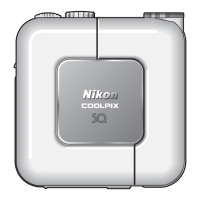
Nikon Coolpix SQ
116 pages
Print Icon
To Next Page IconTo Next Page
Loading...
DIGITAL CAMERA
The Guide to Digital Photography
with the
(En)

Table of Contents

Questions and Answers

  • D
    Denise EvansAug 16, 2025
    Why are my Nikon Coolpix SQ photos too dark?
    • C
      cynthiamooreAug 17, 2025
      If your Nikon Digital Camera photos appear too dark, ensure the flash is activated. Also, check that the flash window isn't obstructed. If the subject is too far, move it closer to the camera. Finally, adjust the exposure compensation settings to increase brightness.
  • J
    Jonathan MitchellAug 19, 2025
    Why is the screen blank on my Nikon Digital Camera?
    • V
      vthompsonAug 19, 2025
      If the monitor on your Nikon Digital Camera is blank, the battery may be exhausted, so check and replace the battery if necessary. Another cause may be that the battery is not correctly inserted, or the battery-chamber/ memory card slot cover is not securely closed, so ensure the battery is correctly inserted and the cover is securely closed. Also, if you are using the EH-61 AC adapter, it may not be properly connected, so check the connection of the EH-61 AC adapter.
  • N
    Nathan SmithAug 22, 2025
    How to fix blurry photos on Nikon Coolpix SQ Digital Camera?
    • A
      Anthony BraunAug 22, 2025
      If your Nikon Digital Camera photos are blurred, it could be due to camera shake during the shot. To reduce blurring, use the flash, Best Shot Selector (BSS), or the self-timer with a tripod.
  • N
    Nicholas GriffinAug 25, 2025
    Why won't my Nikon Coolpix SQ connect to my TV?
    • C
      Christopher LewisAug 26, 2025
      If your Nikon Digital Camera is not displaying images on the TV, check the audio/video cable connections. Ensure the television is set to the correct video channel. Also, verify that the video mode setting matches your device.
  • V
    Vickie VillanuevaAug 27, 2025
    How to focus my Nikon Coolpix SQ correctly?
    • J
      Jared MillerAug 27, 2025
      If your Nikon Digital Camera photos are out of focus, it's possible the subject was not in the focus area when the shutter-release button was pressed halfway. Try using focus lock to ensure your subject is in focus.
  • C
    Crystal ByrdAug 30, 2025
    What to do if my Nikon Coolpix SQ Digital Camera won't take a photo?
    • A
      Ana SaundersAug 30, 2025
      If your Nikon Digital Camera is not taking photos when you fully press the shutter-release button, ensure the battery isn't exhausted by charging or replacing it. Also, the memory card may need to be formatted for use in COOLPIX SQ, or the memory card might be full. In the latter case, free up space or adjust the image quality/size settings.
  • D
    David DennisSep 2, 2025
    How to fix overexposed photos on Nikon Digital Camera?
    • J
      Joseph SanchezSep 2, 2025
      If your Nikon Digital Camera photos are too bright, it's likely that the exposure compensation is set too high. Adjust the exposure compensation settings to decrease the brightness.
  • B
    Billy AndersonSep 4, 2025
    Why does my Nikon Digital Camera turn off immediately?
    • A
      Amber LarsenSep 4, 2025
      If your Nikon Digital Camera is turning off immediately, the battery may be low. Replace it with a fully charged battery. Alternatively, if the battery is cold, warm it to room temperature before use.
  • S
    Sonia DanielSep 7, 2025
    Why is the flash not working on my Nikon Digital Camera?
    • C
      Caleb SanchezSep 8, 2025
      If your Nikon Digital Camera flash isn't firing, first ensure that the flash is turned on. If it's on and still not working, the battery level might be low. Replace the battery with a fully charged one.
  • C
    cfreySep 10, 2025
    What to do if Nikon Coolpix SQ is not working?
    • K
      Kimberly BrewerSep 12, 2025
      If your Nikon Digital Camera is failing to function as expected, try turning the camera off, removing and replacing the batteries, and turning the camera on again. If you are using the EH-61 AC adapter, disconnect and reconnect the adapter, and turn the camera on again.

Summary

Trademark Information

For Your Safety

Safety Warnings and Precautions

Safety precautions and warnings to prevent injury or damage to the user or equipment.

Child Safety Precautions

Caution to prevent infants from putting small parts into mouths.

Liquid Crystal Display Safety

Precautions to prevent injury from broken monitor glass or liquid.

Notices and Legal Information

US Customer Notices

FCC radio frequency interference statement and related information for US customers.

Copyright and Reproduction Notice

Guidelines and restrictions on copying copyrighted material and legal items.

Introduction to the Manual

Symbols and Conventions Guide

Explanation of symbols and conventions used throughout the manual for clarity.

Getting Started: Before You Begin

Camera Exterior Overview

Identification of external camera components and their functions.

Monitor Display Indicators

Explanation of indicators and icons shown on the monitor during shooting.

Mode Dial Functions

Description of the different shooting modes accessible via the mode dial.

Shutter-Release Button Operation

Details the two-stage operation of the shutter-release button.

Initial Setup: First Steps

Battery Installation

Step-by-step guide for inserting the rechargeable battery into the camera.

Battery Charging Procedures

Instructions for charging the battery using the COOL-STATION or AC adapter.

Memory Card Insertion

Guide on correctly inserting the CompactFlash memory card.

Battery Level Check

Explains how to check the battery level indicator and its meaning.

Basic Camera Configuration

Steps to set language and camera clock for the first time.

Core Photography: Basic Photography

Selecting Shooting Mode

Guide to setting the mode dial to Auto mode and turning the camera on.

Framing Your Subject

Instructions on adjusting the lens angle and holding the camera steadily.

Focusing and Taking Pictures

Steps for focusing using the shutter button and taking the final picture.

Reviewing Photos: Full-Screen Playback

How to use the playback button to view captured images.

Deleting Unwanted Pictures

Process for deleting individual pictures from the camera.

Advanced Photography: More on Photography

Using Camera Flash Modes

Explains available flash modes like Auto, Red-eye reduction, and Anytime Flash.

Macro Close-Up Photography

Guide to using macro mode for close-up shots of small objects.

Self-Timer for Self-Portraits

Instructions for using the self-timer for self-portraits or reducing camera shake.

Exposure Compensation Adjustments

How to adjust exposure compensation to make pictures brighter or darker.

Scene Mode Selection

Overview of various scene modes like Portrait, Landscape, Sports, etc.

Movie Recording and Playback

Recording Movies

Steps to record movies up to 40 seconds with sound.

Viewing Recorded Movies

Instructions for playing back recorded movies using the multi selector.

Camera Shooting Menu Options

Image Quality Settings

Explains options for image quality (FINE, NORMAL, BASIC) and compression ratios.

Image Size Selection

Details image sizes (pixels) for different uses like e-mail or printing.

White Balance Adjustments

How to adjust white balance settings for different lighting conditions.

Metering Modes Explained

Explains different metering modes (Matrix, Spot, Center-Weighted).

Continuous Shooting Modes

Describes options for capturing multiple shots in sequence.

Best Shot Selector (BSS) Usage

How BSS captures multiple shots and saves the sharpest one.

AF Area Mode Settings

Options for automatic or manual selection of the focus area.

Auto-Focus Mode Configuration

Explains continuous AF vs. single AF settings.

Photo Review: Playback Menu

Print Set Configuration

Specifies pictures, number of prints, and information for DPOF printing.

Automated Slide Show

How to view pictures in an automated slideshow with transitions.

Deleting Pictures from Memory Card

Options to delete selected or all pictures from the memory card.

Protecting Photos from Deletion

How to protect selected pictures from accidental deletion.

Creating Small Picture Copies

Creating smaller versions of pictures for e-mail or web use.

Auto Transfer Settings

Turning transfer marking on/off for all or selected pictures.

Memory Card Formatting

Instructions for formatting memory cards before use.

Camera Settings: The Setup Menu

Welcome Screen Customization

Choosing the welcome screen and sound played when the camera turns on.

Monitor Brightness Adjustment

How to adjust the monitor's brightness level.

Sound Volume Settings

Setting the volume for camera sounds like shutter and playback.

Auto Power-Off Configuration

Configuring the automatic power-off timer to save battery.

Video Output Mode Selection

Choosing NTSC or PAL standard for video output.

Resetting Camera to Defaults

How to reset all camera settings to their original default values.

Technical Notes and Maintenance

Optional Camera Accessories

Lists optional accessories available for the COOLPIX SQ camera.

Approved Memory Card Compatibility

Lists memory card brands and models tested and approved for the camera.

Camera and Battery Care Guide

Precautions for using, storing, and cleaning the camera and battery.

Error Messages and Solutions

Troubleshooting Common Issues

Camera Specifications

COOLPIX SQ Specifications

Detailed technical specifications of the COOLPIX SQ camera.

COOL-STATION MV-10 Details

Technical specifications for the COOL-STATION accessory.

EH-61 AC Adapter Details

Technical specifications for the EH-61 AC adapter.

Nikon Coolpix SQ Specifications

General IconGeneral
Sensor TypeCCD
Effective Pixels3.1 million
Image Sensor Size1/2.7 inch
Optical Zoom3x
LCD Screen Size1.5 inch
LCD Monitor Pixels110, 000
Storage MediaCompactFlash (Type I)
Movie with SoundYes
InterfaceUSB
LensNikkor
Focal Length5.6 - 16.8 mm
Aperture Rangef/2.7-4.8
ISO Sensitivity100, 200, 400
File FormatsJPEG
BatteryRechargeable Li-ion Battery EN-EL2
Weight180 g
Battery TypeEN-EL2

Related product manuals