EasyManua.ls Logo

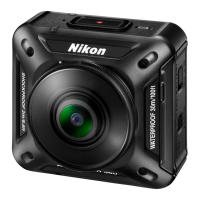
Nikon KEYMISSION 360 - User Manual

Nikon KEYMISSION 360
178 pages
Print Icon
To Next Page IconTo Next Page
Loading...
DIGITAL CAMERA
Quick Start Guide
The KeyMission 360 ii
SnapBridge iv
Introduction vi
Parts of the Camera 1
Getting Started
4
Using the Camera 17
Technical Notes 30
Read this manual thoroughly before using the camera.
To ensure proper use of the camera, be sure to read the
For Your Safety leaflet, “<Important> Notes About
Shockproof, Waterproof, and Dustproof Performance and
Condensation” (page xi), and “Notes About Wireless
Communication Functions” (page 32).
After reading this manual, keep it in a readily accessible
place for future reference.

Table of Contents

Other manuals for Nikon KEYMISSION 360

Questions and Answers

  • A
    abigail32Sep 23, 2025
    Why I cannot upload images to a smart device that has a wireless connection established from my Nikon Digital Camera?
    • H
      howardvictorSep 23, 2025
      To automatically upload images from your Nikon Digital Camera, ensure the following operations are performed: Select SnapBridge 360/170 M a Connect tab M turn on Auto download. Also, select SnapBridge 360/170 M c Camera tab M Camera settings M Network menu M Send while shooting M set Still images to Yes. To automatically send images captured using remote photography, tap g on the shooting screen, and then turn on Download on the screen that is displayed.
  • K
    Kenneth LoveAug 25, 2025
    Why won't my Nikon KEYMISSION 360 turn on?
    • J
      Jennifer McgrathAug 25, 2025
      The battery is exhausted.
  • R
    ronaldpetersenAug 25, 2025
    Why is the battery inserted in my Nikon KEYMISSION 360 not charging?
    • H
      Heather HoustonAug 26, 2025
      If the battery in your Nikon Digital Camera isn't charging, first confirm all connections. When connected to a computer, charging may be affected by camera settings in the SnapBridge 360/170 app, or if the camera's date and time haven't been set or were reset. Charging might also stop when the computer enters sleep mode or may not be possible depending on the computer's specifications and settings.
  • J
    Jonathan BairdAug 27, 2025
    What to do if Nikon KEYMISSION 360 is on but not responding?
    • H
      hpayneAug 27, 2025
      If your Nikon Digital Camera is on but not responding, first wait for any ongoing recording to finish. If it still doesn't respond, turn the camera off. If it won't turn off, remove and reinsert the battery (or disconnect and reconnect the AC adapter if you're using one). Note that while any data being recorded will be lost, previously recorded data will remain unaffected. Also, the camera buttons are disabled during remote photography; exit remote photography to use the camera's buttons.
  • H
    hhillAug 27, 2025
    Why does my Nikon KEYMISSION 360 turn off without warning?
    • L
      leeperezAug 27, 2025
      Your Nikon Digital Camera might be turning off automatically to save power. This is due to the auto-off function. Also, the camera and battery may not work properly at low temperatures. If the camera becomes hot, leave it off until it cools down, then try turning it on again.
  • J
    jonathan97Sep 15, 2025
    Why can't I take pictures or record movies with my Nikon KEYMISSION 360 Digital Camera?
    • A
      adam43Sep 15, 2025
      If you cannot take pictures or record movies with your Nikon Digital Camera, check the lamp display. Ensure that a memory card with sufficient free space is inserted. Disconnect any HDMI or USB cables. During remote photography, images can only be captured remotely, so exit remote photography to use the camera's buttons. Note that buttons can be operated only to turn off the camera while a live image is output.
  • J
    Jesse JohnsonSep 12, 2025
    How to fix smeared images on Nikon Digital Camera?
    • G
      Gina BlankenshipSep 12, 2025
      If images from your Nikon Digital Camera appear smeared, it's likely that the lenses, lens protectors, or underwater lens protectors are dirty. Clean them to resolve this issue.
  • R
    Richard PhillipsSep 14, 2025
    Why do colors look unnatural on my Nikon KEYMISSION 360?
    • B
      Brandi ColemanSep 14, 2025
      The white balance is not adjusted properly.
  • M
    Ms. Maria SnowSep 5, 2025
    Why does my Nikon KEYMISSION 360 Digital Camera become hot?
    • R
      Rebecca GreeneSep 5, 2025
      The Nikon Digital Camera may become hot when used for an extended period, such as when shooting movies, or when used in a hot environment; this is not a malfunction.
  • J
    juan25Sep 2, 2025
    How to correct the date and time of recording on a Nikon KEYMISSION 360?
    • E
      Emily WellsSep 3, 2025
      When you turn on your Nikon Digital Camera for the first time, the camera clock is set to “01/01/2017 00:00”. To set the correct date and time, go to SnapBridge 360/170 M c Camera tab M Camera settings M Date and time. Keep in mind that the camera clock is not as accurate as regular watches, so periodically compare it with a more accurate timepiece and reset it as needed.

Summary

Introduction

Using “SnapBridge 360;170”

Details on using the dedicated SnapBridge 360/170 app for camera setup and operation.

Use Only Nikon Brand Electronic Accessories

Warning against using non-Nikon accessories to prevent camera damage and warranty voiding.

<Important> Notes About Shockproof, Waterproof, and Dustproof Performance and Condensation

Notes About Waterproof and Dustproof Performance

Information on the camera's JIS/IEC waterproof and dustproof ratings and underwater capabilities.

Getting Started

Inserting the Battery and Memory Card

Step-by-step guide for inserting the battery and memory card correctly.

Charging the Battery

Instructions and notes for charging the camera battery via AC adapter or computer.

Turning the Camera On or Off

Steps for powering the camera on, off, and during remote photography.

Pairing with a Smartphone or Tablet

Preparation steps and procedures for pairing the camera with a smart device via Bluetooth.

Initial Pairing

Detailed steps for performing the initial pairing process for the first time.

Re-pairing

Instructions for re-pairing the camera with a smart device.

Using the Camera

Recording Movies or Shooting Still Images

Basic steps for recording movies and shooting still images with the camera.

Shooting with the Camera Only

Instructions for shooting movies or still images using only the camera.

Shooting with a Smart Device

Guide for pairing and shooting using the camera remotely via a smart device.

Changing the Settings

Overview of camera settings that can be adjusted via the SnapBridge 360/170 app.

Connecting the Camera to a TV or Computer

Transferring Images to a Computer (KeyMission 360;170 Utility)

Guide to installing and using the utility software for transferring images.

Technical Notes

Error Messages

List of error messages displayed on the smart device screen and their causes/solutions.

Troubleshooting

Common camera and SnapBridge app issues with their respective causes and solutions.

SnapBridge

Download the SnapBridge app to get started!

Instructions for downloading and installing the SnapBridge 360/170 app.

Warranty Programs

CAMERA;ACCESSORY (USA)

Details of the Nikon Inc. One Year USA Limited Warranty for cameras and accessories.

Nikon KEYMISSION 360 Specifications

General IconGeneral
Sensor typeCMOS
Total megapixels23.9 MP
Optical sensor size1/2.3 \
Photo modeYes
Camera typeCompact camera
Image formats supportedJPG
Maximum image resolution7744 x 3872 pixels
Still image resolution(s)-
Video resolutions320 x 240, 640 x 480, 1280 x 960, 1920 x 1080, 3840 x 2160 pixels
Maximum frame rate- fps
Supported video modes360p, 960p, 2160p
Video formats supportedH.264, MOV, MP4
Maximum video resolution3840 x 2160 pixels
Focal length range1.6 - 3.5 mm
Storage mediaMemory card
Compatible memory cardsSD, SDHC, SDXC
Audio recording formatsAAC
ISO sensitivity100, 1600
Fastest camera shutter speed1/8000 s
Slowest camera shutter speed1 s
USB 2.0 ports quantity1
Charging time2 h
Battery life (max)- h
Cables includedUSB
Underwater case waterproof up to30 m
Operating temperature (T-T)-10 - 40 °C
Operating relative humidity (H-H)0 - 85 %
Built-in displayNo
Product colorBlack
Protection featuresWaterproof
Weight and Dimensions IconWeight and Dimensions
Depth60.1 mm
Width61.1 mm
Height65.7 mm
Weight198 g

Related product manuals