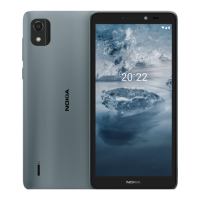
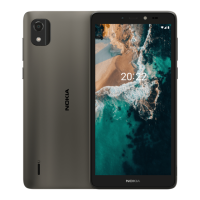
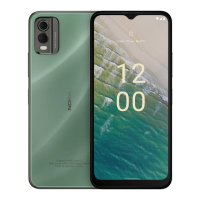
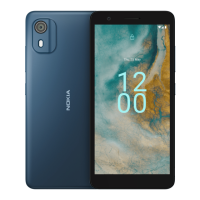
The Nokia C2 Tava / C2 Tennen is a smartphone designed for use with Cricket Wireless, offering a range of features for communication, entertainment, and productivity. This user guide provides comprehensive instructions on how to operate and maintain the device.
Function Description:
The Nokia C2 Tava / C2 Tennen is a mobile phone that allows users to make and receive calls, send and receive messages, browse the internet, take photos and videos, manage their schedule, and access various applications. It integrates with Google services for enhanced functionality, including Google Assistant, Google Maps, and Google Play for app downloads.
Important Technical Specifications:
- Operating System: Android™
- Connectivity: Wi-Fi, Bluetooth®, USB-C
- Memory: Supports microSD cards for expandable storage.
- Camera: Front and rear cameras with features like Portrait mode and Google Lens integration.
- Display: Touch screen with adjustable font and display sizes.
- Audio: Headset connector, loudspeaker, volume keys.
- Security: Screen lock (pattern, PIN, password), Find My Device.
- Battery: Rechargeable battery with power-saving features.
- SIM: Nano SIM card slot.
- IMEI: Unique identifier for the device.
Usage Features:
Getting Started:
- Keeping Phone Up to Date: Users are advised to accept software updates to ensure new features and improved performance.
- Keys and Parts: The device includes a flash, camera, headset connector, Google Assistant key, front camera, earpiece, volume keys, power/lock key, USB connector, microphone, and loudspeaker.
- SIM and Memory Card Insertion: Instructions are provided for inserting Nano SIM and microSD cards, emphasizing the use of compatible cards to prevent damage. The battery is removable and needs to be lifted out to access the card slots.
- Charging: The phone supports USB-C charging and can be charged via a wall outlet or computer.
- Switching On and Setup: First-time setup involves pressing and holding the power key, selecting language and region, and following on-screen instructions.
- Data Transfer: Users can transfer data from a previous phone using their Google account by accessing Settings > Accounts > Add account > Google. App settings and Wi-Fi passwords can also be restored from a previous Android™ phone via Settings > System > Backup.
- Locking the Phone: The power key can be used to lock keys and the screen, preventing accidental calls. Unlocking involves pressing the power key and swiping up.
- Screen Lock: Users can set a screen lock (e.g., pattern, PIN, password) via Settings > Security > Screen lock.
- Touch Screen Usage: Instructions cover basic touch screen interactions like tapping, tap and hold (for dragging items), swiping (for navigation), and scrolling (for long lists). Zooming in/out is done by pinching with two fingers.
- Screen Orientation: The screen rotates automatically, but users can lock it in portrait mode via the quick settings panel.
- Navigation Keys: The device uses navigation keys for accessing all apps (swipe up from home key), going to the home screen (tap home key), and seeing open apps (tap recent apps key). Users can switch between apps, close individual apps, or clear all open apps. The back key returns to the previous screen.
Personalization:
- Wallpaper: Change wallpaper via Settings > Display > Wallpaper.
- Ringtone: Select a phone ringtone via Settings > Sound > Phone ringtone.
- Notification Sound: Set a default notification sound via Settings > Sound > Default notification sound.
Notifications:
- Indicator icons appear on the status bar for new notifications. Dragging the status bar down reveals more information.
- Notification settings for individual apps can be changed via Settings > Apps & notifications > Notifications.
- Notification dots can be enabled via Settings > Apps & notifications > Notifications > Advanced > Allow notification dots.
Control Volume:
- Volume keys on the side of the phone adjust call and media volume.
- Volume settings can be accessed by pressing a volume key, tapping the volume icon, and dragging sliders.
- The phone can be set to silent or vibrate-only mode.
Screenshots:
- Take a screenshot by pressing and holding the power key and tapping "Screenshot," or by pressing and holding the down volume and power key for 2 seconds. Captured images are viewed in Photos.
Battery Life:
- Tips for saving battery include charging fully, muting unnecessary sounds, using wired headphones, setting a short screen timeout, adjusting brightness, enabling Battery Saver, and selectively using location services and network connections (e.g., Wi-Fi over mobile data, Airplane mode).
Automatic Text Correction:
- Keyboard word suggestions help with quick and accurate typing. Users can select suggested words or tap and hold for more options.
- Misspelled words can be corrected by tapping them.
- Spell checker can be switched off via Settings > System > Languages & input > Advanced > Spell checker.
Google Assistant:
- The Google Assistant key provides quick access to search information, translate, make notes, and set appointments.
- Pressing the key once starts Google Assistant; pressing and holding allows voice commands.
Accessibility:
- Font Size: Adjust font size via Settings > Accessibility > Font size.
- Display Size: Adjust display size via Settings > Accessibility > Display size.
- TalkBack: Enables spoken feedback for screen items. Activate via Settings > Accessibility > TalkBack > Use service. When TalkBack is on, tap an item to select, double-tap to activate, and use two fingers to scroll.
Connecting with Friends and Family:
Calls:
- Make a call by tapping the phone icon, typing a number, or selecting a contact.
- Answer calls by swiping up, reject calls by swiping down.
- Save contacts from call history via the phone icon > call history > tap number > Create new contact or Add to a contact.
- Add a new contact via Contacts > plus icon.
Messages:
- Send messages via Messages > plus icon, add recipients, type message, and tap send.
Mail:
- Add Mail Account: Set up Gmail account when using the app for the first time.
- Send Mail: Compose and send emails via Gmail.
Camera:
- Take a Photo: Open Camera, aim, focus, and tap the shutter button.
- Take a Selfie: Switch to the front camera, aim, focus, and tap the shutter button.
- Google Lens: Use the camera viewfinder to identify objects, copy text, scan codes, and search for products.
- Add Effects: Apply effects like Portrait mode via Camera > Portrait.
- Camera Settings: Access settings within the Camera app for more options.
- Record a Video: Switch to Video mode, tap to start/stop recording.
Photos and Videos:
- View: View photos and videos in the Photos app.
- Copy to Computer: Connect the phone to a computer via USB cable and use the file manager to transfer files. Set USB connection type via the notification panel.
- Share: Share photos and videos via the Photos app.
Internet and Connections:
Activate Wi-Fi:
- Turn on Wi-Fi via Settings > Network & internet > Wi-Fi and select a network.
- Encryption is recommended for security.
Browse the Web:
- Wi-Fi Hotspot: Use the phone as a Wi-Fi hotspot to share mobile data with other devices via Settings > Network & internet > Hotspot & tethering.
- Start Browsing: Use Chrome to browse the internet.
Bluetooth®:
- Connect to Device: Pair with compatible Bluetooth devices (headsets, car kits) via Settings > Connected devices > Connection preferences > Bluetooth.
- Remove Pairing: Remove paired devices via Settings > Connected devices > Previously connected devices.
- Send Content: Share content (e.g., photos) via Bluetooth.
VPN:
- Set up a virtual private network connection via Settings > Network & internet > Advanced > VPN.
- Add, edit, or delete VPN profiles.
Organize Your Day:
Date and Time:
- Update time and date automatically via Settings > System > Date & time.
Alarm Clock:
- Set alarms via Clock > Alarm.
- Modify alarms and set repeat options.
- Swipe right to switch off a sounding alarm.
Calendar:
- View calendars via Calendar.
- Add events, edit details, and delete appointments.
Maps:
- Find a Spot: Search for locations and businesses via Maps.
- Current Location: View current location on Maps.
- Get Directions: Get directions for walking, driving, or public transport.
Use Location Services:
- Maps uses satellite positioning, Wi-Fi, or network (Cell ID) for location.
- Location info can be attached to photos/videos.
- Switch on/off location services via Settings > Location > Use location.
- Mobile data connection can be turned off to avoid data costs when traveling.
Apps, Updates, and Backups:
Get Apps from Google Play:
- Requires a Google account.
- Add payment methods via Play Store > Payment methods.
- Download apps via Play Store.
Update Phone Software:
- Check for updates via Settings > Cricket Software updates > Check for updates.
- Follow on-screen instructions for updates. Ensure sufficient battery and Wi-Fi connection.
Back Up Your Data:
- Use the backup feature to save device data (Wi-Fi passwords, call history, app data) via Settings > System > Backup > Back up to Google Drive.
Restore Original Settings and Remove Private Content:
- Perform a factory reset via Settings > System > Advanced > Reset options > Erase all data (factory reset).
Maintenance Features:
Access Codes:
- Lock Code: Protects the phone from unauthorized use. If forgotten, service may be required, and data may be deleted.
- IMEI Code: Identifies the phone in the network and may be needed for care services.
Locate or Lock Your Phone:
- Use Find My Device (requires Google Account, phone turned on, signed in to Google Account, connected to mobile data or Wi-Fi, visible on Google Play, location turned on) to locate, lock, or erase a lost phone remotely via android.com/find.
Copyrights and Notices:
- The document outlines disclaimers regarding the "as is" provision of content, HMD Global's rights to revise the document, and limitations of liability for data loss or income.
- It clarifies that HMD Global does not take responsibility for third-party apps.
- Notes that downloading content may incur data charges and that product availability and features may vary by region.
- Mentions that HMD Global Privacy Policy applies to device use.
- States that HMD Global Oy is the exclusive licensee of the Nokia brand.
- Highlights that Android, Google, and related marks are trademarks of Google LLC, and Bluetooth® is owned by Bluetooth SIG, Inc.
- Cricket Wireless LLC owns the Cricket brand and logo.
- Emphasizes privacy controls for location sharing, especially for applications available through Cricket, and advises reviewing terms and conditions for location-based services.
- Mentions that Cricket provides tools to control internet access and content.

 Need help?
 General

 To Next Page