22
5.4 Menu Navigation
5.4.1 Normal Operating Screen
When the control panel is turned on the screen will flash the current setup
type, followed by the panel software version. The Normal Operating
Screen will then be displayed, pictured below. The operating screen
provides information pertaining to the height and mode of the booms. A
more detailed description of operating screens is given in Section 5.1
Typical Operation. The operating screen is the starting point, and ending
point for navigation through the menu structure.
Figure 8 – Normal Operating Screen
The following pages describe the screens that are shown as you proceed
through the SENSOR DISPLAY and SETUP menus. To navigate through
these menus, use the SENSOR DISPLAY/SETUP switch. The table in the
following section shows the structure of the main menu. The start of the
main menu is the operating screen, shown in bold at the center of the table.
DISPLAY
SENSOR
SETUP MANUAL
+
DISPLAY
SENSOR
AUTO
UC3
BOOM
CONT RO L
CONTROL
+
SETUP
SETUP
SENSOR
DISPLAY
MANU AL
AUTO
BOOM
UC3
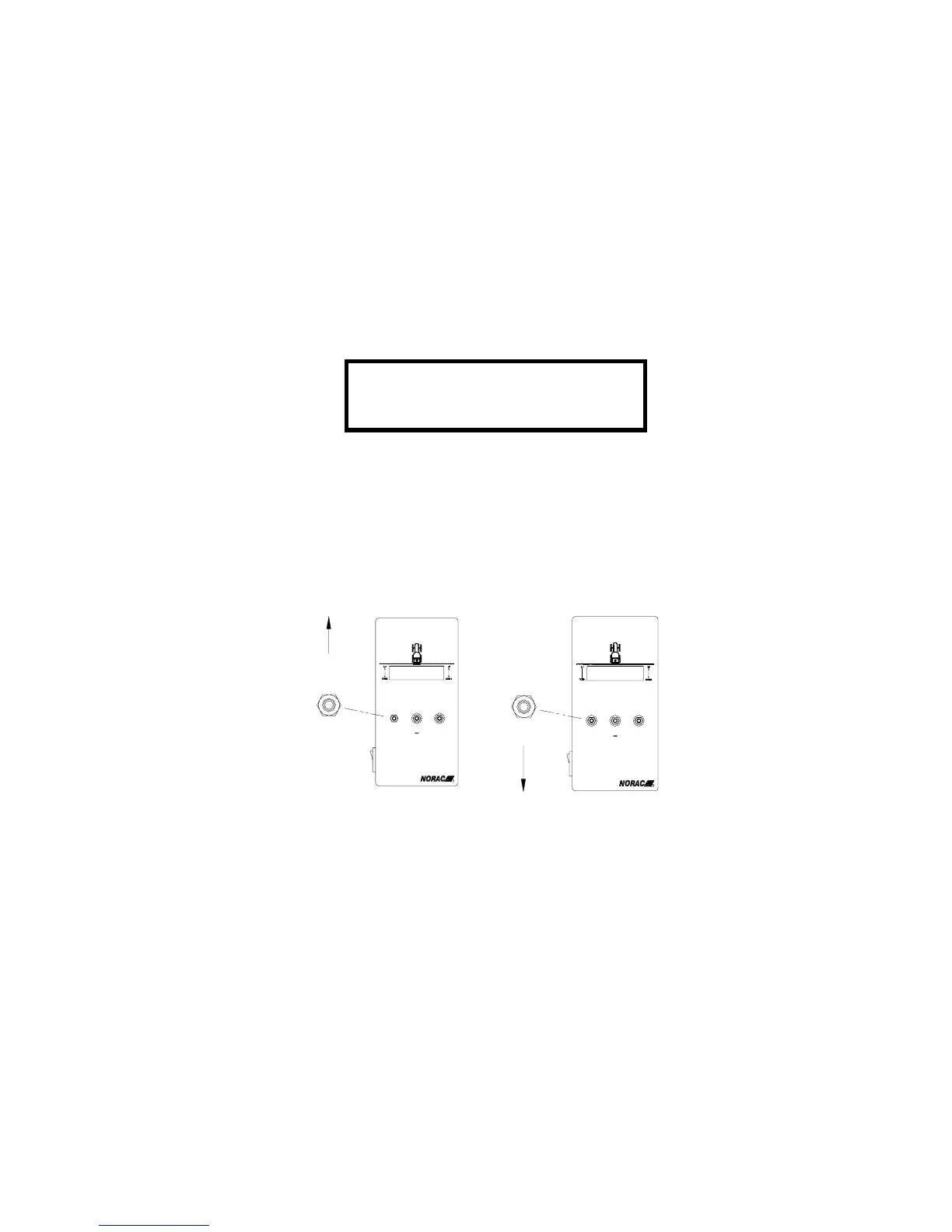
The menu is organized in a cyclic fashion, where the SENSOR
DISPLAY/SETUP switch advances you through the menu. Pressing up on
the switch toward SENSOR DISPLAY will change the screen to the next
higher row shown in the table. Pressing down on the switch toward
SETUP will change the screen to the next lower row shown in the table. If
at any time, you wish to return to the operating screen, hold the SETUP
switch down for two seconds. Also, if you remain in a menu item for 30
seconds, the menu item will time out and return to the Normal Operating
Screen.
↓
↓↓
↓30 MM 35
30 MM 3530 MM 35
30 MM 35


 To Next Page