Omni Key Keyboard User's Guide
"Sticky Keys"
Feature
Some software functions require the
user to press two or more key simulta-
neously. The Sticky Keys feature elec-
tronically locks down the SHIFT, CTRL,
and ALT keys after they are pressed,
to allow users who type with only one
hand or who have limited dexterity to
perform multiple key functions easily.
With Sticky Keys enabled, the SHIFT,
CTRL, and ALT keys to the left side of
the SPACE BAR lock down (when you
press and release it) until any other
key is pressed and released. For ex-
ample, if you press the left SHIFT fol-
lowed by two a's, the result will be
"Aa". If you accidentally press SHIFT,
CTRL, or ALT, press the same key
again and the lock will release.
The SHIFT, CTRL, and ALT keys on the
right side of the SPACE BAR act differ-
ently. If you press one of these keys, it
will remain active until you press the
same key again. For example, if you
press the right SHIFT key followed by
two a's, the result will be "AA".
To reset your computer with Sticky
Keys enabled, you may press CTRL,
then
ALT,
then
DEL.
(You may use
CTRL and ALT keys on either the left or
right side of the keyboard.)
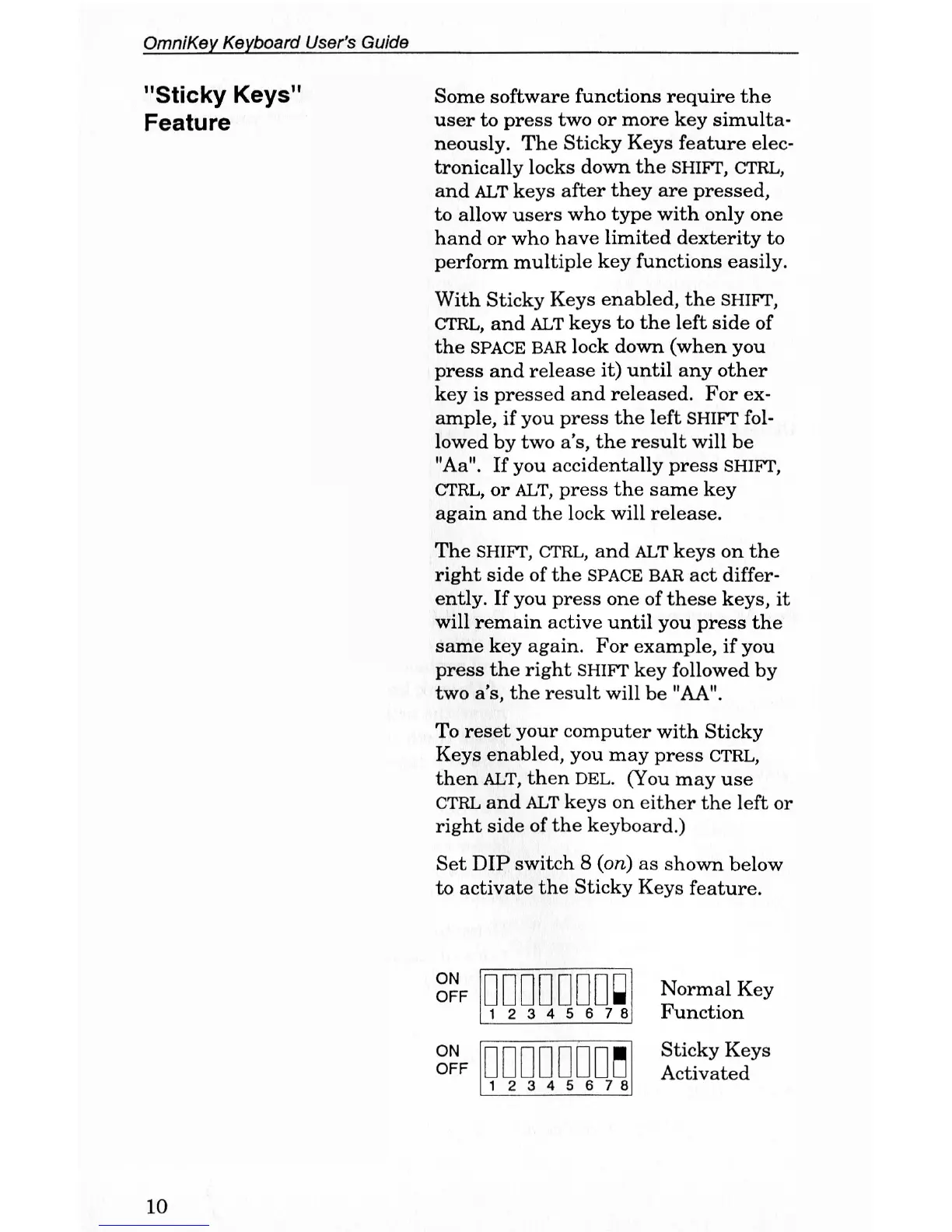
Set DIP switch 8 (on) as shown below
to activate the Sticky Keys feature.
ON
OFF
ON
OFF
•••••00B
1 2 3 4 5 6 7 8
ooooora
1 2 3 4 5 6 7 8
Normal Key
Function
Sticky Keys
Activated
10



 To Next Page