Northstar M121/M84 Installation and Operation Manual16
2-7-1 Multi window displays
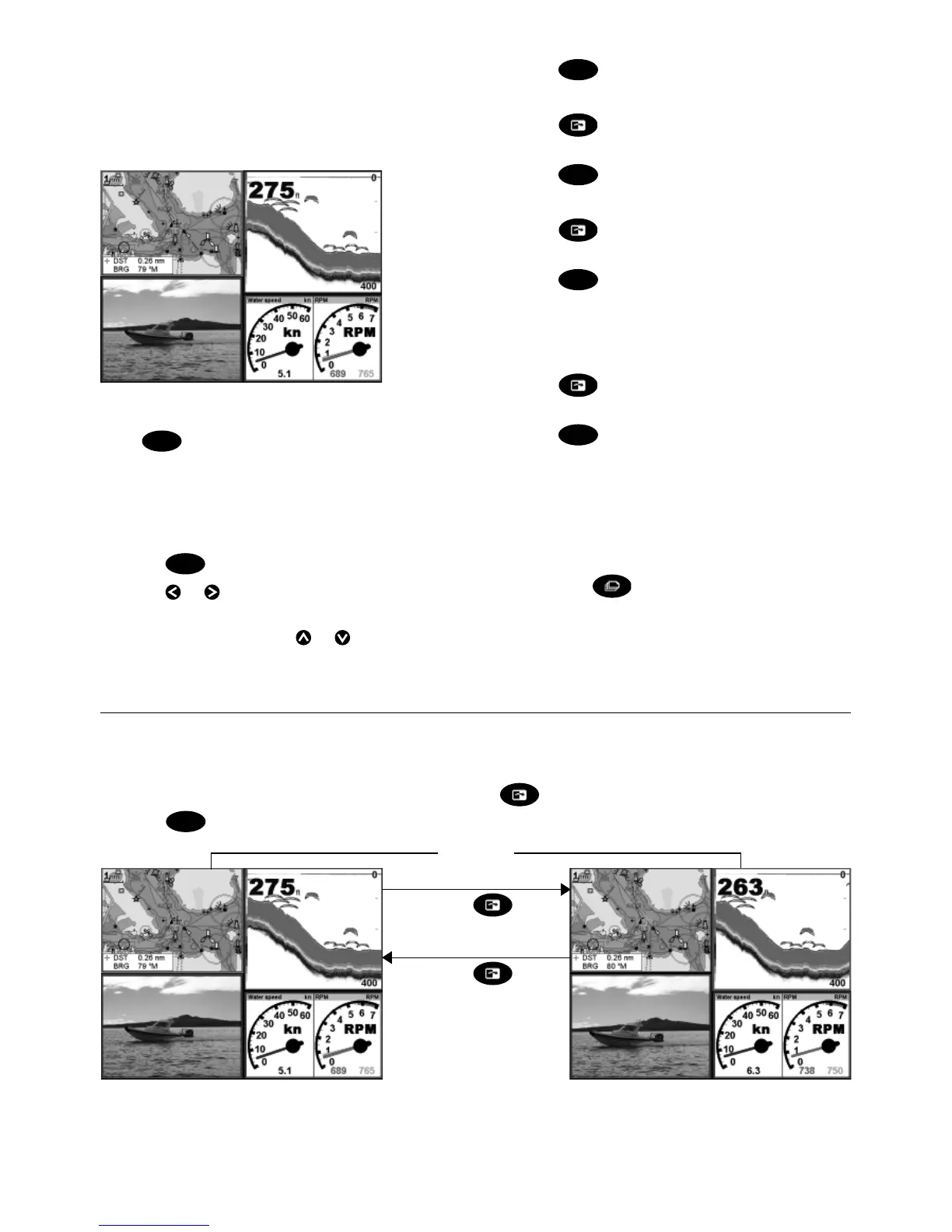
The M121/M84 can show up to four windows
at once, for example Chart, Sonar, Gauges and
Video:
Adding a window to the display
Press
DISPLAY
, select Add window and select a
window to add. The M121/M84 automatically
rearranges the display to show the new
window.
Changing window size
1 Press
DISPLAY
and select Split ratio.
2 Press
or to change the width of the
windows. If the M121/M84 is displaying three
or four windows, press
or to change
the height of the windows.
Note: Some windows are fixed in size.
3 Press
ENTER
.
Deleting a window from the display
1 Press
until the window you want to
delete has a red border.
2 Press
DISPLAY
and select Delete window.
Exchanging two windows on the display
1 Press
until the first window has a red
border.
2 Press
DISPLAY
, select Replace and select the
second window.
The M121/M84 exchanges the two windows.
Replacing a window on the display
1 Press
until the window that you want
to replace has a red border.
2 Press
DISPLAY
, select Replace and select a new
window that is not currently visible.
Note
1 When some windows are small then not all
the data is shown.
2 Set up commonly used displays as favorites
and press
to switch between displays
(see section 2-7-2).
The active window
If there is more than one window displayed, the active window is indicated by a red border. To
change the active window to the next window, press
.
Pressing
MENU
will display the options menu for the active window.
Red border
Press
Press
Chart is active Sonar is active


 To Next Page