Northstar M121/M84 Installation and Operation Manual42
To show the Sonar window, press
DISPLAY
, then
select Sonar.
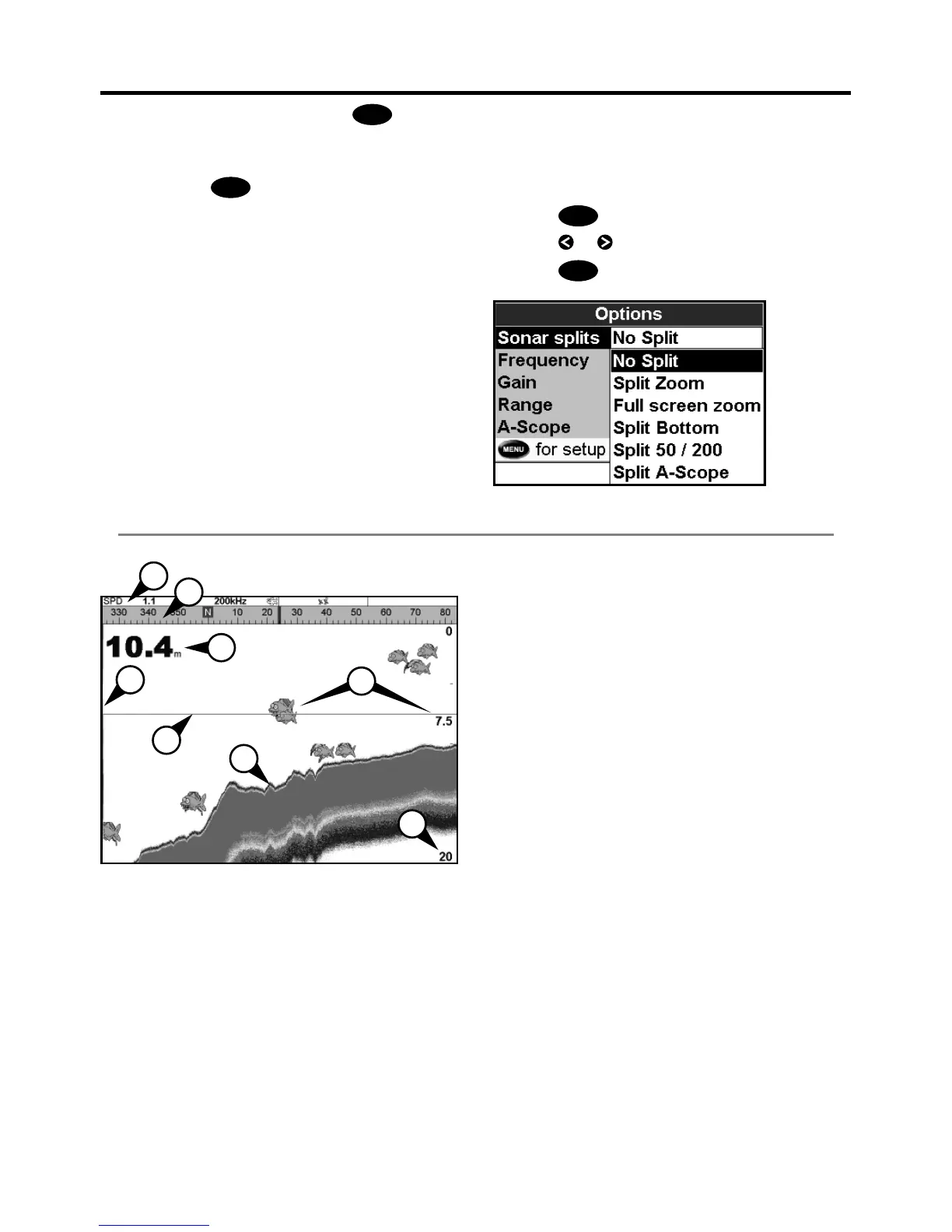
There are five kinds of sonar window. To use a
window, press
MENU
, select Sonar splits,
then select the type of window to use:
No split: Sonar history window at a single or
mixed frequency (see section 10-1).
Split zoom: Sonar history plus a zoomed
section (see section 10-2)
Full screen zoom: (see section 10-2)
Split bottom: Sonar history plus a bottom
trace in a zoomed section (see section 10-3)
Split 50/200: Sonar histories at 50 and 200 kHz
(see section 10-4)
10 Sonar fishfinding: Windows
10-1 Sonar history window - no split
A Optional data header (see section 2-7-3)
B Optional compass (see section 2-7-4)
C Depth
D Color bar
E Bottom
F Range
G Fish symbols with depth
H Depth line
The window scrolls from right (most recent
echoes) to left (oldest echoes).
Split A-Scope: Sonar history plus echo
strength (see section 10-5)
If the window is split, adjust the split ratio if
required:
1 Press
MENU
and select Sonar window split.
2 Press
or to adjust the ratio.
3 Press
ENTER
.
A
D
F
C
B
E
H
G


 To Next Page