18
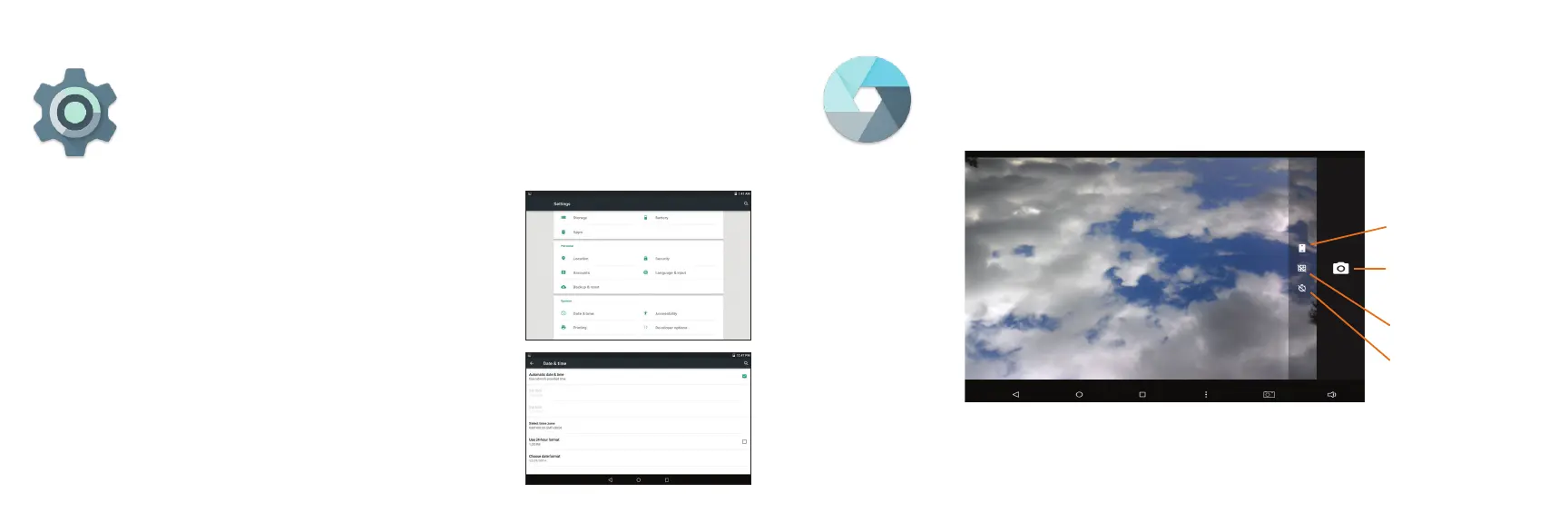
Settings: Date, Time
Tap on the Settings Icon
This will take you to the Settings page, where all adjustments for the tablet
can be made.
1) Scroll to ‘Date & Time’ under ‘Settings’, and select.
2) If you would like your Network to automatically set the
date/time, tap on the corresponding box, and a checkmark
will appear. Date and time will automatically be set. If not,
leave the checkbox empty, and you will be able to enter
this information manually.
3) You can also select your time zone, 12-hour (1-12 AM/PM)
or 24-hour format (01:00 - 24:00), and a date format.
19
Using the Cameras
Tap on the Camera Icon
You’ll be able to take “selfies” or use like a regular camera or video recorder.
1
2
4
3
1. Switch Cameras (Front/Back)
2. Take Photo
3. Add Grid Lines (on/off)
4. Timer Modes (off > 3s > 10s)



 To Next Page