1312
Connecting to the Internet
In order to connect to the internet, you will need the following:
• A wireless router or an access point with a broadband internet connection.
• The name of your network (SSID), as well as the password or other credentials,
if your network is secure.
The wireless router must support WiFi 802.11b/g/n connections.
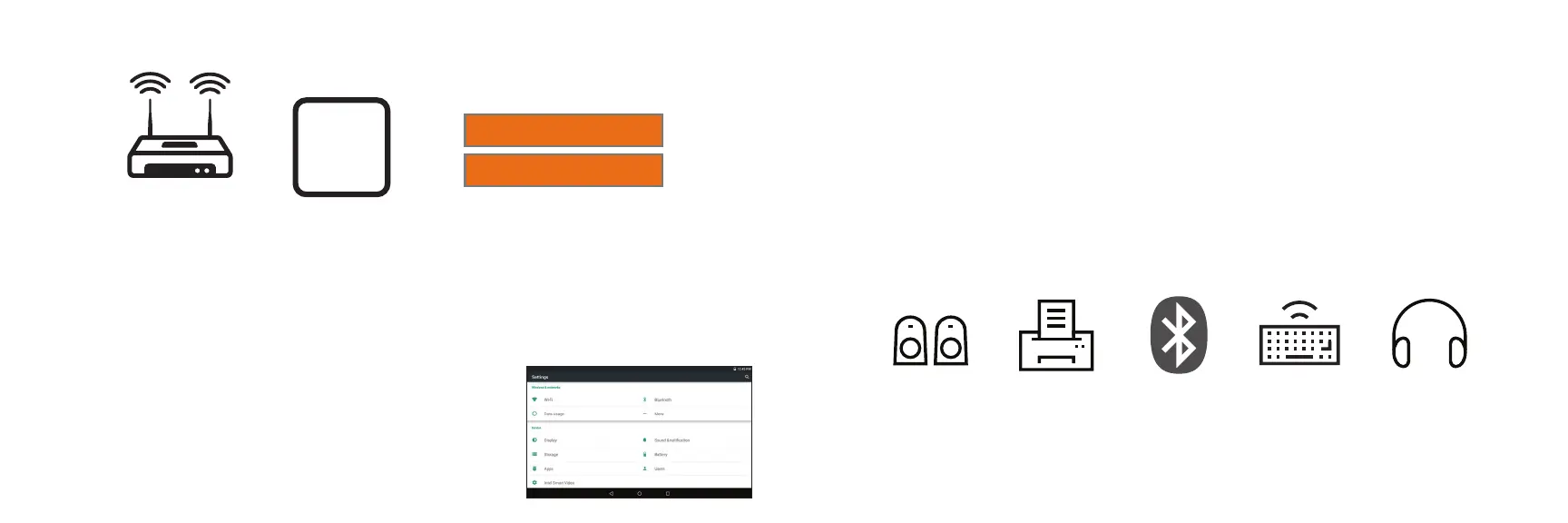
Go to SETTINGS > WIRELESS & NETWORKS > WiFi
Tap on WiFi to activate wireless connectivity. The Tablet
will scan for available WiFi networks within range. Secured
networks will require a password. Once you have successfully
entered your information the tablet will remember your
settings.
or
WiFi
Available
Here
+
Network Name/SSID
Password
Wireless Router
Wireless Router
Connecting Bluetooth
Your Tablet is compatible with Bluetooth capable devices. Once your tablet searches
and finds the Bluetooth device, follow on-screen instructions to initiate the pairing of the
device with the Tablet. Add or “pair” a Bluetooth compatible device with your Tablet as
follows:
1) Turn on the compatible Bluetooth device and make it discoverable.
2) Open the Settings > turn on Bluetooth.
3) Tap on Bluetooth to view paired devices.
BLUETOOTH



 To Next Page