Installation
Please visit https://www.obsbot.com/download to
download the OBSBOT MeetCam to get further user
experience.
Homepage
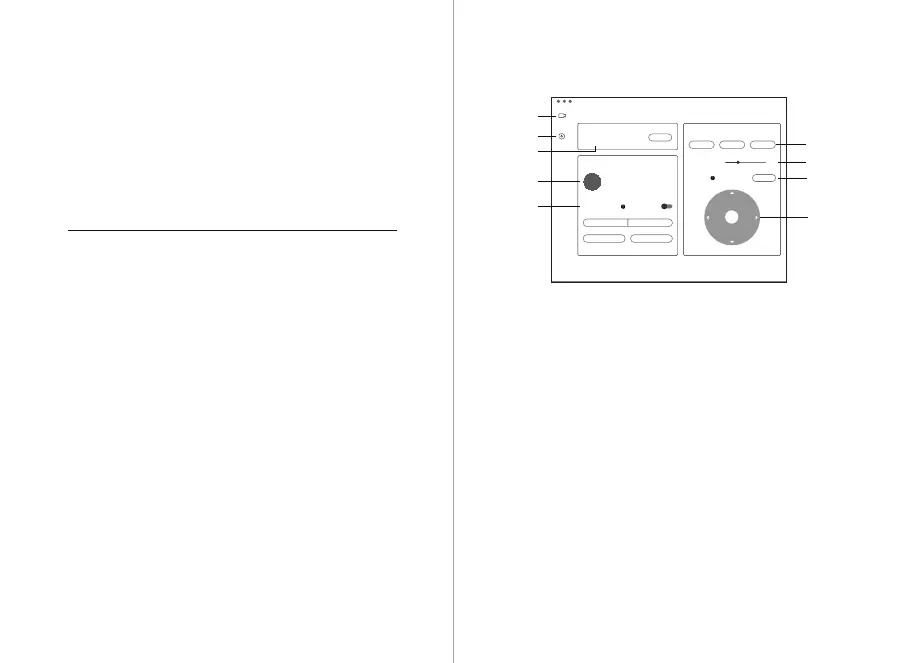
1. Homepage
2. System Setting
3. Device Status
Sleep or wake up the webcam.
4. Connect
Displaying the connection status of devices. The software
can convert up to 4 devices and users can switch the
connection among multiple devices.
5. Auto Framing
It’s off by default. After it's activated, the adjustment of field
of view, zoom and orientation will not be supported.
6. View
By default, it’s 86°. Users can configure 86°/78°/65°.
7. Zoom
Manually adjust the zoom settings. It supports up to 4X
digital zoom.
8. Reset
Reset the screen offset to make the screen return to the
default setting.
9. Direction
Manually control the view to move.
Status Button
Click
Normal mode/auto framing
Long press for 3 seconds
Sleep/wake up the device
Software Overview
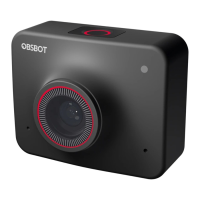
OBSBOT MeetCam is the software that comes with OBSBOT
Meet 4K for advanced settings. It is compatible with
Windows and MacOS. The users can do some control such
as enable or disable virtual background, enable or disable
auto framing, zoom in or out and so on.
OBSBOT MeetCam
10
9
AI Auto-Framing
01
02
04
03
05
07
06
09
08
None
Reset
Sleep
Single Mode Group Mode
Close-up Upper Body
Zoom
Direction
Device Status
Connect
View


 To Next Page