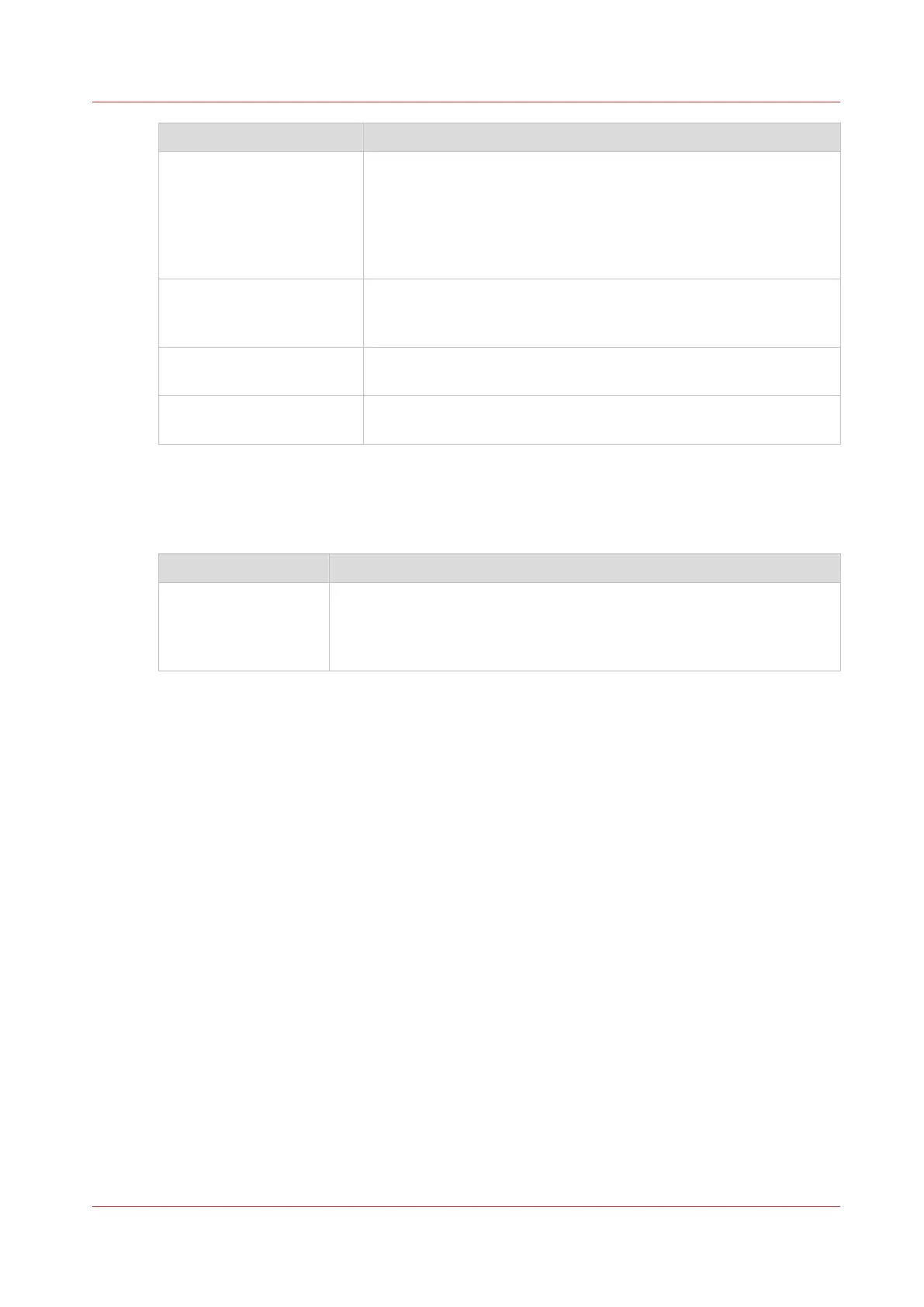
Setting Description
[Rotation] Select any option to rotate the image counterclockwise.
When you want to print faster, select [Automatic landscape]. You
can print faster due to less media transport.
Select [Automatic media saving] to use the media in the most effi-
cient way.
For more information, see
Set the rotation mode
on page 129.
[Alignment] Select any of the options to define where to align the image on the
media.
For more information, see
Set the alignment mode
on page 130.
[Horizontal shift] Define how much you want the image to shift horizontally in the
chosen alignment position.
[Vertical shift] Define how much you want the image to shift vertically in the
chosen alignment position.
Overview of the [Print job defaults] - [Image] settings
Open the [Preferences] - [Print job defaults] tab. Go to [Image] and click Edit in the upper right-
hand corner.
Setting Description
[Print quality] • [Standard] is the default value.
• Select [Lines/text] for line drawings. The lines are sharpened.
• Select [Photo] for large photos. The printed output is optimized for
large gray areas.
Set the print job default settings
Chapter 3 - Define your Workflow with Océ Express WebTools
59












 To Next Page