- 10 -
Internet connection is setup via Wireless network (WiFi).
Your radio requires a broadband Internet connection.
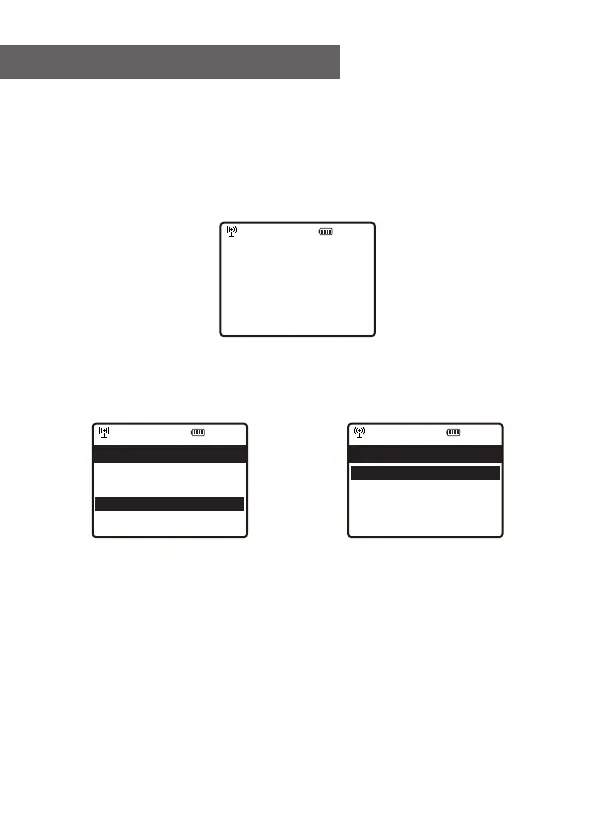
• If this is first time use, the Configure Network wizard will
be displayed. Choose Yes to start configuring network.
Press the [ ◄ ] button to highlight Yes and press [OK] to
confirm.
• Select Add/Remove AP from the list, use the navigation
control buttons to scroll and press OK to confirm, then
choose Add AP (Scan):
• It will start scanning the Wi-Fi networks available. Scroll
to your network and press [OK] to confirm. If your wifi
network has a password protected, it will ask you to enter
the passphrase/password. Please refer to the above
section 'How to input password for your wireless
network' on P.3.
Note: The password is case sensitive. Please consult with
the one who setup your network if you don't know the
password.
3. Network Setup
12:01am
Configure Network?
Yes No
←to previo us →t o nex t SelectOK whe ndo ne
12:01am
Network Options >
Wi-Fi Channels >
< Add/Remove Ap >
AP:[] >
Network 3/7
12:01am
Add/Remove AP 1/4
< Add AP(Scan) >
Add AP(WPS button) >
Add AP(SmartConfig) >
Remove AP >


 To Next Page