MNL-1012 Rev A
3
Hardware Setup
The Flame Spectrometer connects to a computer via the USB port or serial port. When connected through a USB 2.0 or 1.1 port, the
spectrometer draws power from the host computer, eliminating the need for an external power supply
Follow the steps below to connect the Flame to a computer via the USB
port:
1. Install the spectrometer operating software on the destination
computer.
2. Locate the USB cable (CBL-MICROTOA-USB) provided with the
Flame.
3. Insert the micro connector end of the cable into the side of the
Flame and the larger end of the cable into the USB port of the
computer.
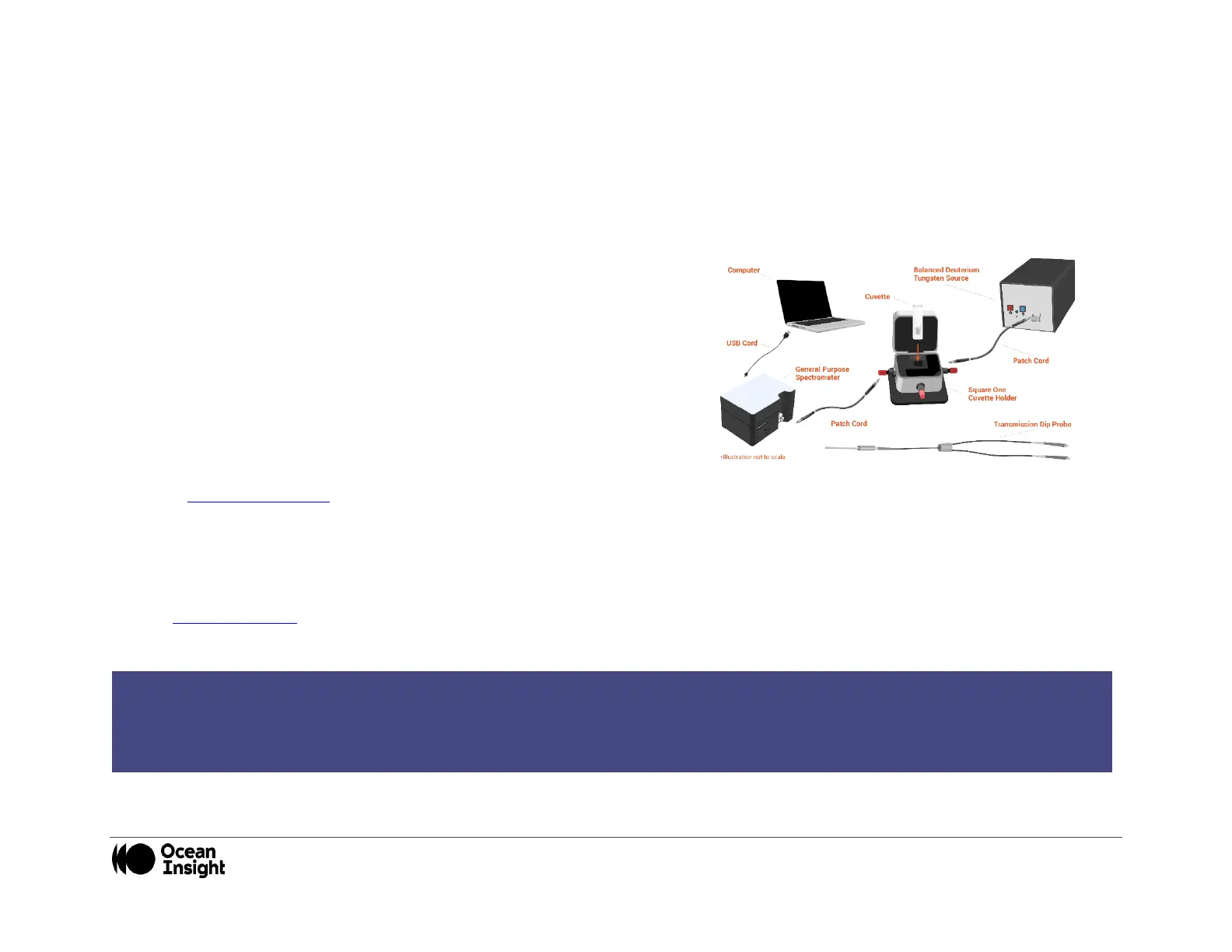
4. Connect any spectroscopy accessories. To find operating
instructions for Flame-compatible products (such as light sources,
sampling chambers, and probes), consult the Ocean Insight website
at OceanInsight.com.
5. Attach the fiber to the fiber optic connector on the spectrometer.
If you installed the spectrometer operating software prior to connecting the Flame, the software automatically installs the Flame
drivers. If the drivers do not successfully install (or if you connected the Flame to the computer before installing the software),
consult Troubleshooting.
NOTE
The Flame driver appears as USB2000+ to your computer since a common driver is used to ensure backwards and forwards


 To Next Page