EN
Copy/Move Files and Folders
(1) In the file list, scroll up and down by sliding your finger to
select the file/folder that you want to copy or move.
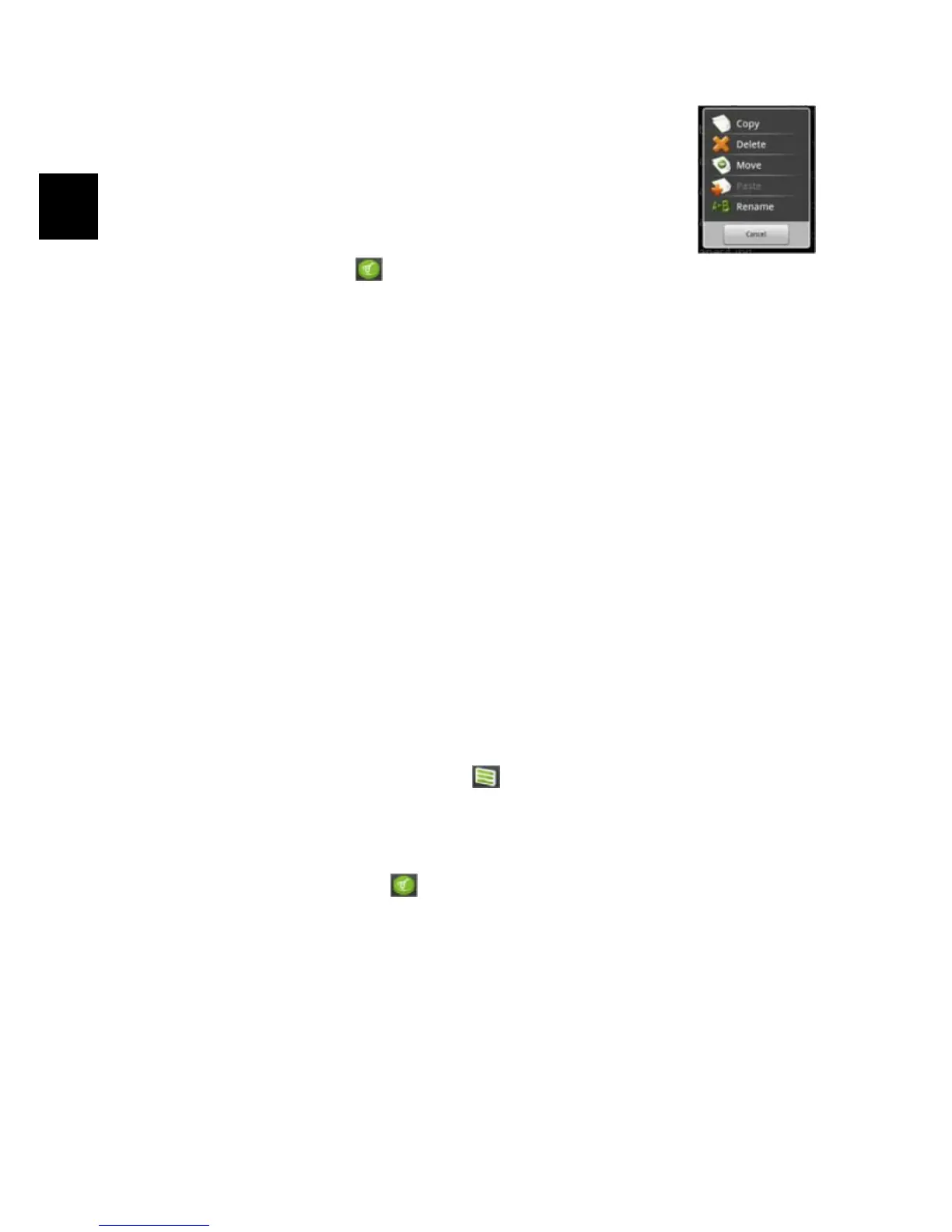
(2) Hold the selected file/folder until a pop-up menu appears.
(3) Select “Copy” or “Move” from the pop-up menu.
(4) Navigate to the location where you wish to copy or move the
file/folder to.
(5) Select the Editor icon from the toolbar and then choose “Paste.”
Delete Files and Folders
(1) In the file list, scroll up and down the list by sliding finger to select the file/folder
that you want to delete.
(2) Hold the selected file/folder until a pop-up menu appears.
(3) Select “Delete” from the pop-up menu, then select “Delete” to confirm or
“Cancel” to quit.
Rename Files and Folders
(1) In the file list, scroll up and down the list by sliding finger to select the
file/folder that you want to rename.
(2) Hold the selected file/folder until a pop-up menu appears.
(3) Select “Rename” from the pop-up menu.
(4) Tap the input field to display the virtual keyboard, and then choose letters
from the virtual keyboard to rename the file/folders.
(5) Tap “OK” to confirm the new name.
Select Multiple Items
You can select more than one file or folder together.
(1) In the top toolbar, tap the Multi icon “ .”
(2) Tap the files/folders you want to choose. The file/folder name turns red when
selected. (To deselect the file/folder, tap it again.)
(3) Once you finished selection, you can delete, copy or move the selected files by
tapping on the Editor icon .



 To Next Page