EN
9
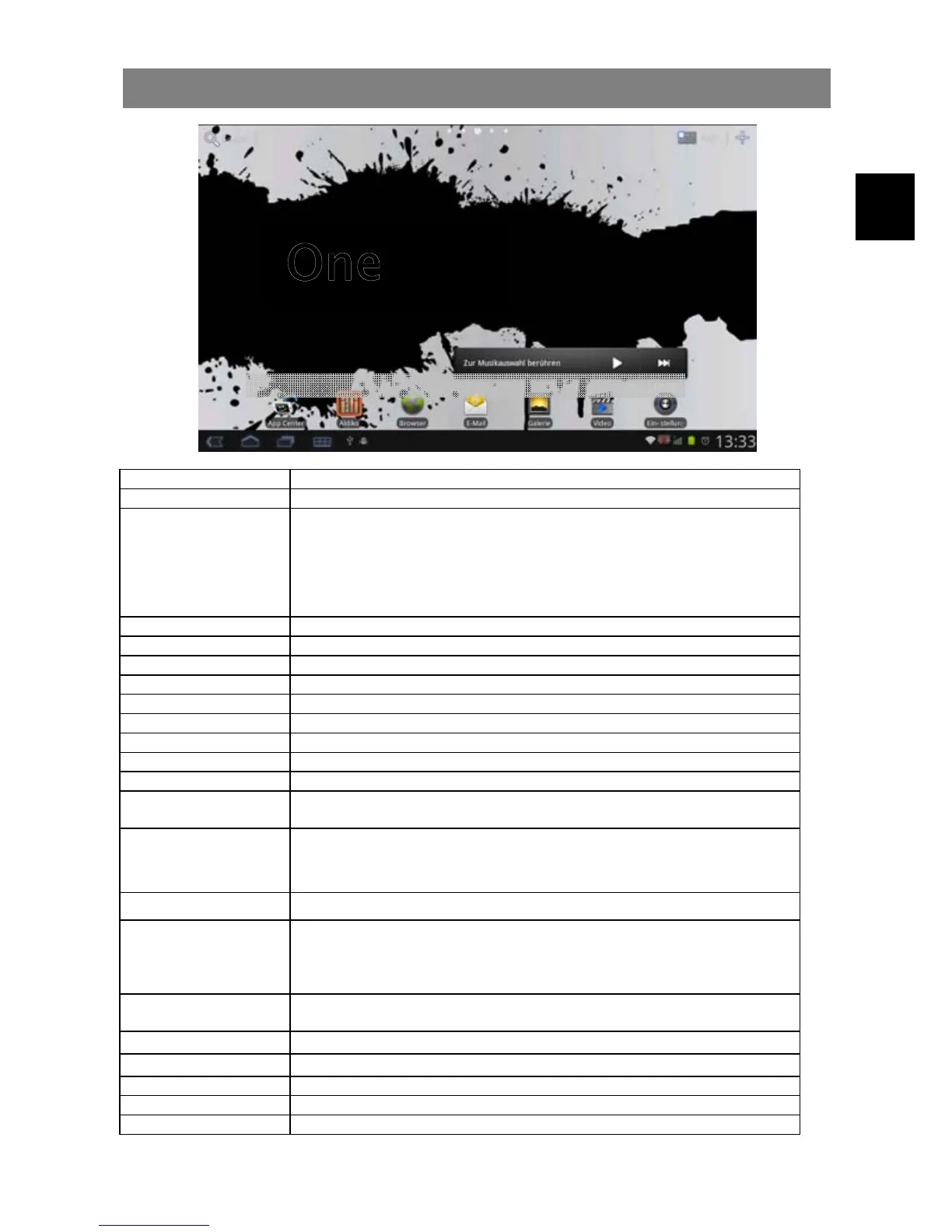
Home Screen
a. GoogleSearchBar
b. Pageindicator Showsthecurrenthomescreenposition
c. Applicationsicon TaponthisicontorevealallapplicationsinstalledonyourTablet
- Youcancop ytheapplicationsontotheHomescreenbypressing
andholdingontheiricons.
- You can delete the application from the Home Screen by dragging
their icons to the Application Tab. To delete a Home screen item,
hold your finger onto it until it is highlighted, then drag it to the
Application Tab which has become a trash icon.
d. AppstoHome Easilyaddappstotheavailablehomescreensbydraganddrop
e. Musicplayer Taptoselectstoredmusicfiles
f. AppCenter Selectandinstallnewapplications
g. Aldiko Toreadandmanagee‐booksinePuborPDfformat
h. Browser TaptolaunchtheBrowsertovisityourfavoritewebsites.
i. E‐Mail Toopenthemailclient
j. Galerie Pictureview
k. Video Videoplayback
l. Systemsettings
m. Backsoftkey Taptoreturntothepreviousscreen.Ifthekeyboardisonthescreen,taptoclose
thekeyboard.
n. Homesoftkey Taptoreturntothehomescreen.
Tapandholdtoviewalistofrecentlyusedapplications;touchanapplicationin
thelisttolaunchit.
o. Runningapps
Showappswhicharecurrentlyrunninginbackground.
p. MenusoftKey Taptoviewtheoptionmenu
Note:WhenyouTaptheMenukeyfromwithinanapplication,youwillseethe
optionsforthatapplication.ToviewtheAndroidsystemoptions,taptheMenu
keyfromthehomescreen.
q. SystemHints Informstheuserifattachedmemoryorupdatesareavailableandothersystem
statusinformation’s.Tapatthemessagestoshowmoreinformationandoptions
r. Wifi Appearswhenawirelessconnectionwasestablished
s. GSM ShowstheGSMsignalqualitywhileusinganUMTSUSBstick
t. BatteryCharge Showsthestatusofthebattery
u. Systemtasks Appearsifsystemtaskslikethealarmfunctionarerunning.
v. CurrentTime Indicatethetimelocation
e
f g h i
m n o



 To Next Page