21
Mass production
If you're receiving our mass production, please reference the following steps to active the IoT
and get connected to the server:
● Charge the scooter for more than an hour, at this time the meter display is under status of
blank screen and will not shows anything
●OKAI will provide a list of matching ICCID and QR code list, please use the ICCID codes within
this list to active the SIM card
● Use an appropriate pin to stick in the power button on the IoT for more than 5 seconds to
activate the IoT, for details please reference to <Button for power on/off switch>。
● If it's activated successfully, you'll hear the power on sound track as your configuration
setting, and the breath light on the IoT will turns to white color. If the charger is still plugged in, the
meter display will show the battery level in a percentage form. Please wait for 10 minutes, and the
IoT will connected to the server within this period.
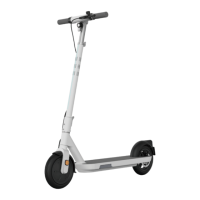
How to ride the scooter
● Unlock the scooter (IoT in test mode: Long press the button for more than 2 seconds to
unlock the scooter; IoT in normal mode: Needs the server to send RTO.Unlock to unlock the scooter
directly)
● Make sure the throttle and brake lever are both in situ, meter display function normally
● Pedal the ground and slide the scooter
● When the speed of scooter is above 3km/h, press the throttle and activate the motor
● Adjust the speed by adjusting the throttle's track
Charging the scooter
There are two ways to charge the ES400A:
● Open the battery batch, charge the battery pack directly
● Charge the scooter by connecting the charger to the charging port on the scooter
When charging the scooter directly by connecting to the charging port, meter display will
shows the charging status to let you know the scooter is in charging, detail please reference to
<charging display>; meanwhile the meter will also shows the charging battery level, detail please
reference to meter's <battery level display>。
Note: When the IoT is not activated, the meter display does not show the battery level.



 To Next Page