7. Editing Metadata
Note: This feature is currently in progress and not supported yet.
To edit metadata, keep your finger pressed on the track, album or artist name and select
“Rename” in the pop-up. Select the items you want to edit by tapping on the “+” icon next to each
item and confirm your selection with the “Done” button.
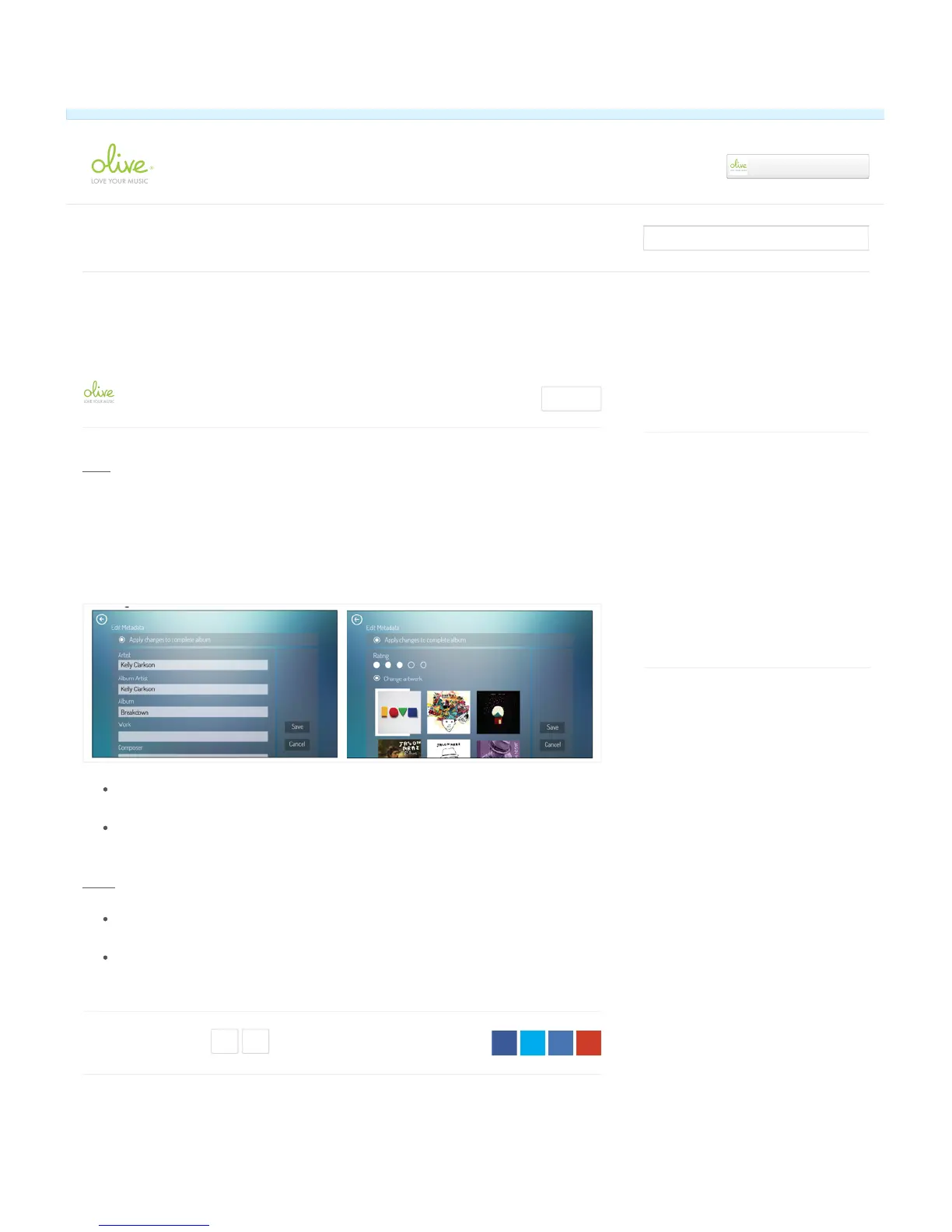
Edit Metadata Screen
You have the option to apply changes to the complete album. Track-specific metadata like
track title, track number, and rating will not be applied.
Select “Part of compilation” to make all tracks show up in a combined “compilation” folder,
and not as separate artists
Notes
Metadata can right now only be edited for music stored on your built-in HDD. We are looking
into adding metadata editing for supported UPnP software packages at a later point in time.
Metadata editing is not implemented in the current software, but will be provided in the next
test software update.
Recently viewed articles
7. Editing Metadata
6. Playlists
5. Finding the right music quickly
4. Playing music
3. Transferring music to the internal hard disk
drive (HDD)
Related articles
8. Settings
3. Transferring music to the internal hard disk
drive (HDD)
4. Playing music
✓ Article was successfully updated.
Olive ONE Support
▾


 To Next Page