
 Need help?
Do you have a question about the Olivetti d-COPIA 3500MF and is the answer not in the manual?
Details the layout, keys, and functions of the machine's control panel.
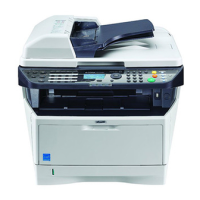
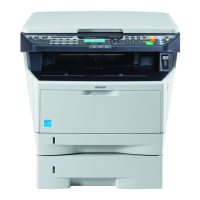
Illustrates the main unit and optional components like feeders and finishers.
Guides network and PC connection choices and required cables.
Step-by-step instructions for connecting LAN and USB cables to the machine.
Configuration steps for establishing network connectivity via LAN.
Instructions for installing necessary PC drivers and utilities from the DVD.
Procedures for correctly loading paper into the machine's cassettes and trays.
Instructions for placing originals on the platen or in the document processor.
User authentication procedures for accessing machine functions.
Step-by-step guide for performing basic copying operations.
Explains options for two-sided copying and binding.
Step-by-step guide for printing documents from PC applications.
Selecting the size of originals for scanning and sending.
Choosing the output file format (PDF, TIFF, JPEG, XPS) for scanned documents.
Securing PDF files with passwords for restricted access.
Selecting scan resolution to optimize image quality and file size.
Creating and managing custom storage boxes for documents.
Saving scanned files directly to a USB memory device.
Viewing the status of active, waiting, and completed jobs.
Procedures for canceling jobs that are being processed or are waiting.
Monitoring the status of consumables like toner and paper.
General settings for language, sound, paper, and error handling.
Configuration of network settings including TCP/IP, protocols, and services.
Settings for data protection, sanitization, and security levels.
Configuring user authentication methods and access levels.
Setting up and managing job accounting for tracking usage.
Routine upkeep procedures, including toner and waste toner box replacement.
Step-by-step instructions for replacing the toner container.
Procedures for cleaning machine parts like the platen and slit glass.
Instructions for cleaning the scanner's slit glass and dual scanning unit.
Table of common symptoms, checkpoints, and corrective actions for issues.
Guides for handling specific error messages displayed on the touch panel.
Step-by-step instructions for removing paper jams from various locations.
Lists and describes optional hardware accessories for the machine.
Details supported paper types, sizes, weights, and specifications.
Lists the machine's technical specifications for performance and hardware.
 General
| Brand | Olivetti |
|---|---|
| Model | d-COPIA 3500MF |
| Category | All in One Printer |
| Language | English |







 To Next Page