EasyManua.ls Logo

Olivetti d-Copia 500 - User Manual

Olivetti d-Copia 500
288 pages
Print Icon
To Next Page IconTo Next Page
Loading...
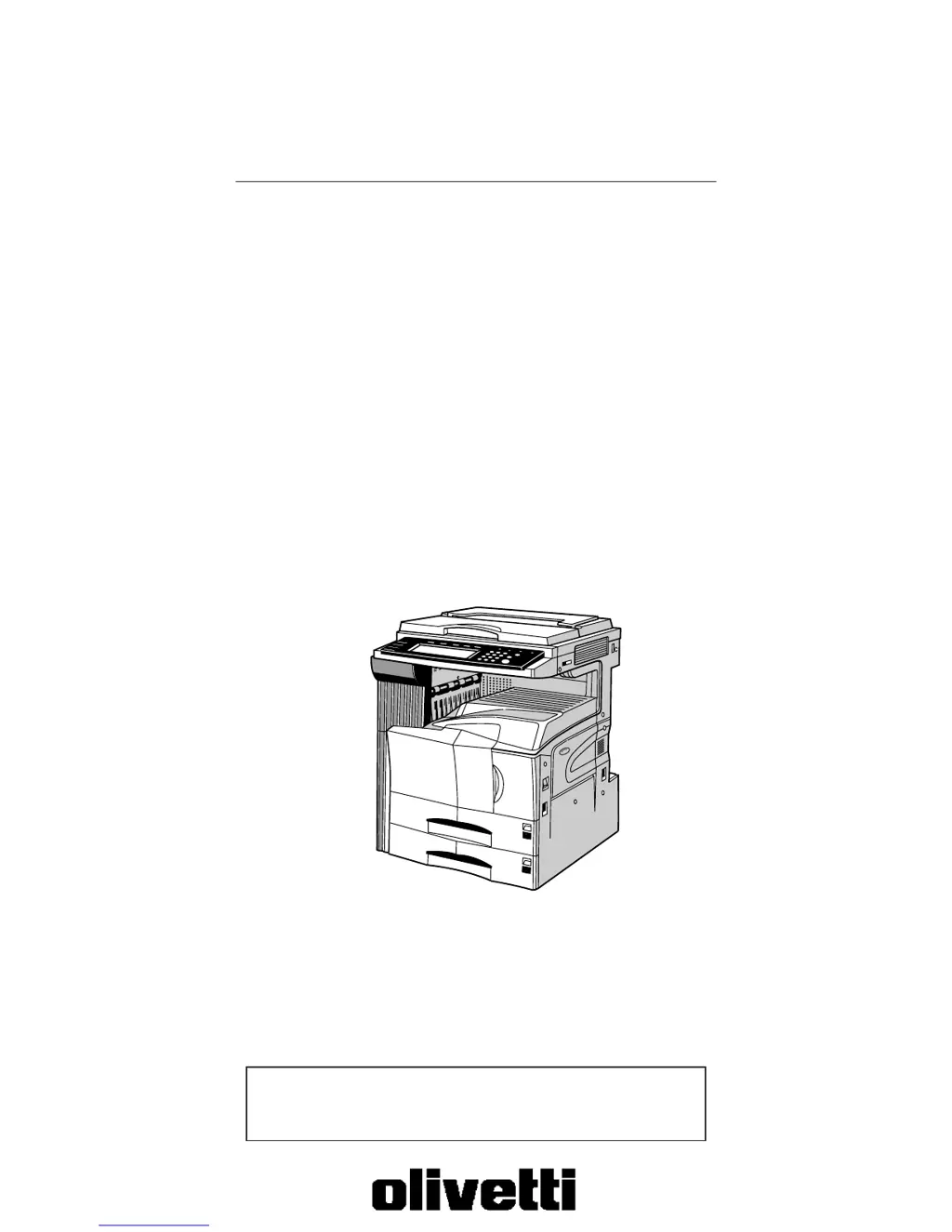
Copier Operation Guide
Please read the operation guide before using the copier.
Keep it close to the copier for easy reference.
d-Copia 300
d-Copia 400
d-Copia 500

Table of Contents

Other manuals for Olivetti d-Copia 500

Questions and Answers

  • M
    Michael StewartSep 12, 2025
    Why does my Olivetti All in One Printer say 'Reposition original'?
    • D
      Deborah ChristianSep 12, 2025
      If your Olivetti All in One Printer displays 'Reposition original', it means that the orientation of the original and the selected paper are different. Change the orientation of the original.
  • M
    Michael WilsonSep 13, 2025
    What does 'Exceeds pre registered copying quantity' mean on my Olivetti d-Copia 500 All in One Printer?
    • J
      Jennifer SmithSep 13, 2025
      If your Olivetti All in One Printer displays 'Exceeds pre registered copying quantity', it means that the number of copies has reached the limit set in the copy management mode, and no more copies can be made. Clear the copy count from the management mode.
  • D
    danielle18Sep 15, 2025
    What does 'Copy limit for this ID-code has been reached' mean on my Olivetti d-Copia 500 All in One Printer?
    • D
      Donna PearsonSep 15, 2025
      If your Olivetti All in One Printer displays 'Copy limit for this ID-code has been reached. No copying possible', it means that the number of copies has reached the limit set in the copy management mode, and no more copies can be made. Clear the copy count from the management mode.

Summary

Section 1 IMPORTANT! PLEASE READ FIRST.

CAUTION LABELS

Details safety labels attached to the copier for user awareness.

INSTALLATION PRECAUTIONS

Covers environmental factors and power supply/grounding requirements for safe installation.

PRECAUTIONS FOR USE

Outlines essential safety measures and warnings for operating the copier.

Section 2 NAMES OF PARTS

1. Main body

Identifies and describes the primary physical components of the copier's main unit.

2. Operation panel

Explains the function of each key and indicator on the copier's control panel.

Section 3 PREPARATIONS

1. Loading paper

Provides instructions for correctly loading various types of paper into drawers and bypass tray.

Section 4 BASIC OPERATION

1. Basic copying procedure

Outlines the fundamental steps required to perform a standard copy operation.

2. Enlarging;reducing the copy image

Details how to adjust the magnification ratio for copying, using zoom and preset modes.

Section 5 OTHER CONVENIENT FUNCTIONS

1. Making 2-sided copies from various types of originals [2-sided copy modes]

Explains how to create copies on both sides of the paper from different original types.

20. Making more of the same copies after a copy job is finished [Repeat copy mode]

Describes how to re-print copies from a previously registered job, optionally with security.

Section 6 DOCUMENT AND OUTPUT MANAGEMENT FUNCTIONS

1. Document management functions

Introduces functions for scanning, saving, and managing documents on the copier's hard disk.

2. Output management functions

Explains how to manage print jobs, including checking status and controlling the print queue.

Section 7 COPIER MANAGEMENT FUNCTIONS

1. Copy management mode

Details features for managing copy usage by department ID, including limits and restrictions.

2. Default settings

Lists and explains the factory default settings for various copier functions.

Section 8 OPTIONAL EQUIPMENT

(1) Document Processor

Describes the automatic document feeder for scanning originals, including its capabilities and precautions.

Section 9 TROUBLESHOOTING

1. If one of the following messages is displayed

Provides actions to take when specific error or status messages appear on the display.

3. When paper misfeeds

Offers procedures for removing jammed paper from various locations in the copier.

Section 10 MAINTENANCE AND OPERATION INFORMATION

1. Cleaning the copier

Instructions for cleaning the original cover, platen, separator, and transfer roller.

2. Replacing the toner container and waste toner box

Step-by-step guide for safely replacing the toner and waste toner containers.

3. Specifications

Lists the technical specifications of the copier, including dimensions and performance.

Olivetti d-Copia 500 Specifications

General IconGeneral
BrandOlivetti
Modeld-Copia 500
CategoryAll in One Printer
LanguageEnglish

Related product manuals