User Guide
| 07
Home screen menu
Press [ Menu] on the desktop, and it displays desktop Menu, including: Add, Wallpaper, Search, Notication, Settings. Touch any
option to enter its interface and operate the corresponding functions.
1. Add: tap “Add”, select a category of elements (shortcuts, widgets, folders, wallpapers) and then select one of these; lastly, tap “Save”
or “Set as wallpaper” to set this as wallpaper.
2. Wallpaper: tap “Wallpaper”, then select the element to be added, choosing this from albums, animated wallpapers, wallpapers.
3. Search: Tap “Search” to enter “Google Search”.
4. Notication: Tap “Notication” to enter the notication interface quickly.
5. Settings : Touch “Settings” to enter “Setting” directly.
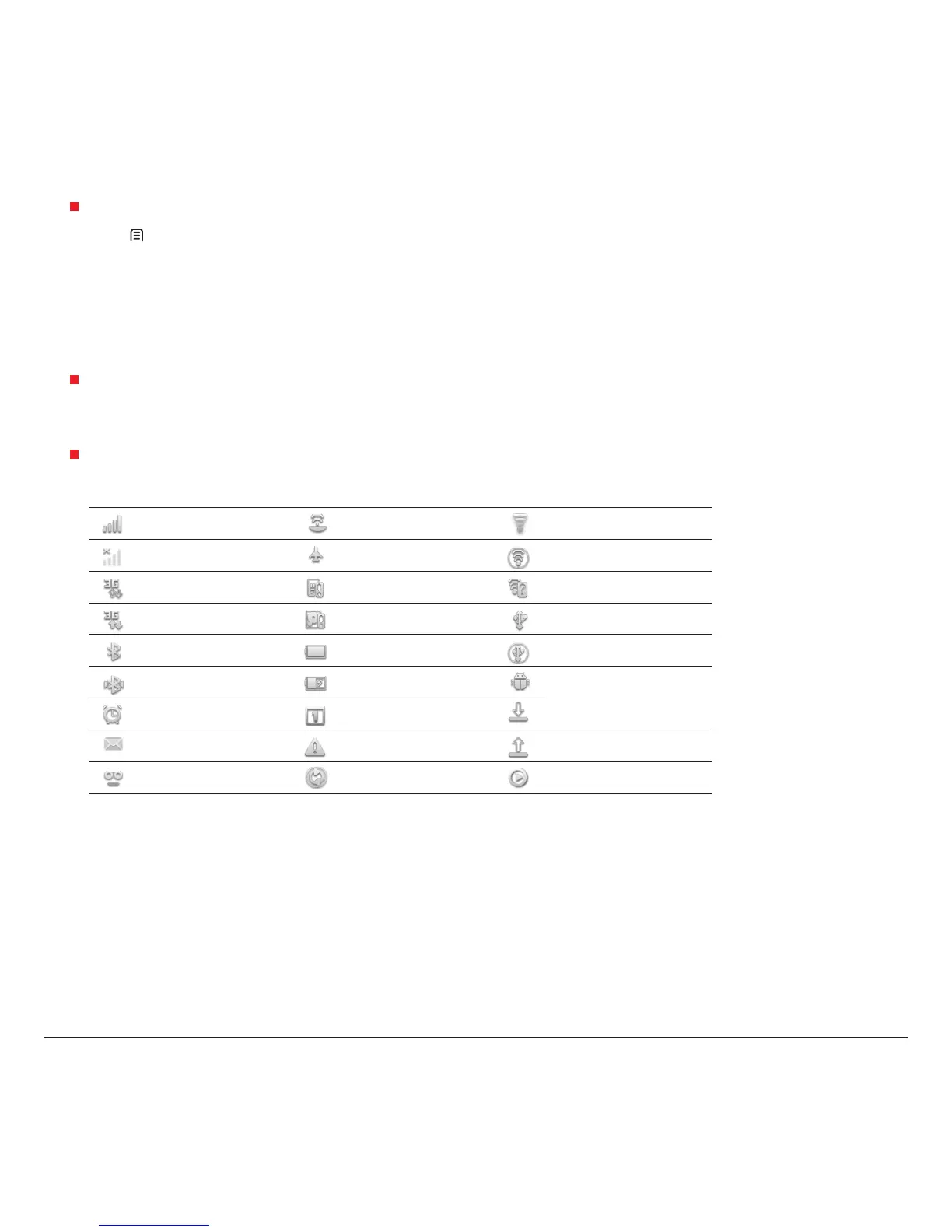
Status & Notication
The status bar at the top of the screen contains icons that tell you about messages and your device’s status. To view your notications,
tap the status bar and drag it down.
Indicator icons
Icon Description Icon Description Icon Description
Signal strength GPS on Wi-Fi connected
No service Airplane mode Mobile AP acvated
3G connected No SIM card An open Wi-Fi available
3G in use Full disk USB connected
Bluetooth on Baery USB tethering
Bluetooth connected Charging
USB debugging
Alarm clock Event nocaon
Downloading data
New mail Noce Uploading data
New voicemail Data is syncing Song is playing
Note: The illustrations are for reference only.



 To Next Page