15
A: Shows that the selected recording is a video.
If this does not appear,the selected recording is a photo. B: Shows the resolution of the
selected video or photo
C: Battery charge level display
D: Shows the current recording number as well as the total number of recordings.
E: Write protection status of the selected le
F: Date/Time recording was made
G: Indicator for type of SD card being used
You can use the
/ buttons to scroll through the recordings and view them on the display.
Press the
button to zoom in on the image on the display. Press the button to zoom out
again. Press the or button briey to move the image section up or down. Hold down the
or button to move the image section sideways. If the image is zoomed, the correspond-
ing zoom factor is also shown on the display.
If the currently selected recording is a video, press the
button to play back the video. Press
the button again to stop the video. If you press the button, the video will run backwards
to the beginning. Press MENU button to exit the video playback. If you now press the MENU
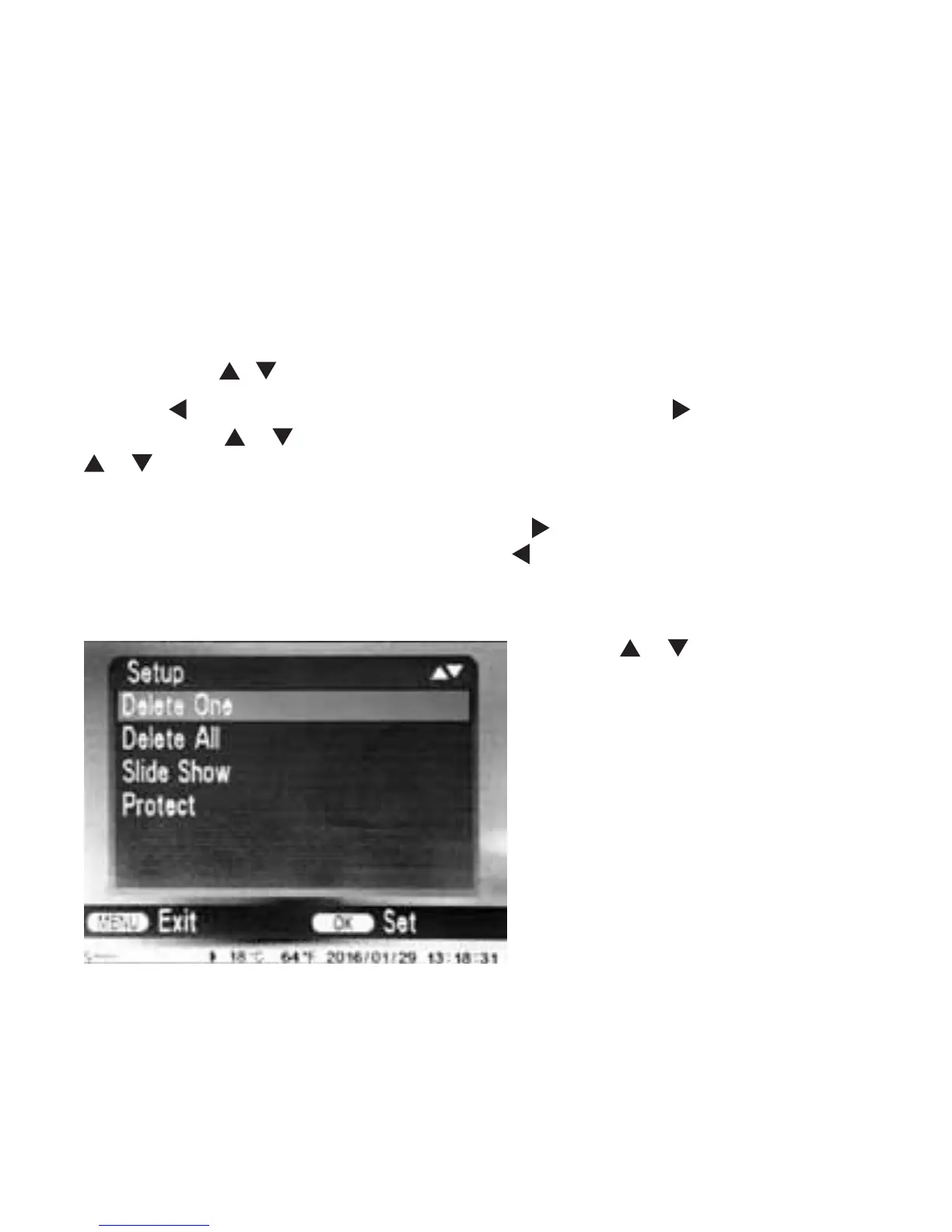
button, the settings menu opens:
Press the
or buttons to select
the desired menu entry which you can
then activate with the OK button. Use
the MENU button to navigate one menu
level backwards.
6.1 Delete One
You can use this function to delete individual recordings from the memory card. After you have
called up this function, move the select bar to “Delete “ and press OK to delete the selected
recording.


 To Next Page