8
Note
• The device supports SD/SDHC memory cards with a capacity of up to 32 GB.
• To avoid malfunctions, keep the memory card away from moisture and avoid strong vibra-
tion, dust, heat sources and direct sunlight.
• Insert the memory card as indicated by the icon on the slot.
• Never force the memory card into the slot. Never bend or twist the memory card.
• Major uctuations in temperature or humidity can lead to condensation which could cause
an electrical short-circuit. Keep the memory card in the protective case when not in use.
• Please use a name-brand SD card and format before using in this devise.
Functions Setting
After connecting a power supply, move the operating mode selector switch to the “TEST” posi-
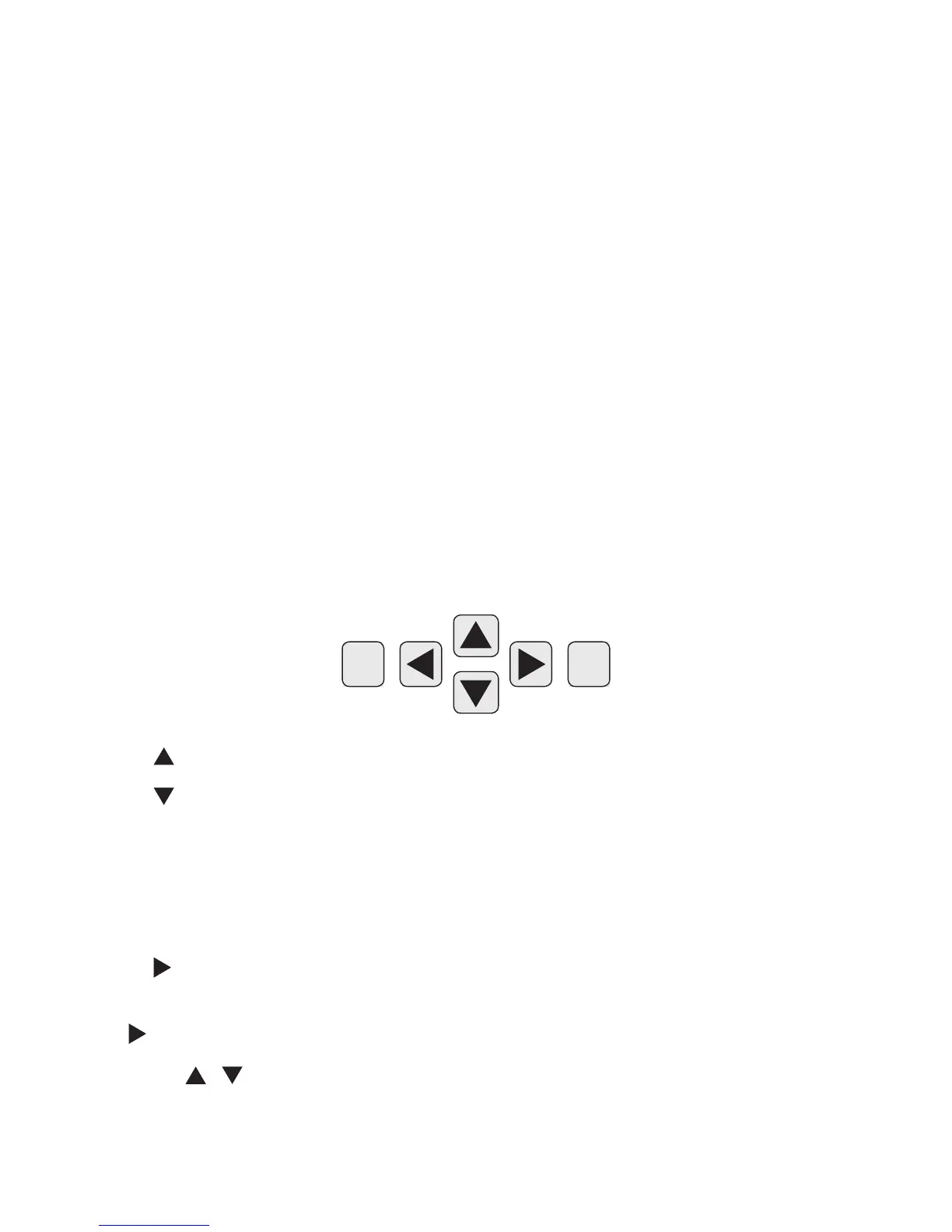
tion to make the settings described on the following control panel buttons. Press the MENU
button to enter/exit the main menu and start a menu option through the directional arrow
buttons. Conrm you settings by pressing the OK button, or you will lose your new setting.
1) Press button to switch from photo to video mode to shot video clips.
2) Press
button to switch from video to photo mode to take still photos.
3) Press the MENU button to open the settings menu.
NOTE: If you do not open the setting menu in 3 minutes, the camera will enter into sleep
mode, and the screen will be turned off, but it will be turned on if any key is pressed. If you do
not open the setting menu within 10 minutes, the camera will power off automatically.
4) Press
key to manually trigger the camera shutter. A photo or video (depending on the
camera setting) will be taken and saved to the SD card.
Also,
press to Play / Pause the video.
5) Press the
/ buttons to select the desired menu entry which you can then activate with
the OK button. If you change settings, you must always conrm your changes with “OK”. Use
the MENU button to navigate one menu level backwards.
MENU OK


 To Next Page