4
ENGLISH Quick Start Guide
Please note:
The terms HDMI and HDMI High-Definition Multimedia Interface,
and the HDMI Logo are trademarks or registered trademarks of
HDMI Licensing Administrator, Inc. in the United States and other
countries.
Using the camera in the camera-specific WLAN
When operating the camera with a Windows PC, the free EPview
software is required. It does not matter whether the Windows PC is
a laptop, a notebook or a desktop PC. Just make sure that the
Windows PC is a WLAN enabled device and uses one of these
operating systems:
Windows 7 (32/64 bit)
Windows 8.1 (32/64 bit)
Windows 10 (32/64 bit)
When operating the camera with a mobile device, the free EPview
app is required. It does not matter whether the mobile device is a
smartphone or tablet. Just make sure that the mobile device uses
one of these operating systems:
iOS 11 or higher
Android 5.1 or higher.
Please note:
Android is a trademark of Google LLC.
Setup overview
Install the EPview software on your Windows PC.
Alternatively, install the EPview app on your mobile device.
Plug the WLAN adapter into the USB port of the camera.
Connect the camera to the power supply and switch it on.
Connect the Windows PC or mobile device with the WLAN that
the camera provides.
The network name (SSID) and the WLAN password can be
found on the camera (on the sticker that contains the QR
code).
In the EPview app, you can also use the QR Code function to
scan the QR code with the camera of your mobile device.
Start the EPview software or the EPview app and check the
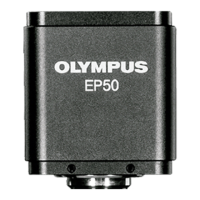
configuration. Normally, the OLYMPUS EP50 camera is auto-
matically recognized.
In the EPview app, select the camera by tapping on the
thumbnail. In the EPview software, the camera is automa-
tically selected.


 To Next Page